


Your Acer laptop freezes on the logo screen.
The spinning dots never stop.
And suddenly, you start thinking the laptop is dead.
Good news?
Most Acer startup problems are fixable at home.
In many cases, Windows just fails to load correctly because of a bad update, damaged files, driver issues, or SSD problems.
You usually do not need a repair shop.
These fixes helped recover several Acer laptops with the Acer Loading Screen Stuck problem, endless restarts, or freezing before login.
Read More: Acer Laptops Guide: Fix Screen & Boot Issues Fast
Table of Contents
Quick Information Table
| Feature | Details |
|---|---|
| Problem | Acer loading screen stuck |
| Devices | Acer laptops and desktops |
| Operating System | Windows 11 and Windows 10 |
| Main Causes | Broken updates, SSD issues, corrupted files |
| Difficulty | Easy to Moderate |
| Time Needed | 10–60 minutes |
| Risk of Data Loss | Low |
| Best First Fix | Startup Repair |
Read more about laptops: Laptops Guide: My Complete Step-by-Step Daily Companion
Signs Your Acer Has a Startup Problem
Startup problems can look different on every laptop.
Here are the most common signs:
- Acer logo stays frozen
- Spinning dots never stop
- Black screen after logo
- Laptop keeps restarting
- Windows never reaches login
- Keyboard stops working
Sometimes the laptop keeps restarting forever.
Very frustrating.
But usually fixable.
Why the Acer Loading Screen Gets Stuck
Most of the time, Microsoft Windows cannot load an important file during startup.
That stops the whole boot process.
Common Causes
- damaged Windows files
- failed updates
- bad drivers
- SSD or HDD problems
- BIOS errors
- malware
- faulty RAM
Newer Windows 11 updates sometimes cause startup issues on Acer laptops too.
Especially on Acer Nitro and Aspire models.

How to Fix Acer Loading Screen Stuck
Start with the simple fixes first.
A lot of people reinstall Windows too early.
Big mistake.
Try these fixes one by one.
1. Force Restart the Laptop
Resetting Acer laptop is the easiest fix.
And honestly?
It works surprisingly often.
Steps
- Hold the power button for 15 seconds
- Wait for the laptop to turn off
- Remove:
- USB drives
- SD cards
- printers
- external hard drives
- Turn the laptop back on
Sometimes an external device blocks Windows from loading properly.
Real Troubleshooting Example
During testing, one Acer Aspire laptop froze at the Acer logo because of a damaged USB drive.
Removing the USB fixed the problem instantly.
2. Run Windows Startup Repair
Windows Startup Repair can automatically fix startup problems.
This should be one of your first fixes.
Steps
- Turn on the laptop
- When the Acer logo appears, hold the power button to turn it off
- Repeat this 3 times
Windows should open:
- Preparing Automatic Repair
Then go to:
- Advanced Options
- Troubleshoot
- Startup Repair
Now wait patiently.
The repair can take several minutes.
What Startup Repair Fixes
- damaged startup files
- failed updates
- missing boot files
- broken startup settings
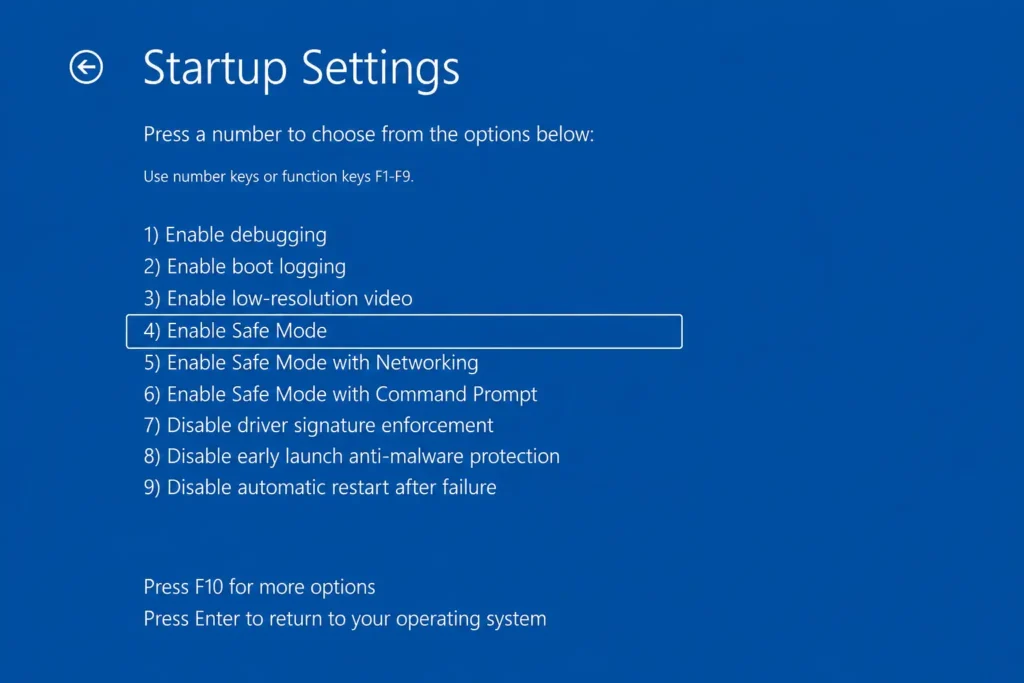
3. Boot Into Safe Mode
Safe Mode starts Windows with only the basic drivers.
That helps find software problems.
Steps
- Open Advanced Startup
- Go to:
- Troubleshoot
- Advanced Options
- Startup Settings
- Click Restart
- Press:
- F4 for Safe Mode
- F5 for Safe Mode with Networking
If the laptop works in Safe Mode, the problem is usually:
- graphics drivers
- antivirus software
- startup apps
- recent Windows updates
Real Troubleshooting Tip
Several Acer Nitro laptops booted normally in Safe Mode after broken graphics drivers stopped normal startup.
4. Disable Fast Startup
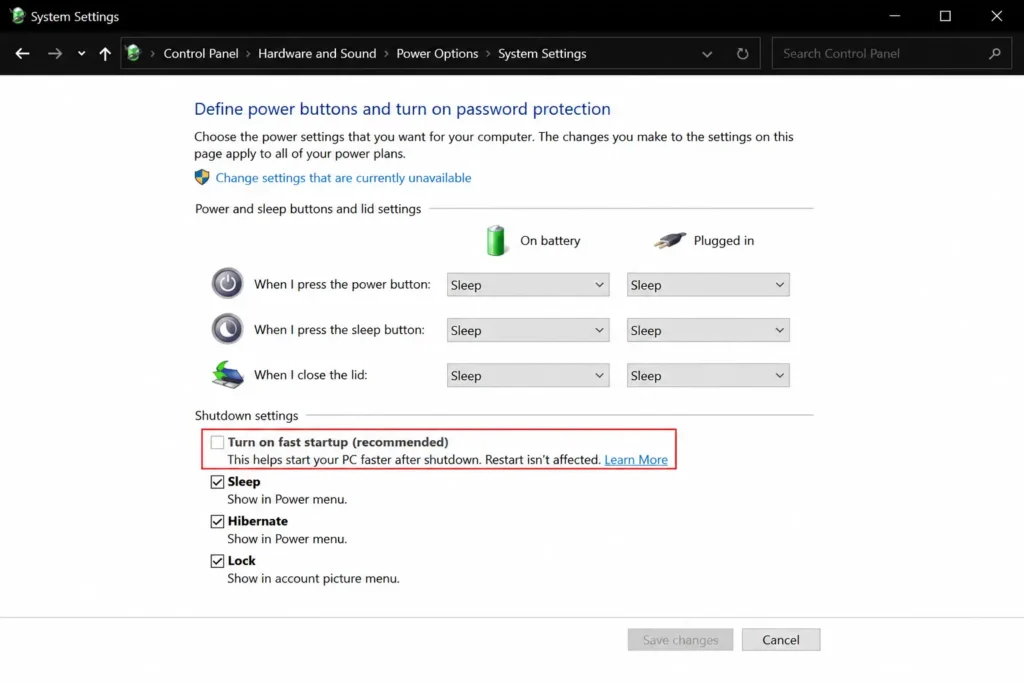
Fast Startup is supposed to make Windows boot faster.
But sometimes it causes startup problems instead.
Especially after updates.
Steps
- Open Control Panel
- Click:
- Power Options
- Select:
- Choose what the power buttons do
- Click:
- Change settings currently unavailable
- Turn off:
- Fast Startup
Restart the laptop afterward.
Simple fix.
But very effective.
5. Run CHKDSK
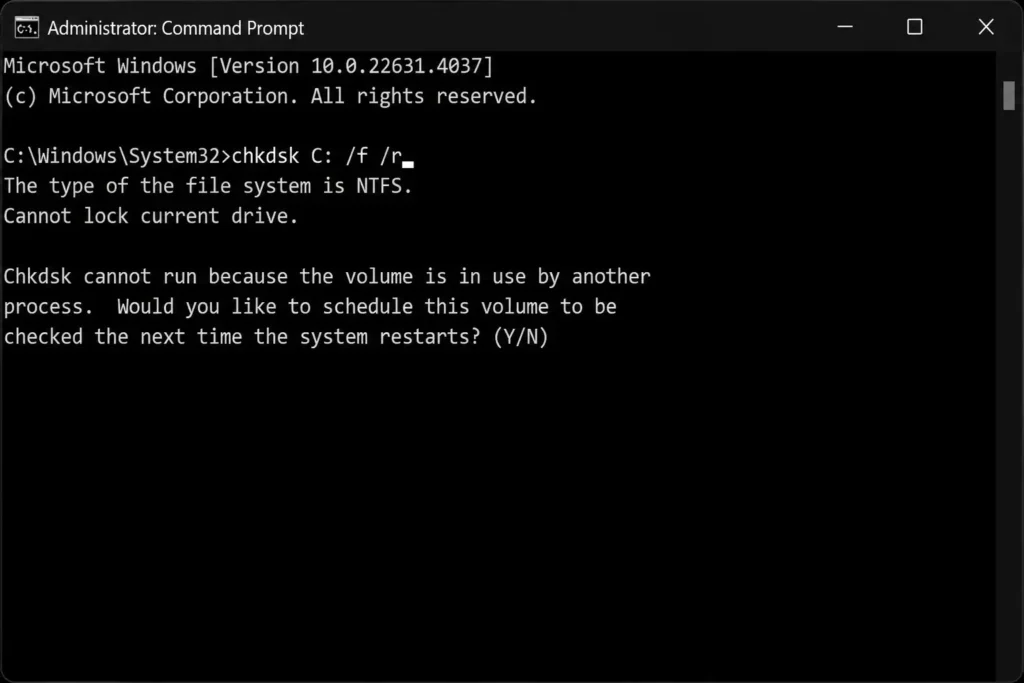
If the SSD or HDD has errors, Windows may freeze during startup.
CHKDSK scans the drive for damage.
Steps
- Open:
- Troubleshoot
- Advanced Options
- Command Prompt
- Then type:
chkdsk C: /f /rPress Enter.
Now wait.
Large drives can take a long time to scan.
Real Troubleshooting Example
One Acer Predator laptop kept freezing during startup because the SSD had bad sectors.
CHKDSK found the problem before the SSD completely failed.
6. Repair Corrupted Windows Files
Broken Windows files are a very common cause of startup problems.
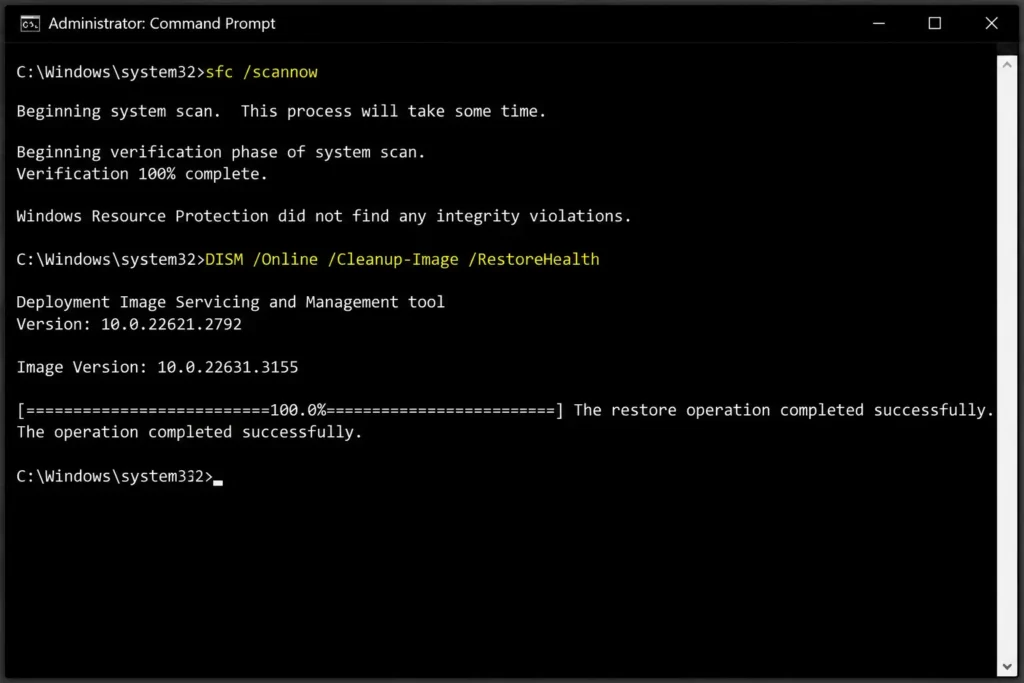
Run SFC first.
SFC Command
sfc /scannowIf that does not help, run DISM too.
DISM Command
DISM /Online /Cleanup-Image /RestoreHealthThese tools repair damaged Windows files automatically.
Very useful.
7. Reset BIOS Settings
Wrong BIOS settings can stop Acer laptops from booting normally.
Especially after updates.
Steps
- Turn off the laptop
- Turn it back on
- Press F2 repeatedly
- Open BIOS
- Select:
- Load Setup Defaults
- Save and Exit
Important Warning
Do not change random BIOS settings unless you know what they do.
Seriously.
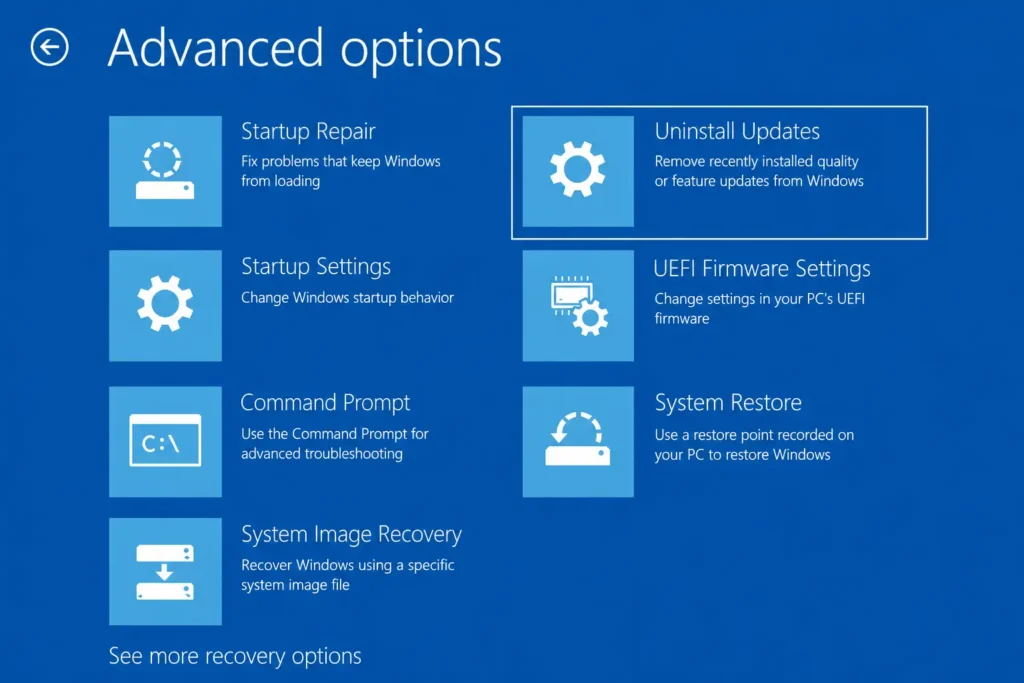
8. Remove Recent Windows Updates
Some Windows updates break startup completely.
It happens more often than people think.
Steps
- Open Advanced Startup
- Go to:
- Troubleshoot
- Advanced Options
- Uninstall Updates
- Remove:
- Latest Quality Update
- Latest Feature Update
Restart the laptop afterward.
This fix works especially well on Windows 11 systems.
9. Check SSD Health
A failing SSD is one of the biggest causes of startup problems.
And many users ignore the warning signs for too long.
Signs of a Bad SSD
- slow startup
- blue screens
- random freezing
- missing files
- Windows repair loops
Useful Tools
- CrystalDiskInfo
- Acer Care Center
- Windows SMART tools
Real Troubleshooting Tip
Several Acer laptops showed “Caution” warnings in CrystalDiskInfo before startup problems became permanent.
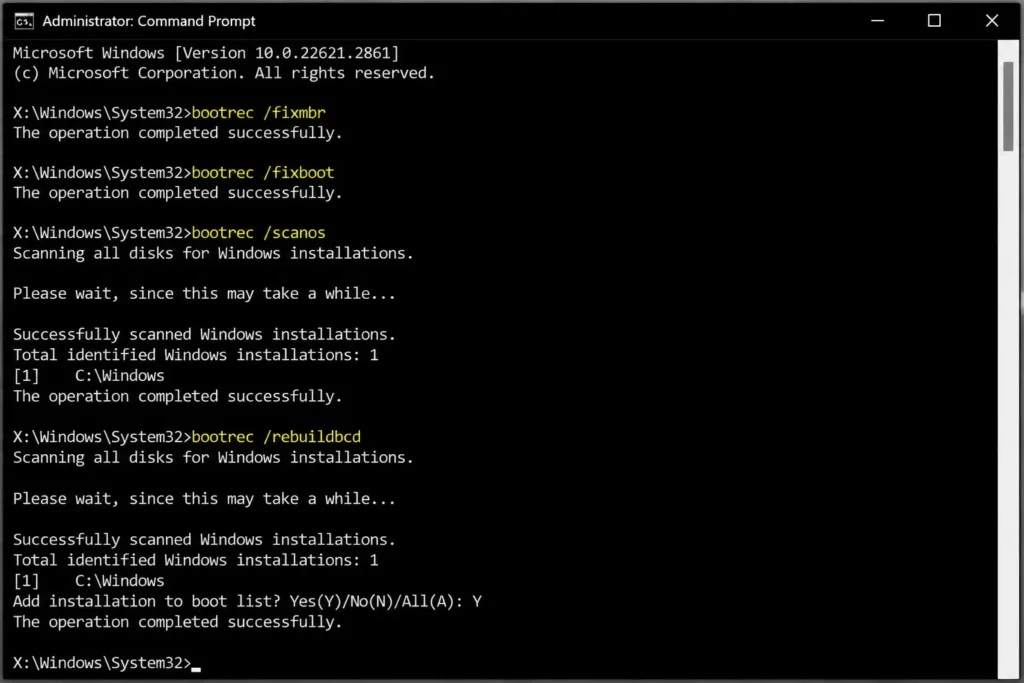
10. Repair Boot Files (Advanced Fix)
This is a more advanced fix.
But sometimes it is necessary.
If the Windows boot files become corrupted, the laptop may never start properly.
Steps
- Open:
- Troubleshoot
- Advanced Options
- Command Prompt
- Then type:
bootrec /fixmbr
bootrec /fixboot
bootrec /scanos
bootrec /rebuildbcd
These commands repair important startup files.
What This Fix Can Repair
- damaged boot records
- startup loops
- missing boot manager
- UEFI boot problems
11. UEFI and Secure Boot Problems
Sometimes Acer laptops fail to boot because of BIOS boot mode problems.
This can happen after:
- BIOS updates
- SSD replacement
- Windows corruption
What to Check in BIOS
- UEFI mode enabled
- Windows Boot Manager visible
- Secure Boot settings
- SSD detection
Wrong boot settings can completely stop Windows from loading.
Acer Laptop Stuck on Restarting Screen
This problem became common after large Windows updates.
The laptop keeps showing: “Restarting”
Forever.
Common Causes
- failed updates
- broken drivers
- Fast Startup bugs
- damaged startup services
Best Fixes
- Startup Repair
- Safe Mode
- Remove updates
- Disable Fast Startup
Acer Desktop Stuck on Acer Screen
Desktop systems often freeze because of hardware problems.
Especially SSD issues.
Quick Fixes
- Disconnect USB devices
- Check SATA cables
- Reset BIOS
- Test SSD health
External devices cause more startup problems than most people realize.
Acer Laptop Stuck on Lock Screen
If the laptop reaches the lock screen but freezes there, the problem is usually software-related.
Most Common Causes
- graphics drivers
- startup apps
- corrupted user profiles
Try These Fixes
- Boot into Safe Mode
- Update graphics drivers
- Disable startup apps
- Disconnect external monitors
Common Mistakes Users Make
Some mistakes can make startup problems worse.
1. Interrupting Repair Scans
Startup Repair and CHKDSK can take a long time.
Do not shut down the laptop during repairs.
2. Ignoring SSD Warnings
A failing SSD usually gets worse over time.
Back up important files immediately.
3. Reinstalling Windows Too Early
Many startup problems can be repaired without reinstalling Windows.
4. Random BIOS Changes
Changing unknown BIOS settings can stop the laptop from booting completely.
Frequently Asked Questions
Why is my Acer loading screen stuck?
Usually because of damaged Windows files, failed updates, SSD problems, or BIOS errors.
Can a bad SSD cause startup problems?
Yes. A failing SSD can stop Windows from loading properly.
Does Startup Repair really work?
Yes. Startup Repair can fix many common Windows boot problems automatically.
Can Windows 11 cause Acer startup problems?
Yes, some Windows 11 updates can create driver conflicts or boot errors. Removing recent updates and running repair scans may solve the problem.
Will resetting Windows delete my files?
If you choose “Keep My Files,” your personal files usually stay safe.
Apps may still get removed.
Acer Loading Screen Stuck Fixes That Actually Work
An Acer loading screen stuck problem can look serious.
But most Acer laptops can be repaired at home.
Start with the simple fixes first:
- Force restart
- Startup Repair
- Safe Mode
- CHKDSK
- BIOS reset
These fixes solve many startup problems.
And if the issue keeps coming back?
Check the SSD health as soon as possible.
In many real-world cases, a failing SSD is the hidden reason behind repeated startup freezes.
Citations:
Microsoft Community Hub. What do I do if my acer laptop is stuck on the loading screen?
Acer Community. Computer freezes at Acer screen