

If your AirTag is not connecting, do not reset it right away. Start simple.
Your AirTag needs your iPhone to “see” it first. That means Bluetooth, Location Services, Find My, and the battery all need to work.
In many cases, the problem is not a broken AirTag. It is usually something simple. Bluetooth may be off. The AirTag battery may be loose or dead.
The AirTag may have been paired before. It could still be linked to another Apple ID. Your iPhone might just need a restart. Or the setup may have gotten stuck.
This guide will help you fix common issues like Airtag not connecting to iPhone. It also covers setup errors, battery problems, Apple ID issues, and steps to reset your AirTag.
Table of Contents
Quick Answer: What to Do First
Try these steps in order:
- Turn on Bluetooth
- Turn on Location Services
- Make sure Find My is enabled
- Move the AirTag close to your iPhone
- Restart your iPhone
- Check the AirTag battery
- Reset the AirTag
- Remove and re-add it in Find My
- Check if it is linked to another Apple ID
Here is the simple rule:
If the AirTag makes no sound when you press the battery in, fix the battery first.
Do not waste time resetting it yet.
Quick Fix Checklist
Before you try anything advanced, check these:
- Is your iPhone unlocked?
- Is Bluetooth on?
- Is Location Services on?
- Is Find My turned on?
- Is your iPhone connected to Wi-Fi or mobile data?
- Is the AirTag close to your iPhone?
- Does the AirTag make a sound when the battery is inserted?
- Is the battery placed with the positive side facing up?
- Was the AirTag used by someone else before?
If the answer to any of these is “no,” fix that first.
Why Your AirTag Is Not Connecting
An AirTag needs a few things to connect:
- Your iPhone
- Bluetooth
- Find My
- Location Services
- A working CR2032 battery
- Your Apple ID
- Internet on your iPhone
If one piece fails, setup can fail.
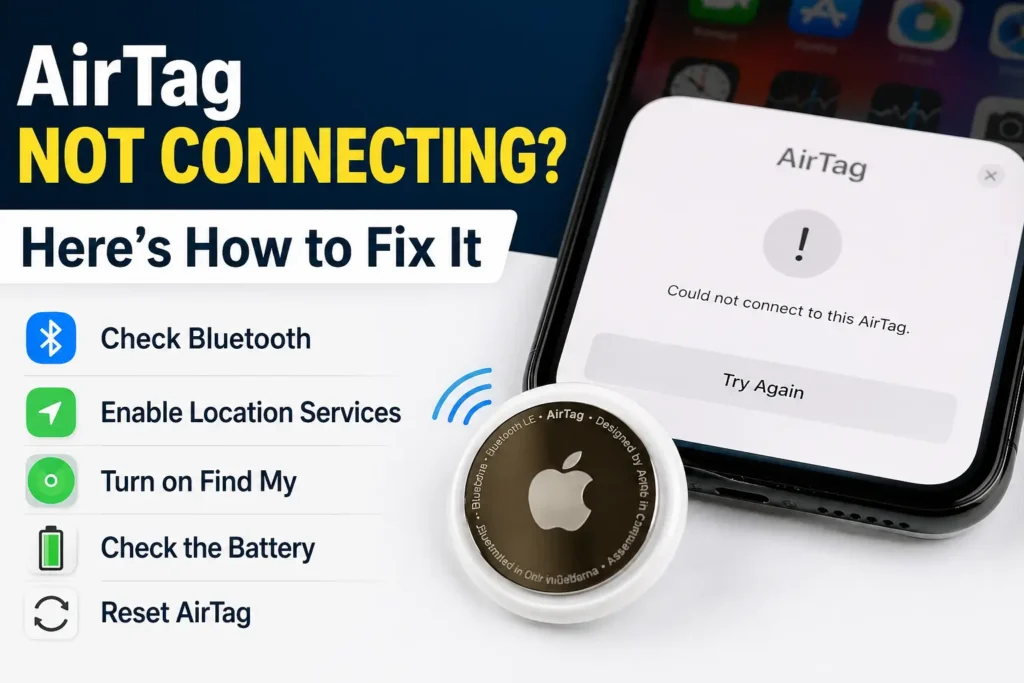
Common Reasons AirTag Will Not Connect
| Problem | What it usually means | What to try first |
|---|---|---|
| AirTag does not show up | iPhone cannot detect it | Turn on Bluetooth and move it closer |
| AirTag makes no sound | Battery issue | Remove and reinsert the battery |
| Setup starts but fails | Pairing bug | Restart iPhone and reset AirTag |
| “Could not complete AirTag setup” | Setup, battery, or Apple ID issue | Check battery, reset, then try again |
| AirTag was bought used | Still linked to old owner | Previous owner must remove it |
| AirTag stopped after battery change | Battery contact problem | Reseat or replace the CR2032 battery |
| AirTag keeps disconnecting | Find My or iOS issue | Restart, update iOS, re-add AirTag |
What We Usually See in Real AirTag Problems
Most AirTag issues follow a pattern.
People often think the AirTag is dead. But many times, the battery is not touching the metal contacts correctly.
This happens a lot after a battery change.
A common example looks like this:
- User changes the CR2032 battery
- AirTag makes no sound
- iPhone does not detect it
- User resets it many times
- Nothing works
- The real issue is battery contact
That is why the sound matters.
If you hear a sound when the battery goes in, the AirTag has power.
If you hear nothing, fix the battery first.
Step-by-Step Fixes for AirTag Not Connecting
1. Turn On Bluetooth, Location Services, and Find My
If your Airtag is not connecting to iPhone, start here.
Your iPhone needs Bluetooth to find the AirTag nearby.
It also needs Location Services and Find My to finish setup.
How to check Bluetooth
- Open Settings
- Tap Bluetooth
- Turn it on
How to check Location Services
- Open Settings
- Tap Privacy & Security
- Tap Location Services
- Turn it on
How to check Find My
- Open Settings
- Tap your name
- Tap Find My
- Make sure Find My is on
Now bring the AirTag close to your iPhone.
Wait a few seconds.
If the setup card appears, follow the steps on screen.
2. Restart Your iPhone
This fix is boring.
But it works more often than people expect.
A restart can clear small Bluetooth or Find My bugs.
How to restart your iPhone
- Hold the side button and volume button
- Slide to power off
- Wait 30 seconds
- Turn your iPhone back on
- Try pairing the AirTag again
Try this if:
- The setup screen freezes
- The AirTag appears once, then disappears
- Find My does not update
- Setup fails without a clear reason
3. Move the AirTag Close to Your Phone
If your Airtag is not connecting to phone, distance may be the problem.
During setup, keep the AirTag right next to your iPhone.
Do not leave it:
- Across the room
- Inside a drawer
- Inside a bag
- Under thick fabric
- Near lots of other devices
Try this:
- Place the AirTag on a table
- Unlock your iPhone
- Hold your iPhone next to the AirTag
- Wait for the setup card
If nothing appears, keep going.
4. Check the AirTag Battery
AirTags use a CR2032 coin battery.
If the battery is dead, loose, upside down, or blocked by coating, the AirTag may not connect.
This is one of the most common problems.
How to Remove AirTag Battery
Here is how to remove AirTag battery:
- Hold the AirTag with the silver side up
- Press down on the silver cover
- Turn the cover counterclockwise
- Remove the cover
- Take out the battery
- Check the battery
- Put it back with the positive side facing up
- Press down until you hear a sound
- Put the cover back on
- Turn it clockwise to lock it
The positive side is the side with the writing on it.
That side should face up.
What If the AirTag Makes No Sound?
If the AirTag makes no sound, do this:
- Remove the battery
- Wipe the battery with a dry cloth
- Check that it is facing the right way
- Press it down firmly
- Try another CR2032 battery
Some CR2032 batteries have a bitter coating.
That coating can stop the battery from making good contact.
If one battery does not work, try another brand.
AirTag Not Connecting After Battery Change
Many people run into this exact problem:
AirTag not connecting after battery change.
The AirTag worked before. Then the battery was replaced. Now it will not connect.
This usually means the battery is the issue.
Common Battery Change Mistakes
| Mistake | What happens |
|---|---|
| Battery upside down | AirTag gets no power |
| Battery not pressed in fully | AirTag may not start |
| Weak battery | AirTag may fail setup |
| Coated battery | Battery contact may fail |
| Dirty contacts | AirTag may not detect power |
| Cover not locked | Battery may shift |
What to Do
Try this order:
- Remove the battery
- Clean it with a dry cloth
- Reinsert it with the positive side up
- Press down and listen for a sound
- Lock the cover tightly
- Try pairing again
If there is still no sound, try a new CR2032 battery.
Do not reset yet.
A reset will not help if the AirTag has no power.
How to Reset AirTag
Resetting gives the AirTag a fresh start.
It helps when:
- Setup keeps failing
- AirTag was paired before
- AirTag does not appear in Find My
- You see “Could not complete AirTag setup”
- The AirTag connects, then drops
How to Reset AirTag Step by Step
Here is how to reset AirTag:
- Remove the battery cover
- Take out the battery
- Put the battery back in
- Press down until you hear a sound
- Remove the battery again
- Repeat this process 5 times
- On the fifth sound, listen for a different tone
- Put the cover back on
- Try pairing the AirTag again
Important Reset Tip
Resetting only helps if the AirTag has power.
If you never hear a sound, go back to the battery section.
Also, a reset does not remove Apple ID ownership.
If the AirTag belongs to someone else’s Apple ID, resetting will not fix that.
Fix “Could Not Complete AirTag Setup”
The message “Could not complete AirTag setup” can be frustrating.
It does not always tell you what went wrong.
Usually, it is one of these:
- Bluetooth issue
- Weak battery
- Poor battery contact
- Apple ID issue
- iPhone software bug
- AirTag already paired
- Internet problem
Try These Fixes in Order
- Restart your iPhone
- Turn Bluetooth off and back on
- Make sure Location Services is on
- Check Wi-Fi or mobile data
- Remove and reinsert the AirTag battery
- Reset the AirTag
- Update iOS
- Try setup again
Keep the AirTag close to your iPhone the whole time.
Remove and Re-Add the AirTag in Find My
If the AirTag used to work but stopped, remove it from Find My and add it again.
How to Remove AirTag From Find My
- Open the Find My app
- Tap Items
- Select your AirTag
- Scroll down
- Tap Remove Item
- Confirm
- Restart your iPhone
- Add the AirTag again
This can fix syncing issues between your AirTag, iPhone, Find My, and Apple ID.
AirTag Not Connecting Apple ID Issues
If you bought a used AirTag, pay close attention.
An AirTag can be connected to one Apple ID at a time.
If it is still linked to the old owner, you cannot add it to your account.
This is a common AirTag not connecting Apple ID problem.
Signs Your AirTag Has an Apple ID Problem
You may notice:
- The AirTag will not pair
- Setup fails again and again
- It says the AirTag belongs to another Apple ID
- The AirTag was bought used
- Resetting does not fix it
What You Need to Know
A reset does not remove the old Apple ID.
Only the previous owner can remove the AirTag from their Find My app.
They need to:
- Open Find My
- Tap Items
- Select the AirTag
- Tap Remove Item
- Confirm
After that, you can reset the AirTag and pair it.
If you cannot contact the old owner, you may not be able to use that AirTag.
Expert Note
A mobile repair technician would usually check Apple ID ownership before replacing parts.
Why?
Because an AirTag can look broken when it is really just locked to another account.
So if it is a used AirTag, check ownership early.
Best Fix by Symptom
Use this table to save time.
| What you see | Most likely cause | Best first fix |
|---|---|---|
| AirTag does not appear | Bluetooth or distance issue | Turn on Bluetooth and move it closer |
| AirTag makes no sound | Battery issue | Reseat or replace battery |
| AirTag fails after battery change | Battery contact issue | Try another CR2032 battery |
| Setup card appears but fails | Pairing bug | Restart iPhone and reset AirTag |
| “Could not complete AirTag setup” | Setup, battery, or Apple ID issue | Battery check, reset, then Apple ID check |
| AirTag linked to another account | Apple ID lock | Ask previous owner to remove it |
| AirTag was working, then stopped | Find My sync issue | Remove and re-add it |
| AirTag keeps disconnecting | iOS or Bluetooth issue | Restart and update iOS |
Real User-Style Examples
These examples show how the problem often looks in real life.
Example 1: AirTag Stopped After Battery Change
A user replaced the battery.
After that, the AirTag would not connect.
There was no sound when the battery was inserted.
The fix was simple:
- Removed the battery
- Wiped the battery surface
- Reinserted it firmly
- Tried a different CR2032 battery
- Heard the startup sound
- Paired it again
The issue was not Find My.
It was battery contact.
Example 2: Setup Failed Again and Again
A user saw:
Could not complete AirTag setup
They tried setup three times.
It failed each time.
The fix:
- Restarted the iPhone
- Turned Bluetooth off and on
- Reset the AirTag
- Tried setup again with the AirTag beside the phone
After that, it connected.
Example 3: Used AirTag Would Not Connect
A user bought a second-hand AirTag.
It would not pair with their iPhone.
Resetting did not help.
The issue was Apple ID ownership.
The previous owner had to remove it from Find My first.
After that, setup worked.
What Reddit and Community Users Often Say
Many people search Airtag not connecting reddit because they want real fixes from other users.
Common advice from Reddit and forums includes:
- Try a different CR2032 battery
- Avoid coated batteries
- Reset the AirTag five times
- Restart your iPhone
- Check if the AirTag is still linked to another Apple ID
- Keep the AirTag close during setup
That advice can help.
But there is one problem.
Forum replies often jump straight to “reset it.”
That is not always the best first step.
If your AirTag makes no sound, reset will not help.
Fix the battery first.
What Not to Do
Avoid these mistakes:
- Do not reset over and over if the AirTag has no sound
- Do not assume the AirTag is broken after one failed setup
- Do not buy a used AirTag unless the owner removed it
- Do not insert the battery upside down
- Do not ignore iPhone settings
- Do not keep trying setup from across the room
Start with the simple checks.
They solve many problems.
When Your AirTag Still Will Not Connect
If nothing works, the AirTag may have a hardware problem.
This is more likely if:
- It never makes a sound
- Several batteries fail
- The battery contacts look damaged
- It was exposed to water
- It was dropped or crushed
- It still fails after a full reset
- It is locked to another Apple ID
At this point, contact Apple Support or visit an Apple Store.
How We Built This Guide
This guide is based on:
- Apple’s official AirTag setup flow
- Common Find My issues
- Battery replacement patterns
- Real user problems from forums and Reddit-style discussions
- Common repair checks used for small tracking devices
To improve this article further, add your own testing data.
For example:
| Test Detail | Example to Add |
|---|---|
| iPhone models tested | iPhone 12, 13, 14, 15, 16 |
| iOS versions tested | Add exact versions |
| AirTags tested | Add number of devices |
| Battery brands tested | Add CR2032 brands |
| Most common fix | Add your result |
| Failed fixes | Add what did not work |
This kind of detail builds trust.
It also makes the article more useful than a basic troubleshooting list.
Frequently Asked Questions
How do I reset an AirTag that will not connect?
Remove and reinsert the battery five times. Press down each time until you hear a sound. On the fifth time, the sound should be different. Then close the cover and pair it again.
Why does my AirTag say “Could not complete AirTag setup”?
This can happen because of Bluetooth issues, poor internet, a weak battery, outdated iOS, or an Apple ID problem. Restart your iPhone, check the battery, reset the AirTag, and try again.
Why is my AirTag not connecting after battery change?
The battery may be loose, upside down, weak, or coated. Remove it and put it back with the positive side facing up. If there is no sound, try another CR2032 battery.
Do I need Bluetooth for AirTag setup?
Yes. Bluetooth must be on. Your iPhone uses Bluetooth to find the AirTag nearby during setup.
Does AirTag need internet to connect?
Your iPhone needs internet for setup and Find My syncing. The AirTag itself does not connect to Wi-Fi, but your iPhone needs a connection.
Final Verdict
Most AirTag connection problems are easy to narrow down.
Start here:
- Check Bluetooth, Location Services, and Find My
- Restart your iPhone
- Move the AirTag close to your phone
- Check the CR2032 battery
- Reset the AirTag
- Remove and re-add it in Find My
- Check Apple ID ownership
The fastest clue is sound.
If the AirTag makes a sound, it has power.
If it makes no sound, fix the battery first.
If it is a used AirTag, check Apple ID ownership before wasting time on resets.
References:
Apple Discussion. New AirTag won’t connect
Apple Support. How to reset your AirTag