

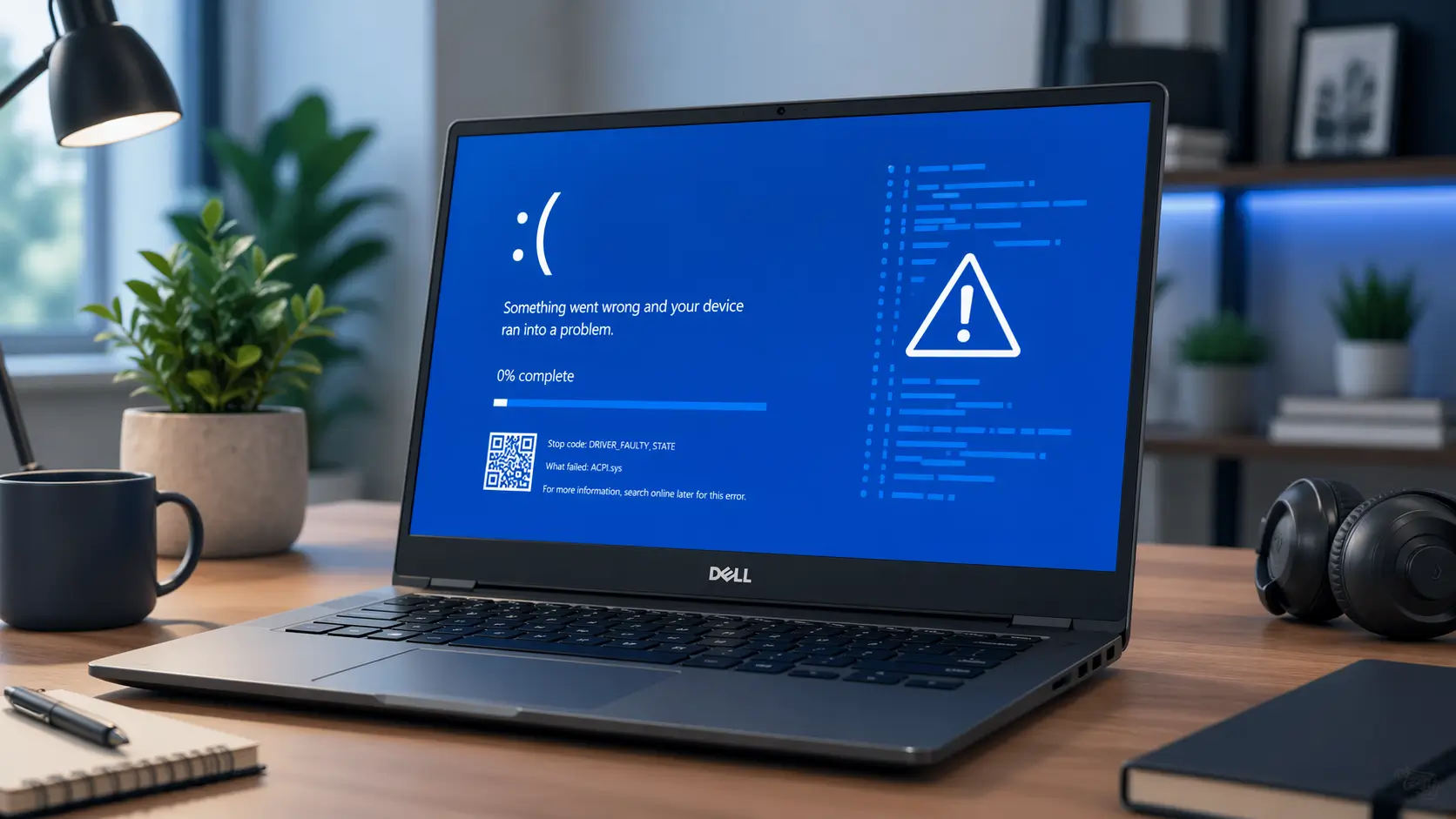
A Blue Screen of Death on a Dell laptop can feel scary. Your screen turns blue. Windows stops. You may see a stop code. Sometimes the laptop restarts before you can read anything.
The good news is this problem can often be fixed.
A Dell laptop blue screen is usually caused by a bad driver, a Windows update issue, a BIOS or firmware problem, faulty RAM, a failing SSD, overheating, or damaged Windows system files.
This guide walks you through the safest fixes first. Start at the top. Do not jump straight to resetting Windows or updating BIOS unless the simple steps fail.
Read more: Dell Laptop Troubleshooting: How to Fix Problems Fast
Table of Contents
Blue Screen of Death Dell Laptop – Helping Ryan
Ryan was in panic mode when his Dell laptop suddenly crashed with the dreaded blue screen of death. I saw him pacing and offered to help, setting up a hidden camera with audio to capture the moment.
I booted into Safe Mode, ran diagnostics, and fixed a driver issue causing the crash. Within minutes, his laptop was back to life. Ryan sighed in relief and said, “I thought it was dead!” A little tech support saved his day.
Read More: Dell Laptop Guide: Fix, Power, and Use Like a Pro
How to Fix Blue Screen of Death on Dell Laptops
To fix a Blue Screen of Death on Dell laptops, restart once and write down the stop code. Then unplug new devices, boot into Safe Mode, update or roll back Dell drivers, run Dell SupportAssist diagnostics, check Windows Update, repair system files with SFC and DISM, test RAM and storage, and use System Restore or Reset Windows only if needed.
Start with this order:
- Restart and record the stop code.
- Disconnect new hardware.
- Boot into Safe Mode.
- Update or roll back drivers.
- Run Dell SupportAssist diagnostics.
- Check Windows Update.
- Run SFC and DISM.
- Test RAM and SSD health.
- Update BIOS carefully.
- Use System Restore or Reset Windows.
Before You Start: Back Up Important Files
If your Dell laptop still starts, back up your files first.
Save important files to:
- An external drive
- OneDrive
- Google Drive
- Dropbox
- Another computer
Do this before running deeper repairs.
Some fixes are safe. Others can affect your files or system settings. If your laptop has work files, school files, family photos, or business data, protect them first.
Why Does My Dell Laptop Show a Blue Screen of Death?
A blue screen appears when Windows hits a serious problem and cannot keep running safely.
Windows stops itself to avoid more damage. This is why the screen is also called a stop error or bug check.
A Dell blue screen error can happen because of software or hardware.
Common causes include:
- Faulty drivers
- Failed Windows updates
- Bad RAM
- Failing SSD or hard drive
- BIOS or firmware bugs
- Overheating
- Corrupt Windows files
- Malware
- External devices
- Docking station problems
- Graphics driver crashes
A Dell laptop BSOD may happen once and never return. But if it happens again and again, you need to find the cause.
Common Causes of a Blue Screen on Dell Laptop
| Cause | What it means | Common signs |
|---|---|---|
| Bad driver | A device driver is crashing Windows | BSOD after update or new device |
| Windows update issue | A recent update caused a conflict | BSOD after Patch Tuesday or restart |
| RAM problem | Memory is faulty or unstable | Random stop codes |
| SSD or hard drive issue | Storage is failing or corrupted | Slow boot, freezing, boot errors |
| BIOS problem | Firmware needs an update or setting change | Crashes during sleep, wake, or boot |
| Overheating | Laptop gets too hot | Fan noise, shutdowns, hot keyboard |
| Corrupt system files | Windows files are damaged | Apps crash, startup problems |
| Malware | Harmful software affects Windows | Strange popups, slow system, crashes |
Common Stop Codes on Dell Laptops
A stop code is the message shown on the blue screen. It helps you understand the problem.
| Stop code | Possible cause | What to check first |
|---|---|---|
MEMORY_MANAGEMENT | RAM or driver issue | Run memory diagnostics |
CRITICAL_PROCESS_DIED | Windows process failed | Run SFC and DISM |
IRQL_NOT_LESS_OR_EQUAL | Driver or memory issue | Check recent drivers |
VIDEO_TDR_FAILURE | Graphics driver issue | Roll back or update display driver |
DRIVER_POWER_STATE_FAILURE | Power or driver problem | Update BIOS, chipset, power drivers |
INACCESSIBLE_BOOT_DEVICE | Boot drive problem | Run Startup Repair and storage checks |
UNMOUNTABLE_BOOT_VOLUME | Boot volume issue | Back up data and check drive health |
DPC_WATCHDOG_VIOLATION | Storage or driver delay | Update storage and chipset drivers |
PAGE_FAULT_IN_NONPAGED_AREA | RAM, driver, or antivirus issue | Test memory and remove recent software |
Windows Version Matters
The steps are similar across Windows versions, but the cause can change.
If you are dealing with Blue screen of death on Dell laptops Windows 11, the issue may be linked to newer drivers, firmware, Windows Update, or security features.
If you see Blue screen of death on Dell laptops Windows 10, the problem may still be driver-related, but older software and update history can also matter.
If you search for Blue screen of death on Dell laptops Windows 7, be careful. Windows 7 is old and no longer safe for daily use. Many drivers and updates are outdated. A repair may not last unless the laptop is upgraded or replaced.
Quick Fixes Before Advanced Troubleshooting
Try these simple checks first.
They are low-risk and often fix the problem.
Quick Checklist
- Restart the laptop once.
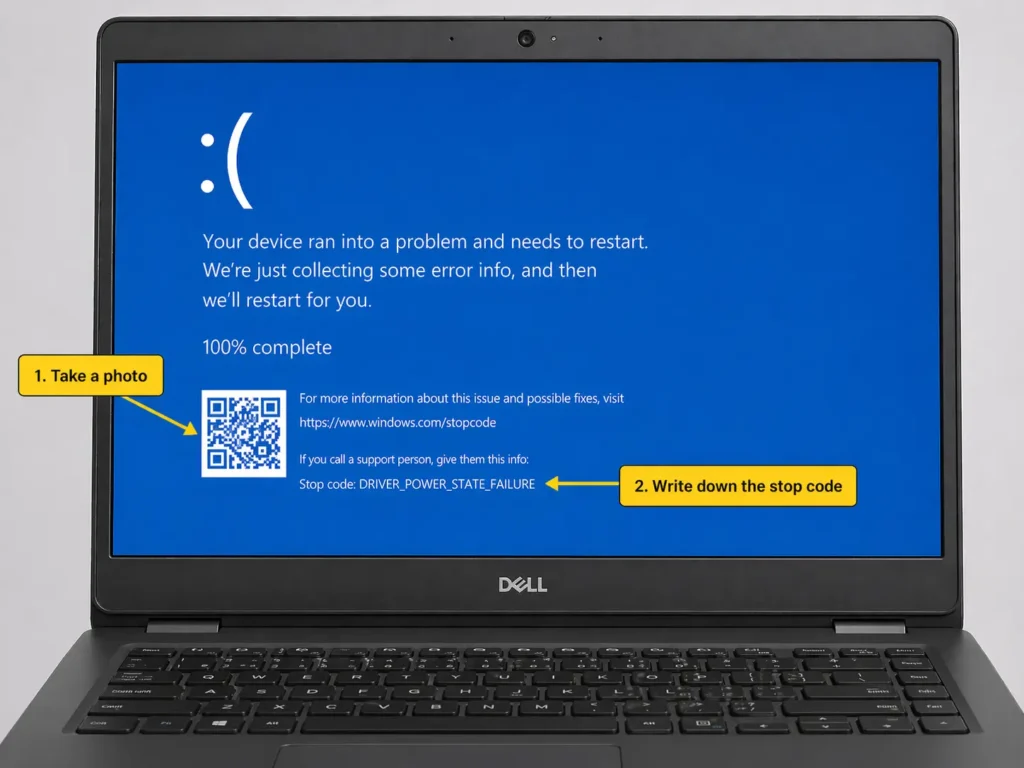
- Take a photo of the blue screen.
- Write down the stop code.
- Unplug USB devices.
- Remove docks and hubs.
- Disconnect external monitors.
- Remove newly added RAM or SSD if the issue started after an upgrade.
- Let the laptop cool down.
- Check the charger.
- Back up files if Windows still opens.
Do Not Rush These Steps
Avoid doing these too early:
- Resetting Windows
- Updating BIOS
- Running random registry cleaners
- Installing unknown BSOD repair tools
- Wiping the drive
- Opening the laptop if it is under warranty
A simple driver rollback may fix the issue. A full reset may not be needed.
Fix 1: Restart and Note the Stop Code
Start with the most basic step.
Restart the laptop one time.
If the blue screen comes back, write down what you see.
Look for:
- Stop code
- Error message
- File name ending in
.sys - QR code
- When the crash happens
- Recent updates
- New devices
- New software
- Dell model name
- Windows version
What to Record
| What to write down | Why it matters |
|---|---|
| Stop code | Helps find the cause |
| Dell model | Helps find the right drivers |
| Windows version | Fixes differ by version |
| Recent update | May show what triggered it |
| New device | Could point to driver conflict |
| Error file name | May reveal the bad driver |
| Crash timing | Shows if it happens during boot, sleep, gaming, or updates |
What If There Is No Text?
A Dell blue screen no text problem can be different from a normal Windows stop code.
It may be caused by:
- Display driver crash
- GPU issue
- Screen output problem
- Frozen Windows crash screen
- Firmware issue
- External monitor or dock conflict
Try this:
- Disconnect external monitors.
- Remove docks and USB-C hubs.
- Hold the power button for 10 seconds.
- Restart the laptop.
- Boot into Safe Mode if the issue returns.
- Update or roll back the graphics driver.
Fix 2: Boot Into Safe Mode
Safe Mode starts Windows with only basic drivers and services.
This helps when a normal startup keeps crashing.
Safe Mode is useful if the blue screen started after:
- A driver update
- A Windows update
- New software
- Antivirus installation
- Docking station use
- Graphics driver update
If you are searching for How to fix blue screen Windows 11, Safe Mode is one of the safest first steps.
If Windows Still Opens
Follow these steps:
- Click Start.
- Open Settings.
- Go to System.
- Click Recovery.
- Under Advanced startup, choose Restart now.
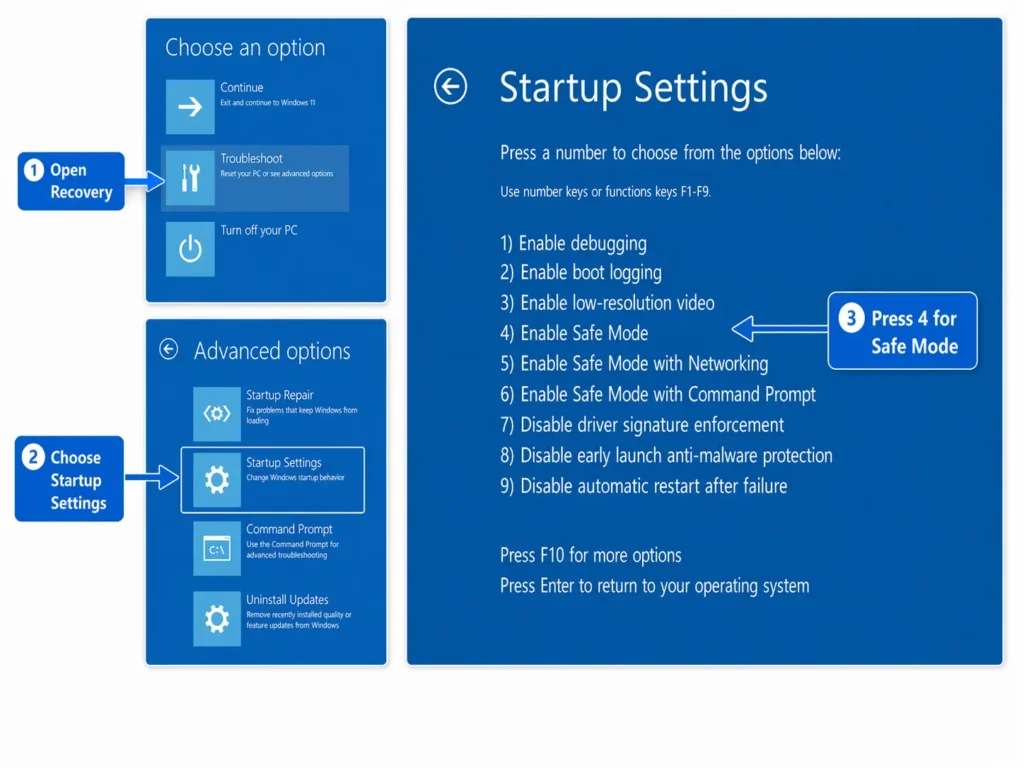
- Click Troubleshoot.
- Choose Advanced options.
- Click Startup Settings.
- Click Restart.
- Press 4 for Safe Mode.
If the Dell Laptop Is Stuck in a BSOD Loop
If Windows will not start:
- Turn off the laptop.
- Turn it on.
- When Windows starts loading, hold the power button to turn it off.
- Repeat this 2 or 3 times.
- Windows should open the recovery screen.
- Choose Troubleshoot.
- Go to Advanced options.
- Choose Startup Settings.
- Restart.
- Press 4 for Safe Mode.
What to Do in Safe Mode
Once inside Safe Mode:
- Uninstall recently added apps.
- Remove new drivers.
- Roll back graphics drivers.
- Remove third-party antivirus tools.
- Check Device Manager.
- Restart normally.
If the laptop works in Safe Mode but crashes in normal mode, the cause is often a driver, app, or service.
Fix 3: Update or Roll Back Dell Drivers
Drivers help Windows talk to your laptop hardware.
Bad drivers are one of the most common causes of a blue screen.
A Dell blue screen error Windows 11 can happen after Windows installs a driver that does not work well with your Dell model.
Drivers That Often Cause BSOD Problems
| Driver type | Why it matters |
|---|---|
| Graphics driver | Can cause video and display crashes |
| Chipset driver | Helps motherboard parts work correctly |
| Storage driver | Controls SSD and boot drive access |
| Wi-Fi driver | Can cause crashes after sleep or wake |
| Bluetooth driver | Can conflict with wireless devices |
| Audio driver | Sometimes crashes after updates |
| Power driver | Can cause sleep and battery issues |
| Dock driver | Can crash when using USB-C docks |
Update Drivers from Dell
Use Dell’s official support page when possible.
Steps:
- Find your Dell model.
- Go to Dell Support.
- Enter your Service Tag or model name.
- Choose the correct Windows version.
- Download recommended drivers.
- Start with chipset, storage, graphics, and BIOS-related updates.
- Restart after installation.
Do not install every driver at once.
Install one group at a time. Then test the laptop.
This makes it easier to find the problem if the blue screen returns.
Roll Back a Bad Driver
If the blue screen started after a driver update, roll it back.
Steps:
- Right-click Start.
- Open Device Manager.
- Find the device.
- Right-click it.
- Choose Properties.
- Open the Driver tab.
- Click Roll Back Driver.
- Restart the laptop.
Start with the driver you updated most recently.
Common ones include:
- Display adapter
- Network adapter
- Storage controller
- Audio device
- Bluetooth device
- USB controller
Avoid Random Driver Updater Tools
Be careful with third-party driver updater apps.
They may install the wrong driver.
For Dell laptops, it is safer to use:
- Dell Support
- Dell SupportAssist
- Windows Update
- The device maker’s official site, when needed
Fix 4: Run Dell SupportAssist Diagnostics
Dell SupportAssist can check your system for hardware problems and driver updates.
Use it if Windows still opens.
Run SupportAssist in Windows
Steps:
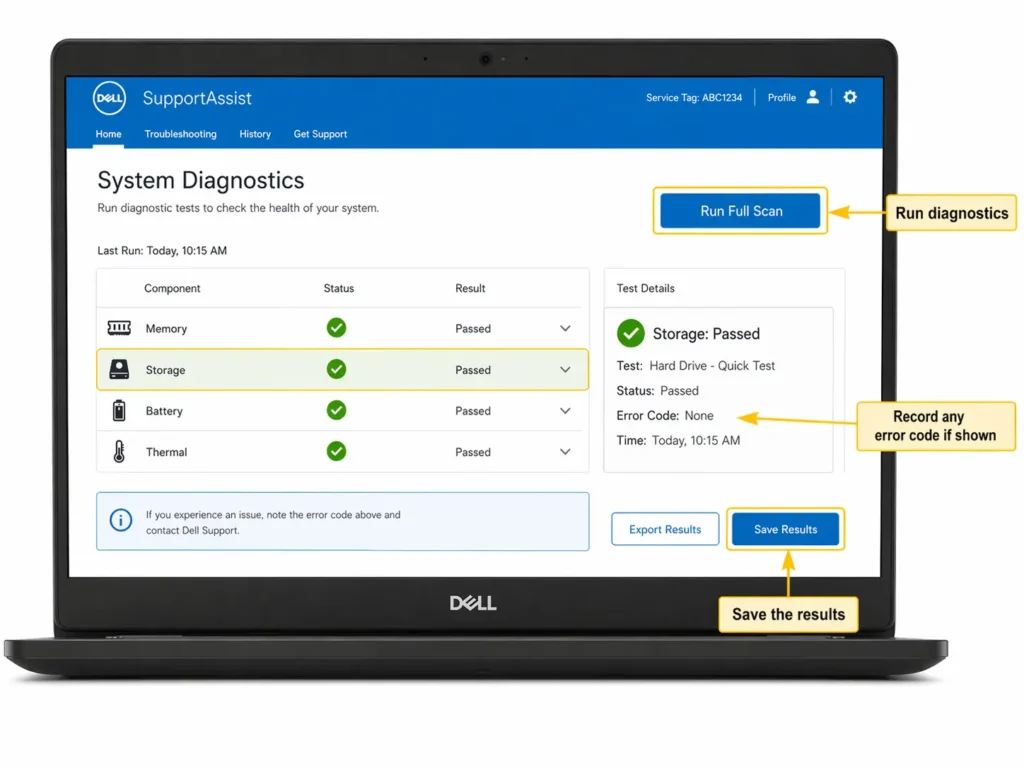
- Open SupportAssist.
- Run a full system scan.
- Check hardware results.
- Review driver updates.
- Save any error messages.
- Restart after fixes.
SupportAssist can help check:
- RAM
- Storage
- Battery
- Drivers
- System health
- Hardware errors
Run Dell Preboot Diagnostics
If Windows will not open, use the built-in Dell diagnostics.
Steps:
- Turn off the laptop.
- Turn it on.
- Tap F12 right away.
- Choose Diagnostics.
- Run the full test.
- Write down error codes.
- Save validation codes if shown.
This test runs before Windows starts. That means it can find hardware problems even if Windows is broken.
What Diagnostic Results Mean
| Result | Meaning | What to do |
|---|---|---|
| No errors found | Hardware passed basic checks | Continue with software fixes |
| RAM error | Memory may be bad | Contact Dell or replace RAM |
| Storage error | SSD or drive may be failing | Back up data and contact support |
| Battery error | Battery may need service | Check warranty |
| Fan or thermal error | Cooling issue | Stop heavy use and get service |
| Motherboard error | Serious hardware issue | Contact Dell Support |
If diagnostics show a hardware error, do not keep forcing restarts. You may make the problem worse.
Fix 5: Check Windows Update
Windows updates can fix bugs. They can also sometimes cause new ones.
Check updates if the BSOD happened after a system change.
Install Pending Updates
Steps:
- Open Settings.
- Go to Windows Update.
- Click Check for updates.
- Install important updates.
- Restart the laptop.
- Test again.
Some blue screen problems are fixed by:
- Security updates
- Driver patches
- Firmware updates
- .NET updates
- Windows stability fixes
Check Optional Updates
Windows may show optional driver updates.
Be careful here.
Only install optional drivers if:
- The device is not working
- Dell recommends it
- The blue screen is linked to that device
- You have a restore point or backup
Uninstall a Recent Update
If the BSOD started right after a Windows update, uninstalling it may help.
Steps:
- Open Settings.
- Go to Windows Update.
- Click Update history.
- Choose Uninstall updates.
- Remove the most recent update.
- Restart.
Only do this when the timing is clear.
For example:
- Laptop worked before the update.
- Update installed.
- Blue screen started right after restart.
Fix 6: Run SFC and DISM Commands
Windows files can become damaged.
SFC and DISM are built-in repair tools.
They can fix corrupted system files.
Use them when you see:
- Repeated crashes
- Startup problems
- Missing Windows files
- App errors
- Blue screens after failed updates
Open Command Prompt as Admin
Steps:
- Click Start.
- Type cmd.
- Right-click Command Prompt.
- Choose Run as administrator.
Run DISM First
Copy and paste this command:
DISM /Online /Cleanup-Image /RestoreHealth
Press Enter.
Wait until it finishes.
This may take several minutes.
Run SFC Next
After DISM finishes, run:
sfc /scannow
Press Enter.
Wait for the scan to finish.
What the Results Mean
| Message | Meaning |
|---|---|
| No integrity violations | Windows did not find damaged files |
| Found and repaired files | Windows fixed some files |
| Could not repair files | You may need deeper repair |
| DISM failed | Windows image may be badly damaged |
Restart after both commands finish.
These tools can fix Windows file problems. They will not fix bad RAM, a failing SSD, overheating, or a broken motherboard.
Fix 7: Check RAM and Storage Health
RAM and storage problems can cause random blue screens.
If the stop code changes each time, hardware may be the cause.
Signs RAM May Be the Problem
RAM may be bad if:
- You see
MEMORY_MANAGEMENT - Stop codes keep changing
- Laptop crashes during heavy use
- Laptop crashes after a RAM upgrade
- Apps crash before the blue screen
- The system freezes often
Run Windows Memory Diagnostic
Steps:
- Press Windows + R.
- Type:
mdsched.exe
- Press Enter.
- Choose Restart now and check for problems.
- Wait for the test to run.
The laptop will restart.
If it finds memory errors, RAM may need service or replacement.
Signs SSD or Hard Drive May Be the Problem
Your storage may be failing if:
- Windows boots slowly
- Files disappear
- Apps freeze
- The laptop makes clicking sounds
- You see
INACCESSIBLE_BOOT_DEVICE - You see
UNMOUNTABLE_BOOT_VOLUME - Startup Repair runs again and again
- The system crashes while copying files
What to Do First
Back up your files.
Do not keep forcing restarts if the SSD may be failing.
A failing drive can get worse quickly.
Storage Health Checklist
| Check | Why it helps |
|---|---|
| Dell diagnostics | Finds drive hardware errors |
| SMART status | Shows drive health warnings |
| Startup Repair | Fixes some boot problems |
| Backup | Protects important files |
| Warranty check | May cover drive replacement |
If Dell diagnostics finds a storage error, contact Dell Support if the laptop is under warranty.
Fix 8: Update BIOS Carefully
BIOS, also called UEFI firmware, helps your Dell laptop start and control hardware.
A BIOS update can fix some blue screen issues.
But it must be done carefully.
Do not make this your first step.
When a BIOS Update May Help
A BIOS update may help if the BSOD happens:
- After sleep mode
- When waking from sleep
- During charging
- With a USB-C dock
- After installing Windows 11
- During power-state changes
- With new hardware
- After a known firmware bug
BIOS Update Safety Checklist
Before updating BIOS:
- Plug in the charger.
- Make sure the battery is charged.
- Back up important files.
- Close all apps.
- Use the exact Dell model page.
- Do not turn off the laptop.
- Do not unplug the charger.
- Do not update during unstable power.
- Suspend BitLocker if Dell or Windows asks.
How to Update BIOS Safely
Steps:
- Go to Dell Support.
- Enter your Service Tag or model.
- Choose your Windows version.
- Find the BIOS update.
- Read the notes.
- Download from Dell only.
- Plug in power.
- Run the update.
- Wait until the process completes.
- Restart and test.
A failed BIOS update can make the laptop harder to fix.
If you are not comfortable, ask Dell Support or a repair technician.
Fix 9: Use System Restore
System Restore can take Windows back to an earlier working state.
It does not usually delete personal files.
But it can remove apps, drivers, and updates installed after the restore point.
Use System Restore if the BSOD started after:
- A driver update
- A Windows update
- New software
- Security software installation
- System setting changes
Use System Restore from Windows
Steps:
- Open Start.
- Search Create a restore point.
- Open System Protection.
- Click System Restore.
- Choose a restore point.
- Follow the steps.
- Restart.
Use System Restore from Recovery
If Windows will not start:
- Open Windows Recovery Environment.
- Click Troubleshoot.
- Choose Advanced options.
- Select System Restore.
- Pick a restore point before the blue screen started.
- Follow the instructions.
When System Restore Helps Most
| Situation | Good use of System Restore? |
|---|---|
| BSOD after driver update | Yes |
| BSOD after app install | Yes |
| BSOD after Windows update | Yes |
| Failed RAM | No |
| Failing SSD | No |
| Overheating | No |
| Broken motherboard | No |
System Restore is best for software problems. It will not repair broken hardware.
Fix 10: Reset Windows
Reset Windows only after safer steps fail.
A reset can fix deep Windows problems. But it can remove apps and settings.
Back up your files first.
Reset and Keep Files
This option keeps many personal files but removes apps and drivers.
Steps:
- Open Settings.
- Go to System.
- Click Recovery.
- Choose Reset this PC.
- Select Keep my files.
- Follow the steps.
Use this if:
- SFC and DISM did not fix the issue
- System Restore failed
- Windows is unstable
- Drivers and updates did not help
Remove Everything
This option wipes the system more fully.
Only use it if:
- Your files are backed up
- You are ready to reinstall apps
- You have tried safer repairs
- You suspect Windows is badly damaged
When Reset Will Not Help
Resetting Windows may not fix:
- Bad RAM
- Failing SSD
- Overheating
- Battery faults
- Motherboard problems
- BIOS failure
- Physical damage
If hardware diagnostics show an error, fix the hardware first.
Advanced Diagnosis: Read Minidump Files with WinDbg
If your Dell laptop keeps crashing, minidump files can help.
A minidump is a small crash file Windows creates after a blue screen.
It may show the driver or system file linked to the crash.
Where to Find Minidump Files
Look here:
C:\Windows\Minidump
You may see files ending in:
.dmp
What WinDbg Does
WinDbg is a Microsoft tool. It helps read crash dump files.
It can show:
- Bug check code
- Faulting module
- Driver name
- Crash details
- Repeated patterns
Basic WinDbg Step
Open the dump file and run:
!analyze -v
Look for:
MODULE_NAMEIMAGE_NAME- Driver file ending in
.sys - Bug check code
When to Use Minidump Analysis
Use it when:
- The blue screen keeps coming back
- The same stop code appears often
- You support business laptops
- You need proof for warranty support
- The cause is not clear
- Driver updates did not help
If the results are confusing, ask a technician to review the dump file.
Do not share dump files publicly without checking privacy first. They can include system details.
Dell BSOD Stop Code Comparison Table
Use this table to decide what to try first.
| Stop code | Common meaning | First fix to try | When to escalate |
|---|---|---|---|
MEMORY_MANAGEMENT | RAM, driver, or memory issue | Run memory diagnostics | If memory test fails |
CRITICAL_PROCESS_DIED | Key Windows process failed | Run SFC, DISM, System Restore | If Windows will not boot |
IRQL_NOT_LESS_OR_EQUAL | Driver or memory conflict | Roll back recent drivers | If crashes continue in Safe Mode |
VIDEO_TDR_FAILURE | Graphics driver or GPU timeout | Update or roll back graphics driver | If crashes during video or gaming |
DRIVER_POWER_STATE_FAILURE | Power or sleep driver issue | Update chipset, BIOS, power drivers | If sleep/wake crashes continue |
INACCESSIBLE_BOOT_DEVICE | Windows cannot access boot drive | Startup Repair, storage check | If SSD health is poor |
UNMOUNTABLE_BOOT_VOLUME | Boot volume problem | Back up data, run repair tools | If drive errors appear |
DPC_WATCHDOG_VIOLATION | Driver or storage delay | Update storage and chipset drivers | If repeated after updates |
PAGE_FAULT_IN_NONPAGED_AREA | RAM, driver, or antivirus issue | Test RAM, remove recent software | If random crashes continue |
KERNEL_DATA_INPAGE_ERROR | Storage or memory issue | Check SSD and RAM | If diagnostics show errors |
Real Dell BSOD Case Studies
These examples show how real blue screen problems can be solved.
Replace these with your own verified cases before publishing if you have client data, repair logs, or technician notes.
Case Study 1: Dell XPS Blue Screen After Graphics Driver Update
A Dell XPS laptop started crashing after a graphics driver update.
The user saw VIDEO_TDR_FAILURE.
What was checked:
- Recent driver history
- Device Manager
- Dell graphics driver version
- Windows Update history
- External monitor connection
What fixed it:
- Booted into Safe Mode
- Rolled back the graphics driver
- Installed the Dell-approved driver
- Restarted and tested for several days
Result:
The blue screens stopped.
Lesson:
Graphics drivers can cause BSOD problems, especially after updates.
Case Study 2: Dell Inspiron Random Blue Screens Caused by RAM
A Dell Inspiron showed different stop codes each time.
The laptop crashed during school work, video calls, and browsing.
What was checked:
- Dell diagnostics
- Windows Memory Diagnostic
- Recently installed RAM
- Crash timing
What fixed it:
- Removed the new RAM stick
- Reinstalled the original memory
- Ran diagnostics again
- Replaced the faulty RAM
Result:
The laptop became stable again.
Lesson:
Changing stop codes can point to RAM or hardware instability.
Case Study 3: Dell Latitude BSOD After Docking Station Use
A Dell Latitude crashed when waking from sleep while connected to a USB-C dock.
The user saw power-related errors.
What was checked:
- BIOS version
- Dock firmware
- Chipset driver
- Power settings
- USB-C driver
What fixed it:
- Updated Dell BIOS carefully
- Updated dock firmware
- Updated chipset and power drivers
- Restarted and tested sleep/wake cycles
Result:
The crashes stopped.
Lesson:
Docking stations can trigger driver, firmware, and power-state problems.
What Forum Threads Can Teach Us
Many Blue screen of death on Dell laptops Reddit discussions show the same pattern.
A user posts a stop code. Other users suggest random fixes. Some advice helps. Some does not.
Forums are useful for spotting patterns.
But always verify advice with:
- Dell Support
- Microsoft Support
- Dell diagnostics
- A qualified repair technician
Do not run risky commands just because a stranger recommends them.
When to Contact Dell Support
Contact Dell Support when the issue may be hardware-related or risky to fix alone.
Do this if:
- Dell diagnostics show an error code
- The laptop is under warranty
- The SSD may be failing
- RAM tests fail
- The laptop overheats
- The blue screen happens before login
- BIOS update failed
- Reset Windows did not help
- The laptop has important files not backed up
- You see the same serious stop code again and again
Information to Prepare
Before contacting Dell, collect:
| Information | Why Dell may need it |
|---|---|
| Service Tag | Identifies your laptop |
| Dell model | Finds exact parts and drivers |
| Stop code | Helps diagnose the issue |
| Photo of blue screen | Shows the exact error |
| Windows version | Helps match drivers |
| BIOS version | Shows firmware status |
| Recent changes | Finds possible trigger |
| Diagnostic error code | Helps confirm hardware failure |
| Warranty status | Shows repair options |
When to Stop DIY Troubleshooting
Stop and get help if:
- The laptop has important files and no backup
- The drive may be failing
- You smell burning
- The laptop gets very hot
- Dell diagnostics show hardware errors
- You are not sure about BIOS updates
- The laptop is used for business or school and downtime matters
It is better to stop early than lose data.
Frequently Asked Questions
What should I do if my Dell laptop keeps restarting after BSoD?
Disable automatic restarts, check for driver issues, and run a system diagnostic.
How do I update my Dell laptop drivers?
Visit Dell’s support website, download the latest drivers, and install them.
Can a Windows update cause a Dell laptop to show the blue screen?
Yes, sometimes Windows updates can cause driver conflicts leading to BSoD.
Can bad RAM cause a Dell laptop BSOD?
Yes. Bad RAM can cause a Dell laptop BSOD. It may show MEMORY_MANAGEMENT or random stop codes. Run Dell diagnostics and Windows Memory Diagnostic. If errors appear, contact Dell Support or replace the faulty memory.
Can a failing SSD cause blue screen errors?
Yes. A failing SSD can cause blue screens, freezing, slow startup, file corruption, and boot errors. Stop forcing restarts if you suspect drive failure. Back up your files first. Then run Dell diagnostics and check storage health.
Can overheating cause blue screens?
Yes. Overheating can make a Dell laptop crash or shut down. Clean vents, use the laptop on a hard surface, and listen for fan problems. If the laptop gets very hot or diagnostics show fan errors, contact Dell Support.
Does resetting Windows always fix a blue screen?
No. Resetting Windows can fix software problems. It will not fix bad RAM, a failing SSD, overheating, battery problems, or motherboard faults. Run diagnostics before resetting if you suspect hardware damage.
Final Advice
A blue screen on a Dell laptop does not always mean the laptop is broken.
Many cases are caused by drivers, updates, or damaged Windows files.
Start simple.
Record the stop code. Boot into Safe Mode. Check Dell drivers. Run diagnostics. Repair Windows files. Test RAM and storage.
Only reset Windows or update BIOS after safer fixes fail.
If diagnostics show a hardware error, contact Dell Support.
Citations:
dell.com/support. Blue Screen (BSOD) Errors and Stop Code Issues in Windows