

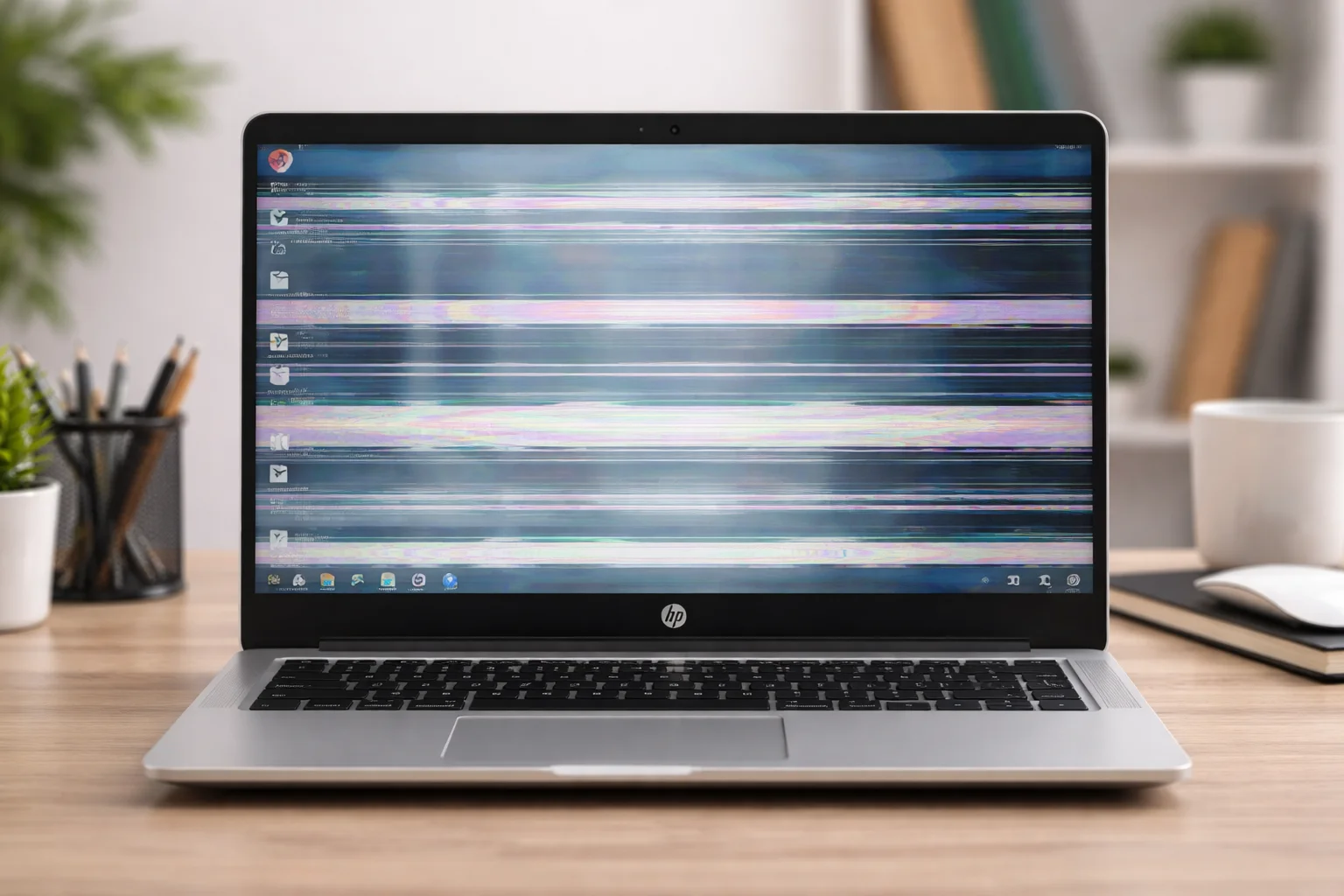
horizontal line on laptop screen HP can be caused by software, hardware, or connection issues. This article covers solutions for both Windows 10 and Windows 11.
Key Takeaways
- Horizontal lines on your HP laptop screen may be caused by physical damage, software issues, or faulty cables.
- Solutions include updating drivers, adjusting settings, and checking cables.
- The fixes for horizontal lines may differ slightly between Windows 10 and Windows 11.
- In some cases, professional repair is necessary for permanent resolution.
Introduction
Seeing horizontal lines on your HP laptop screen? Whether you’re using Windows 10 or 11, this common problem can be a headache.
But don’t worry, the issue is often easy to fix once you identify the cause. Whether it’s a software glitch, outdated drivers, or a hardware problem, this article will walk you through simple solutions to get your screen back to normal.
Read More: HP Laptop Screen and Display Fixes That Work Fast Today
Table of Contents
How I Helped Someone Fix Horizontal Lines on Their HP Laptop
Last year, I helped a colleague whose HP laptop was showing horizontal lines. They were unsure if it was a software issue or something more serious.
After running a few diagnostics and updating drivers, the problem was fixed. It was a simple driver issue that many people overlook.
With a little troubleshooting, the problem was resolved in under an hour.
Read More: HP Laptops Guide: Simple Fixes, Smart Tips, and Faster Use
What Causes Horizontal Lines on HP Laptop Screens?
Horizontal lines on your laptop screen can stem from different sources. It’s important to first understand what’s causing the issue before jumping into fixes.
1. Physical Damage or Screen Impact
One of the most common reasons for horizontal lines is physical damage to the screen. If your laptop has been dropped, or the screen has suffered any form of impact, it can cause the internal wiring or pixels to malfunction.
If you notice that the lines are only present in certain areas or after a physical impact, the issue could be permanent and might require a screen replacement.
2. Outdated or Corrupted Graphics Drivers
Outdated or faulty graphics drivers can cause display issues like horizontal lines. Windows updates can occasionally conflict with old drivers, especially on systems like Windows 11, causing graphics glitches.
Make sure your drivers are up to date by checking the Device Manager for updates.
3. Loose or Faulty Display Cables
A loose connection between the motherboard and the display panel can cause these lines. Sometimes, simply reseating the cable can resolve the problem.
If you are comfortable with it, you can carefully open up the laptop and inspect the connection. Otherwise, a professional technician can help with this.
4. Software or Operating System Bugs
Operating system bugs are another possible cause. Sometimes, software conflicts or bugs in Windows 10 or 11 can cause display issues.
Try performing a system update or adjusting settings to see if that resolves the issue.
How to Fix Horizontal Line on Laptop Screen HP
If you’re seeing horizontal lines on your HP laptop screen, here’s how you can fix them.
1. Update or Reinstall Graphics Drivers
One of the easiest fixes is to ensure your graphics drivers are up to date.
- Open Device Manager and expand Display Adapters.
- Right-click on your graphics driver and select Update Driver.
- You can also uninstall the driver and let Windows reinstall it after a restart.
Updating your drivers can fix glitches caused by outdated software.
2. Inspect the Display Cable
If you notice lines appear after moving your laptop or the display randomly flickers, the cable may be loose. To fix it:
- Turn off the laptop and carefully open it to check the cable connections.
- If you’re not familiar with the internal components, it’s best to let a professional handle this.
3. Perform a System Update
Sometimes the issue might be a bug within the operating system itself.
- Check for updates under Settings > Update & Security.
- Install any available updates and restart your laptop to see if the issue is resolved.
4. Test with an External Monitor
This test will help you determine whether the problem is with your laptop screen or the graphics card.
- Connect your laptop to an external monitor.
- If the horizontal lines don’t appear on the external monitor, the problem is likely with the laptop’s display, not the GPU.
Horizontal Lines on HP Laptop in Windows 10 vs Windows 11
Is There a Difference Between Fixing Horizontal Lines on Windows 10 and Windows 11?
While both Windows 10 and Windows 11 users experience similar issues with horizontal lines, there are a few differences in how to approach fixes.
1. Graphics Drivers and Compatibility
Windows 11 has a new interface, and it’s still learning how to interact with older hardware. This can cause compatibility issues with certain graphics drivers, leading to glitches like horizontal lines.
Ensure your drivers are compatible with Windows 11, and check for any available updates from the manufacturer.
2. Display Scaling in Windows 11
Windows 11 offers a display scaling feature that can sometimes cause display errors, including horizontal lines.
To check this:
- Right-click on the desktop and select Display Settings.
- Under Scale and Layout, make sure the scaling is set to 100% or your preferred setting.
Reddit Insights: Solutions Shared by HP Users
Users on Reddit have shared a variety of solutions that worked for them when dealing with horizontal lines on HP laptop screens.
1. Hardware Diagnostics Tool
Many HP users have had success using HP’s built-in diagnostic tool to check for hardware issues. This tool can be accessed by pressing ESC on bootup and selecting F2 for diagnostics.
2. External Monitors and Calibration
Several users recommend connecting an external monitor to your HP laptop. If the external monitor works fine, this indicates a screen or cable issue with your laptop.
3. Overheating Issues
In some cases, horizontal lines are related to overheating. Make sure your laptop’s cooling system is working well. Cleaning vents and using the laptop on a flat surface can help.
Expert Advice on Resolving Display Issues
“Always keep your drivers updated and be cautious of overheating. These are the two most common causes of display issues, including horizontal lines.” – Linda Green, IT Consultant
Conclusion: Fix Horizontal Lines and Restore Your HP Laptop’s Display
Horizontal lines on your HP laptop screen can seem like a major problem, but most of the time, they’re easy to fix.
By updating drivers, checking connections, and performing system updates, you can likely resolve the issue yourself. If the problem persists, it may be time to consult a technician for hardware repairs.
Don’t let display issues slow you down—take action today to restore your screen’s functionality.
If the lines persist, consider reaching out to HP support or a professional technician for a permanent fix.
Frequently Asked Questions
What causes horizontal lines on HP laptop screens?
Horizontal lines can be caused by hardware damage, outdated drivers, or software bugs. A screen impact can also damage the internal components, leading to these lines.
How can I fix horizontal lines on my HP laptop screen?
Try updating your graphics drivers, checking the display cable, or adjusting your display settings. If these solutions don’t work, it might be a hardware issue requiring repair.
Are horizontal lines on my laptop screen serious?
Horizontal lines can be a sign of a malfunctioning screen or graphics card. If they persist, it’s best to consult a professional technician to determine the exact cause.
Citations
www3.hp.com. horizontal line on laptop screen HP