

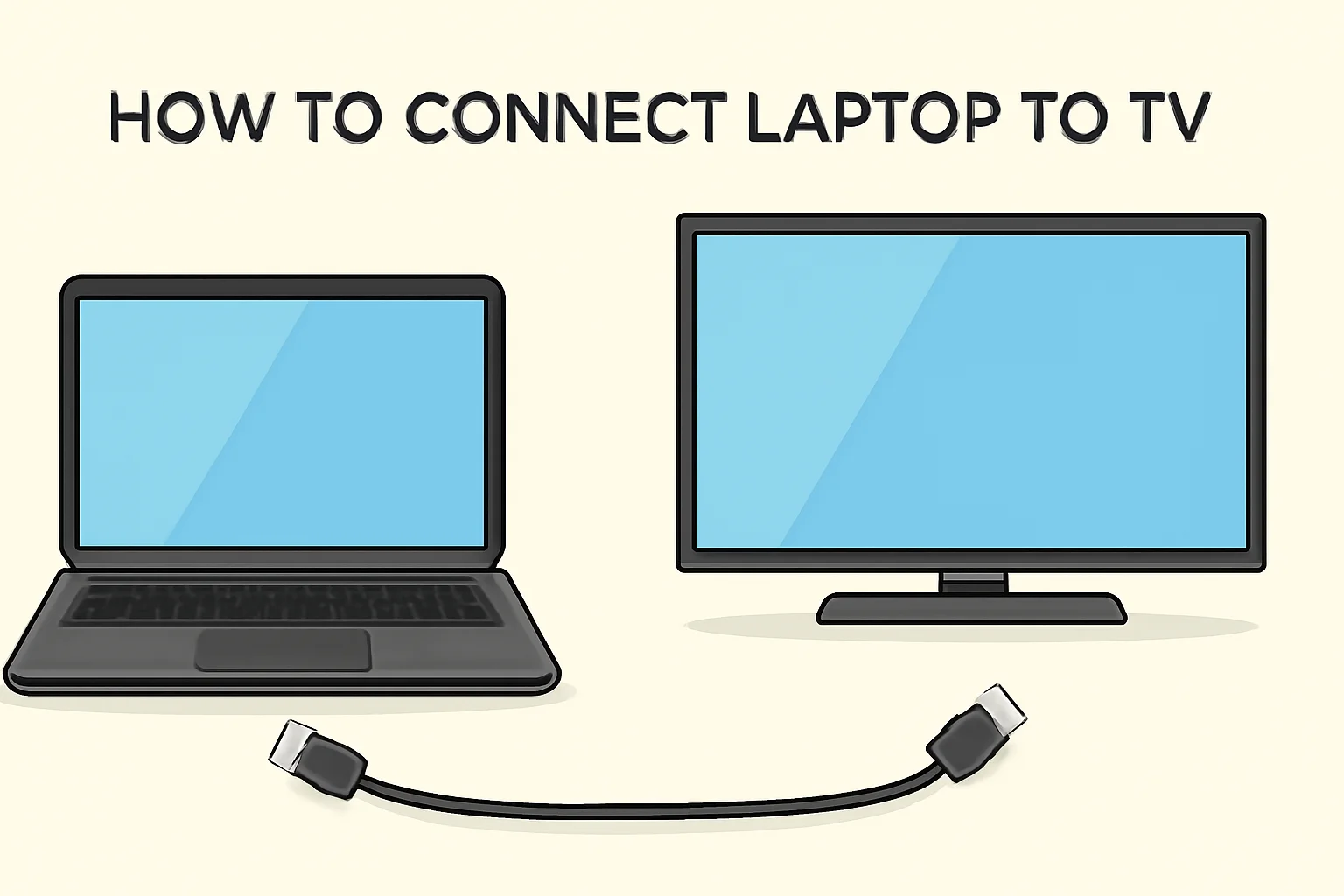
Key Takeaways
The guide provides easy-to-follow methods for connecting your laptop to your TV.
- HDMI is the most straightforward and reliable method for a wired connection.
- Wireless options include Bluetooth, screen mirroring, and Wi-Fi connectivity.
- USB can be used with an adapter for laptop-to-TV connection, though it’s less common.
- Troubleshooting tips help resolve common issues like no signal, audio problems, or connection failures.
- Screen mirroring is great for streaming apps like Netflix or YouTube.
In summary, the article covers all the essential methods to connect a laptop to a TV, offering both wired and wireless solutions with troubleshooting advice for a seamless experience.
Introduction
I remember the first time I tried to connect my laptop to my TV. It seemed like a simple task, but it turned into a frustrating experience. I spent hours trying to figure it out. Eventually, I found the right method, and the screen mirrored perfectly.
Ever since then, I’ve helped many others connect their laptops to TVs effortlessly. In this guide, I’ll walk you through the easiest ways to make that connection, whether you’re using HDMI, Bluetooth, USB, or even doing it wirelessly. You’ll get clear steps, so you can start streaming your favorite content in no time!
Read More: Master Your Laptop Setup: Boost Productivity & Comfort
Table of Contents
James’ Struggle and How I Helped Him Connect His Laptop to His TV
James had a tough time connecting his laptop to his TV for a big game night. He tried using HDMI cables and even attempted screen mirroring, but the setup never seemed right.
With some guidance, James was able to wirelessly connect his laptop to his smart TV in a few easy steps and enjoy a seamless viewing experience.
Read More: Laptops Guide: My Complete Step-by-Step Daily Companion
Connecting Your Laptop to a TV – The Essentials
When you want to connect your laptop to your TV, there are several options available. The best method depends on your devices and needs. Let me break down the common ways for you:
- HDMI Cable
- Wirelessly via Bluetooth
- Using USB
- Smart TV Screen Mirroring
How to Connect Laptop to TV with HDMI
HDMI is the most reliable and straightforward way to connect your laptop to a TV. Here’s how I do it:
- Plug one end of the HDMI cable into your laptop’s HDMI port
- Connect the other end to the TV’s HDMI input
- Change the TV input source to the connected HDMI
- Your laptop’s display should appear on the TV
Tip: Make sure your laptop supports HDMI output, as not all laptops have this feature.
How to Connect Laptop to TV Wirelessly (Windows 10)
Connecting wirelessly offers the freedom to move around without worrying about cables. This is how I connect my Windows 10 laptop to a TV:
- Ensure both your laptop and TV are on the same Wi-Fi network
- On Windows 10, open the “Action Center” and click “Connect”
- Select your TV from the list of available devices
- Your laptop screen will be mirrored to the TV
Tip: Double-check that your TV supports screen mirroring (Miracast) to ensure smooth connectivity.
How to Connect Laptop to Smart TV Using Screen Mirroring
Screen mirroring is a great way to display your laptop’s screen wirelessly on your Smart TV. I use this method all the time for streaming and presentations. Here’s how:
- On your Smart TV, enable screen mirroring (check settings or consult the manual)
- On your laptop, go to “Settings” > “Devices” > “Connected Devices”
- Select “Add a device” and choose your TV
- Your laptop screen should now appear on the TV
Tip: Use this feature to stream content from apps like Netflix or YouTube for an enhanced viewing experience.
How to Connect Laptop to TV via USB
Using a USB connection isn’t as common, but it’s still an option in certain situations. I’ve done it a few times with the right adapter. Here’s how you can connect via USB:
- Use a USB to HDMI adapter to connect your laptop to the TV
- Plug the USB end into the laptop and HDMI end into the TV
- Select the correct HDMI input on your TV
- Your laptop will show up on the screen
Tip: USB to HDMI adapters are available online, but make sure to check compatibility with your devices before purchasing.
How to Connect Laptop to TV Using Bluetooth
For streaming audio, Bluetooth is a simple and effective method. I often use it to play sound from my laptop through my TV’s speakers. Here’s how:
- On your TV, enable Bluetooth pairing
- On your laptop, go to Bluetooth settings and search for available devices
- Select your TV from the list
- Once connected, you can stream audio wirelessly
Tip: This method supports audio only; if you want video, HDMI or screen mirroring will be necessary.
Troubleshooting Common Laptop-to-TV Connection Issues
If you encounter problems while connecting your laptop to your TV, don’t worry. I’ve faced these issues too and have some quick fixes for you:
- No Signal: Double-check the HDMI cable, Wi-Fi connection, or input source
- Audio Issues: Ensure audio settings are correctly configured on both devices
- Wireless Connection Failures: Restart your devices and reconnect
- Screen Resolution Problems: Adjust the resolution in the laptop’s display settings for a better fit on the TV
Tip: Sometimes, updating the software on both your TV and laptop can resolve connection problems.
Conclusion: Easy Laptop to TV Connection
Connecting your laptop to your TV is simple. Choose between HDMI, Bluetooth, USB, or wireless methods based on your setup. Troubleshoot issues easily for smooth connections. Start streaming today!
Frequently Asked Questions
Can I connect my laptop to a TV without Wi-Fi?
Yes, you can use HDMI, USB, or Bluetooth to connect without Wi-Fi.
Does my TV need special settings for wireless connection?
Yes, enable screen mirroring or Wi-Fi connection on your TV for wireless setup.
Can Bluetooth stream video to my TV?
No, Bluetooth only supports audio streaming. For video, use HDMI or screen mirroring.