

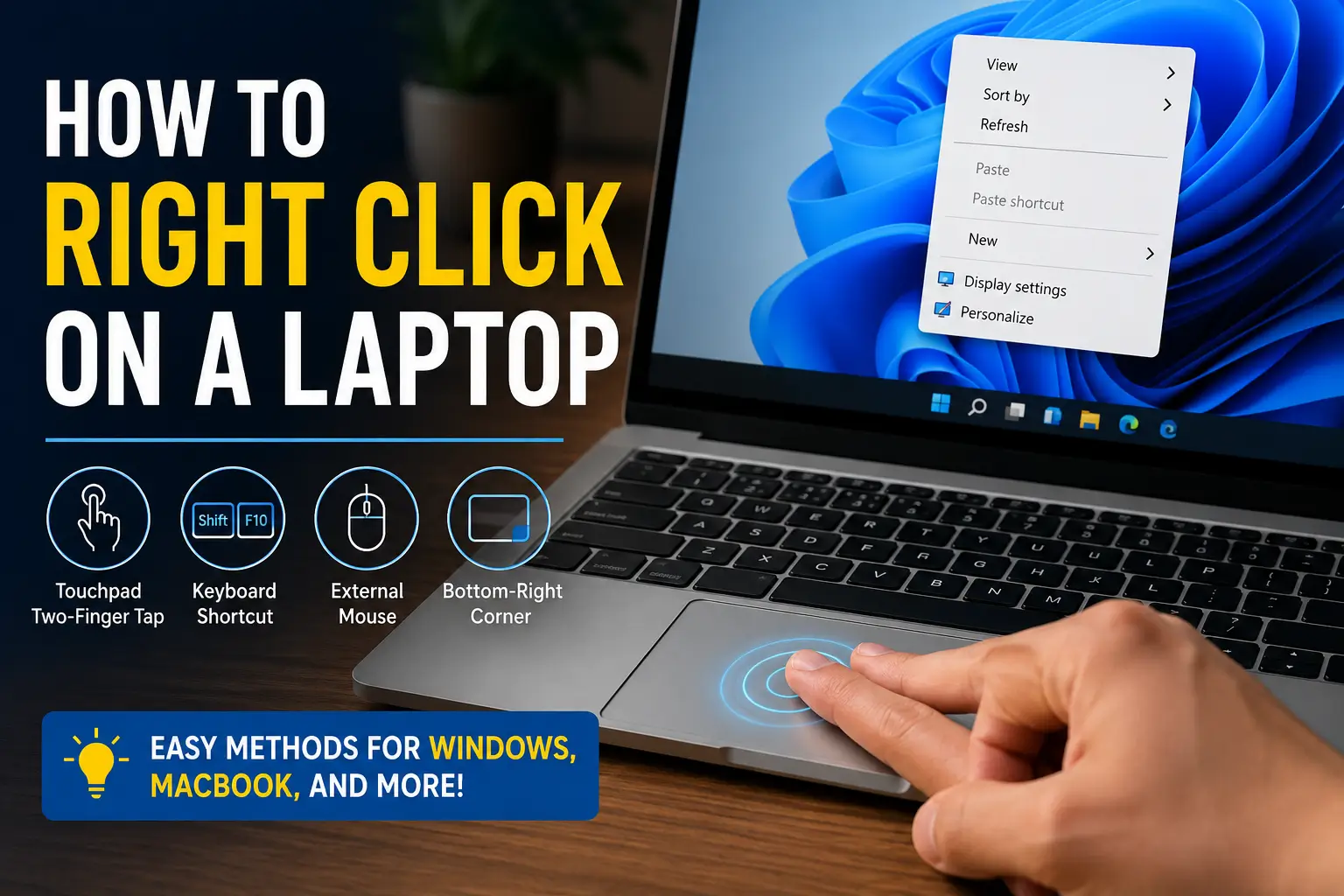
If you’re trying to learn how to right click on a laptop, the good news is that most laptops make it simple. Whether you use Windows, a MacBook, or a Chromebook, you can right click using the touchpad, keyboard shortcuts, or an external mouse.
This guide explains how to right click on laptop touchpad, how to right click without a mouse, and the exact methods for popular devices like HP, Dell, Lenovo, and MacBook laptops.
Quick Answer
To right click on a laptop:
- Tap the touchpad with two fingers
- Press the bottom-right side of the touchpad
- Use
Shift + F10on Windows - Connect an external mouse
If you’re wondering how to right click on laptop without mouse, the easiest method is the two-finger touchpad tap.
Read more: Boost Your Laptop Functionality with Simple, Effective Tips
Table of Contents
Quick Information Table
| Feature | Details |
|---|---|
| Difficulty Level | Easy |
| Time Required | 1–2 minutes |
| Works On | Windows, MacBook, Chromebook |
| Main Methods | Touchpad, keyboard shortcut, mouse |
| Best Option | Two-finger tap |
| External Device Needed | Optional |
Read More: Laptops Guide: My Complete Step-by-Step Daily Companion
Why Right Click Matters on a Laptop
Right clicking helps you access extra menus and shortcuts. It allows you to:
- Copy and paste
- Rename files
- Open links in new tabs
- Access settings menus
- Save images quickly
Without right click, many laptop tasks become slower and less convenient.
How to Right Click on Laptop Touchpad
The touchpad is the easiest way to right click on a laptop.
Method 1: Press the Bottom-Right Corner
Most laptops support right click by pressing the lower-right side of the touchpad.
Steps
- Move the cursor over an item
- Press the bottom-right corner
- Release to open the menu
This works on many laptops from HP, Dell, Lenovo, and ASUS.
Method 2: Two-Finger Tap
A two-finger tap is the fastest method on modern laptops.
Steps
- Place two fingers on the touchpad
- Tap gently once
- The right-click menu will appear
This method works well if you want to know how to right click on laptop without mouse.
Screenshot Suggestion
- Two fingers tapping a Windows laptop touchpad
- Right-click menu appearing on screen
How to Right Click on a Laptop Windows 11
If you use Windows 11, touchpad gestures are enabled on most laptops by default.
Steps
- Open Settings
- Select Bluetooth & Devices
- Click Touchpad
- Turn on Tap with two fingers to right-click
This is the easiest way to learn how to right click on a laptop Windows 11 devices.
Common Windows 11 Issue
Some users accidentally disable gestures after system updates. Re-enable them inside touchpad settings.
How to Right Click on a Laptop Windows 10
The process is very similar on Windows 10 laptops.
Steps
- Open Settings
- Click Devices
- Select Touchpad
- Enable right-click gestures
This method works for users searching for how to right click on a laptop Windows 10 systems.
How to Right Click on a Laptop Lenovo
Many Lenovo laptops support both physical clicks and gesture controls.
Lenovo Right Click Methods
- Press the bottom-right corner
- Use two-finger tap
- Connect a wireless mouse
- Use
Shift + F10
If you are learning how to right click on a laptop Lenovo, the two-finger gesture is usually the quickest option.
How to Right Click on a Laptop Dell
Most Dell laptops use precision touchpads.
Dell Right Click Tips
- Enable gestures in touchpad settings
- Use gentle taps instead of pressing hard
- Update touchpad drivers if gestures stop working
This helps users looking for how to right click on a laptop Dell devices.
How to Right Click on a Laptop HP
HP laptops may include separate left and right touchpad buttons on older models.
HP Right Click Methods
- Tap with two fingers
- Press the right touchpad button
- Use an external USB mouse
If you need to know how to right click on a laptop HP, check whether your model uses gesture controls or physical buttons.
How to Right Click on MacBook
A Apple MacBook uses “Secondary Click” instead of a traditional right-click button.
Method 1: Two-Finger Click
Steps
- Place two fingers on the trackpad
- Click once
- The menu opens
Method 2: Corner Click
Steps
- Open System Settings
- Select Trackpad
- Choose Point & Click
- Enable Secondary Click
This is the easiest way to learn how to right click on MacBook devices like the MacBook Air and MacBook Pro.
Screenshot Suggestion
- MacBook trackpad settings screen
- Secondary click option enabled
How to Right Click Using Keyboard Shortcuts
You can right click even if your touchpad stops working.
Windows Shortcut
Press:
Shift + F10
This opens the same menu as a mouse right click.
Best Situations for Keyboard Right Click
- Broken touchpad
- Accessibility needs
- External keyboard usage
Screenshot Suggestion
- Keyboard highlighting Shift + F10 keys
How to Right Click With an External Mouse
An external mouse can improve speed and accuracy.
Steps
- Connect the mouse
- Wait for setup
- Press the right mouse button
This is useful for gaming, editing, and office work.
Troubleshooting Right Click Problems
If right click is not working, try these quick fixes.
Restart the Laptop
Temporary software bugs can disable gestures.
Check Touchpad Settings
Verify that touchpad gestures are enabled.
Update Touchpad Drivers
Old drivers can break touchpad functions.
Clean the Touchpad
Dust and moisture may reduce touch sensitivity.
Disable Tablet Mode
Some Windows laptops disable touchpad gestures in tablet mode.
Common Laptop Right Click Methods Compared
| Method | Easy to Use | Works Without Mouse | Best For |
|---|---|---|---|
| Bottom-right press | Yes | Yes | Beginners |
| Two-finger tap | Very Easy | Yes | Fast navigation |
| Shift + F10 | Medium | Yes | Accessibility |
| External mouse | Very Easy | No | Precision work |
Tips for Faster Laptop Navigation
Learn Touchpad Gestures
Modern laptops support:
- Two-finger scrolling
- Pinch to zoom
- Three-finger app switching
Adjust Touchpad Sensitivity
Lower sensitivity can reduce accidental clicks.
Use a Mouse for Editing Work
External mice improve precision for spreadsheets, gaming, and design tasks.
Beginner Mistakes to Avoid
Pressing Too Hard
Touchpads only require light pressure.
Using One Finger Instead of Two
Most gesture-based right clicks need two fingers.
Disabling Drivers Accidentally
Avoid uninstalling touchpad drivers unless necessary.
Frequently Asked Questions
How do I right click on laptop without mouse?
Use a two-finger touchpad tap or press Shift + F10 on a Windows laptop.
How to right click on MacBook trackpad?
Place two fingers on the trackpad and click once to open the secondary menu.
Why can’t I right click on my laptop?
Your touchpad gestures may be disabled in settings or the driver may need updating.
How do I right click on a Lenovo laptop?
Use a two-finger tap or press the lower-right side of the touchpad.
Can I right click using only the keyboard?
Yes. Windows laptops support the Shift + F10 shortcut.
Do HP laptops support touchpad gestures?
Yes. Most modern HP laptops support two-finger right-click gestures.
Conclusion: How to Right Click on a Laptop Easily
Learning how to right click on a laptop is important for faster navigation and everyday tasks. Whether you use Windows 10, Windows 11, a Dell laptop, HP laptop, Lenovo laptop, or MacBook, the easiest method is usually the two-finger touchpad tap.
If your touchpad is not working, you can still right click using keyboard shortcuts or an external mouse.
Citations:
Windowsforum.com. Three Easy Ways to Right-Click on Windows Laptops