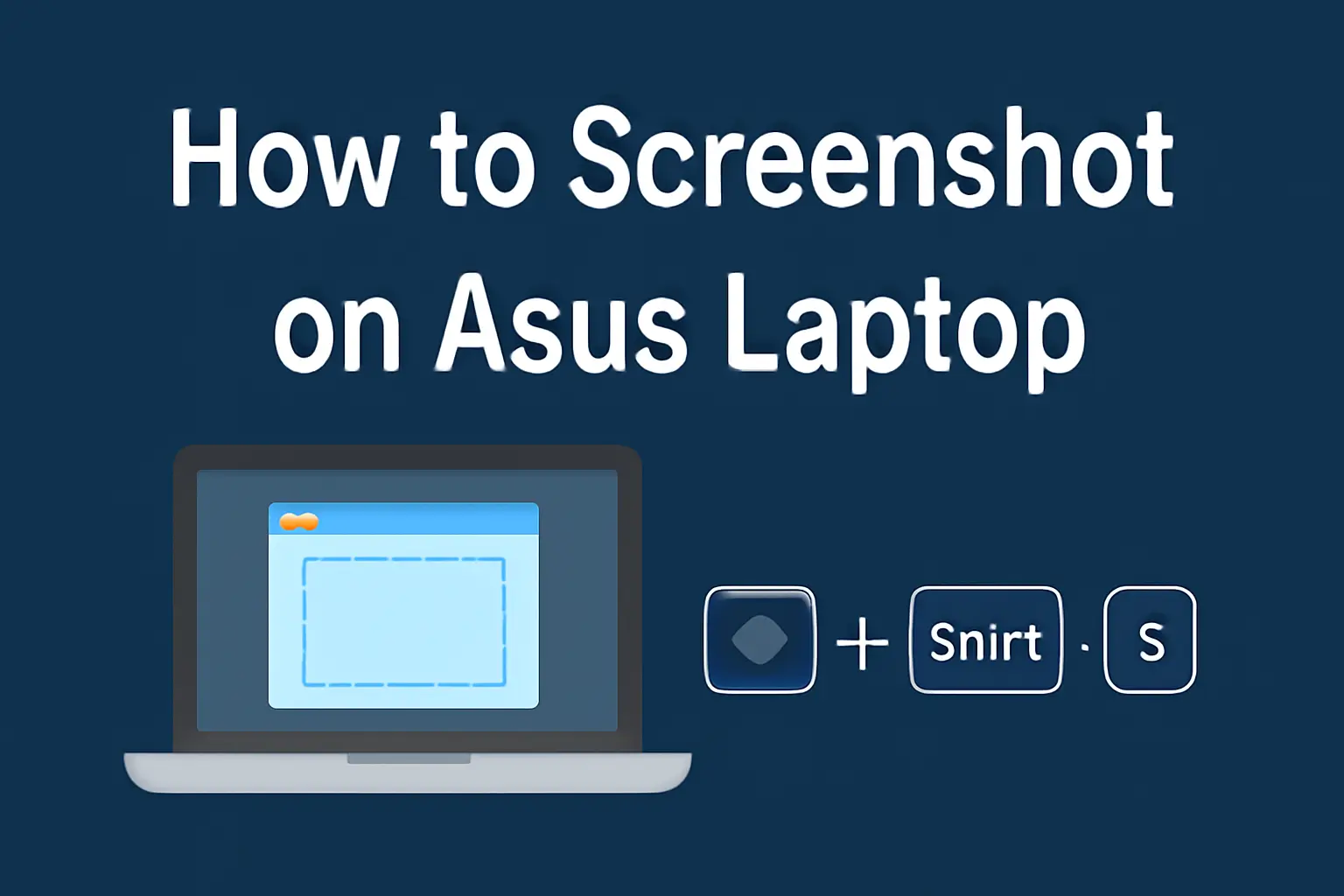
Learn how to screenshot on Asus laptop, including models with Windows 10, 11, and Chromebooks. This guide covers methods for each device, offering clear, practical solutions.
Key Takeaways
- Different Asus laptop models offer varied methods for taking screenshots.
- You can screenshot without using the Print Screen key.
- Specific tools like Snipping Tool and Game Bar are available on Windows devices.
Introduction
Capturing a screenshot is often a necessary task, whether you’re saving a project or sharing information. But if you have an Asus laptop, you may be wondering how to do this effectively.
In this guide, I’ll show you several ways to take screenshots on different Asus models, whether you’re using Windows 11, Windows 10, a Vivobook, or even a Chromebook.
Read More: Asus Laptops Guide: Expert Tips for Smart Laptop Choices
Table of Contents
How I Helped Someone with Taking Screenshot on Asus Laptop
I recently helped a colleague, who was struggling to take a screenshot on their Asus Vivobook, without the “Print Screen” button. After trying different shortcuts, we used the Snipping Tool and Windows + Shift + S to resolve the issue, and now they can screenshot with ease!
Read More: Laptops Guide: My Complete Step-by-Step Daily Companion
How to Screenshot on Asus Laptop with Windows 11
If you’re using a Windows 11 Asus laptop, you’ve got a variety of options to choose from. Here’s how to capture your screen effectively.
Using the Snipping Tool
The Snipping Tool on Windows 11 is an easy-to-use tool for screenshots.
- Open Snipping Tool from the Start menu.
- Click on New to start the capture process.
- Choose from Rectangular, Freeform, Window, or Full-Screen Snips.
- Save the screenshot to your desired folder.
Using Keyboard Shortcuts
Another quick option is Windows + Shift + S.
- Press the shortcut to bring up the snipping toolbar.
- Select the area you want to capture.
- The image will automatically be copied to your clipboard.
Using the Print Screen Key
If your keyboard has a Print Screen button, you can capture the entire screen by pressing PrtScn. To save it directly, use Windows + PrtScn.
How to Screenshot on Asus Laptop with Windows 10
Taking a screenshot on Windows 10 is similar to Windows 11, but with some minor differences.
Snip & Sketch Tool
Windows 10 users can make use of Snip & Sketch, which is similar to the Snipping Tool in Windows 11.
- Open Snip & Sketch from the Start menu.
- Click New and choose the type of screenshot you want.
- Save the screenshot after capturing it.
Full-Screen Screenshot
Press PrtScn to capture the entire screen. You can then paste the image into an application like Paint or Word for editing and saving.
How to Screenshot on Asus Laptop Without Print Screen Button
Not every Asus laptop has a Print Screen key, especially compact models. But don’t worry! There are still ways to take screenshots.
Using Windows + Shift + S (Windows 10 & 11)
This shortcut is your best friend if you’re missing a Print Screen button.
- Press Windows + Shift + S.
- Capture the part of the screen you need.
- Paste the screenshot into any program like Paint or Word.
Use the On-Screen Keyboard
If you have no Print Screen key, use the On-Screen Keyboard.
- Open On-Screen Keyboard via the Start menu.
- Press PrtScn from the on-screen keyboard.
- Capture the screen, and paste the screenshot as usual.
How to Screenshot on Asus Chromebook
Chromebooks come with simple tools to capture your screen, and Asus Chromebooks are no different.
Full-Screen Screenshot
- Press Ctrl + Show Windows (the rectangle button with two lines next to it) to capture the entire screen.
- Find your screenshot in the Downloads folder.
Partial Screenshot
- Press Ctrl + Shift + Show Windows.
- Use the mouse to select the area you want to capture.
How to Screenshot on Asus Vivobook
The Asus Vivobook has similar screenshot features as other Asus laptops but with some distinct options.
Using Keyboard Shortcuts
For an easy screenshot, press PrtScn or Windows + Shift + S.
- Capture the full screen or selected area.
- Paste it into a program like Paint or Word to save.
Using the Snipping Tool
- Open Snipping Tool from the Start menu.
- Select your preferred snip type (Rectangular, Freeform, etc.).
- Capture the screenshot and save it to your preferred location.
How to Screenshot on Asus Gaming Laptop
Gaming laptops like those from Asus often have additional tools to make the screenshot process faster.
Using Game Bar
- Press Windows + G to open the Game Bar.
- Click the camera icon to capture the screenshot.
- Find the image saved under Captures.
Using Keyboard Shortcuts
If you prefer the classic method, press PrtScn or Windows + PrtScn to capture the entire screen.
How to Screenshot on Asus Laptop with Windows 7
Though Windows 7 is an older version, you can still take screenshots with ease.
Using the Snipping Tool
Windows 7 comes with the Snipping Tool for easy screen capture.
- Open the Snipping Tool from the Start menu.
- Choose the snip type and capture your screen.
- Save the screenshot.
Using Print Screen
Press PrtScn to capture the entire screen, then open Paint and paste the image using Ctrl + V. After that, you can save it.
Conclusion: Capture Screenshots Easily on Any Asus Laptop
No matter the model or operating system, taking screenshots on your Asus laptop is simple. Whether you’re using a Vivobook, Gaming Laptop, or a Chromebook, you have multiple options available.
You don’t need to rely on the Print Screen key—there are other shortcuts and tools like Snipping Tool, Snip & Sketch, and the Game Bar that make the process easier.
Frequently Asked Questions
How do I take a screenshot on my Asus laptop without the Print Screen button?
Use the Windows + Shift + S shortcut for quick screenshots without the Print Screen key.
How do I take a screenshot on an Asus Chromebook?
To capture your screen, press Ctrl + Show Windows for the full screen, or Ctrl + Shift + Show Windows to capture a selected area.
Where are my screenshots saved on an Asus laptop?
On Windows 10 and 11, screenshots are saved in the Pictures > Screenshots folder by default.
Citations
https://www.asus.com. how to screenshot on asus laptop