

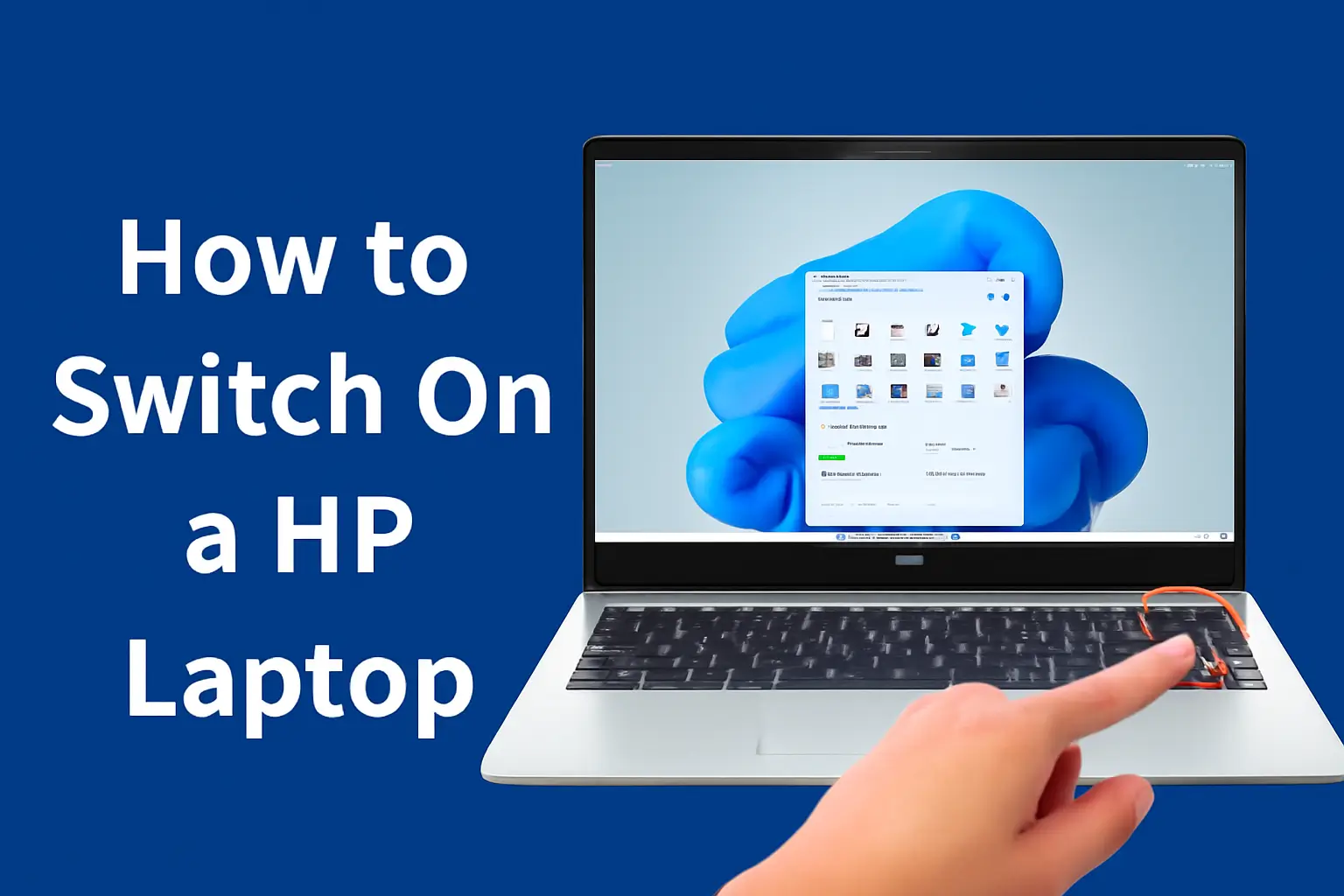
Learn how to switch on a hp laptop with practical tips, troubleshooting common issues, and solutions for those struggling to power up their device, especially with Windows 11.
Key Takeaways
- Press and hold the power button to turn on your HP laptop.
- If it won’t turn on, check for power or battery issues.
- There are ways to turn it on without the power button.
- Windows 11 adds some features that may change startup behavior.
Introduction
Starting your HP laptop should be a quick and simple process. But sometimes, even the most straightforward task can become frustrating.
If you’re facing issues powering up your HP laptop, don’t worry – there are solutions.
Read More: HP Laptop Power and Setup: Start Fast, Fix Issues, Run Smooth
Table of Contents
How I Helped Someone How to Switch on a Hp Laptop
A client recently came to me, frustrated because his HP laptop wouldn’t turn on. After guiding him through a simple reset process, the laptop started up, and he was relieved to get back to work.
Sometimes, a quick fix is all it takes, and in this case, it was just about knowing the right steps to take.
Read More: HP Laptops Guide: Simple Fixes, Smart Tips, and Faster Use
Where Is the Power Button on an HP Laptop?
Before anything else, let’s locate the power button. Most HP laptops have the power button located at the top-right corner or above the keyboard. Some newer models may also integrate the button with the fingerprint sensor.
If you own a model like the HP Spectre or HP Pavilion, the button might look slightly different or be in a unique location. It’s usually easy to find – just look for the button with the power symbol (a circle with a vertical line).
How to Turn On Your HP Laptop (Windows 11)?
Turning on your HP laptop is simple. Here’s what to do:
- Find the power button on your laptop.
- Press and hold it for about 2 seconds.
- Wait for the HP logo or Windows 11 loading screen to appear.
With Windows 11, you may see additional boot options or fast boot features that make the startup quicker. If everything’s working correctly, your laptop should be ready to use.
Why Your HP Laptop Won’t Turn On After Pressing the Power Button?
It can be frustrating when pressing the power button doesn’t turn on your HP laptop. Here are some common reasons:
No Battery Charge
Check if the battery is charged. Plug it into the charger and wait a few minutes before trying again.
Power Button Malfunction
If the button is unresponsive, it might be faulty. Try holding the power button for 15 seconds to reset the system.
Screen Failure
Sometimes, your laptop may be on, but the screen is black. Try connecting it to an external monitor to check if it’s a screen issue.
Read More: HP Laptop Screen and Display Fixes That Work Fast Today
How to Turn On HP Laptop Without Power Button?
If your power button is broken or stuck, you can still power up your laptop with some workarounds.
Use the Keyboard
Some laptops allow you to wake up the laptop by pressing any key on an external keyboard. You’ll need to enable this in your power settings beforehand.
Use a Reset Button
Some HP laptops come with an emergency reset button located on the bottom or side. Consult your manual for details.
Wake Up from Sleep Mode
Set up your laptop to wake from sleep using keyboard or mouse movements.
How to Turn On HP Laptop When It Won’t Turn On
If you’ve tried pressing the power button, but the laptop still won’t start, follow these steps:
Plug in the Charger
Ensure the battery isn’t dead.
Perform a Hard Reset
Unplug the charger, remove the battery if possible, and hold the power button for 15 seconds.
Remove External Devices
Disconnect any peripherals (USB drives, printers, etc.) and try again.
If your HP laptop still won’t turn on after these steps, you may need to consult a technician for further repair.
How to Turn On HP Desktop Monitor
If your HP desktop monitor won’t turn on, it’s usually an issue with the connection or settings.
Check the Power Button
Locate the monitor’s power button (usually on the front or side).
Verify the Cables
Ensure the monitor is properly connected to both the power source and the PC.
Adjust Input Settings
Make sure the monitor is set to the correct input (HDMI, DisplayPort, etc.).
How to Turn Off HP Laptop with Keyboard
Shutting down via the keyboard can be faster than using the power button. Here’s how to do it:
Use Ctrl + Alt + Delete
Press Ctrl + Alt + Delete and choose shutdown options.
Use Alt + F4
Alternatively, press Alt + F4 on the desktop to open the shutdown menu.
This can save time, especially when the power button isn’t responsive.
How to Use HP Laptop for Beginners
If you’re new to using an HP laptop, here’s a quick guide:
Set up Your Laptop
Start by connecting to Wi-Fi and signing in with your HP or Microsoft account.
Explore Windows 11
Windows 11 has a fresh, modern interface. Explore the Start menu, Taskbar, and Settings app to get familiar with it.
Customize Settings
Adjust display brightness, volume, and power options to suit your needs.
Conclusion: Quick Ways to Start Your HP Laptop
Getting your HP laptop up and running is usually a simple process. If it doesn’t turn on right away, don’t panic.
Try a reset or connect it to the charger for a few minutes. If you’re still having trouble turning on your HP laptop, check for hardware issues or reach out to HP support for further assistance.
Frequently Asked Questions
How do I turn on my HP laptop if the power button is broken?
You can use an external keyboard to wake up the laptop, or if your model supports it, use an emergency reset button to power it on.
Why isn’t my HP laptop turning on after pressing the power button?
Make sure your laptop is plugged in and the battery is charged. If the screen is black, try connecting an external monitor to check for display issues.
Can I turn off my HP laptop using just the keyboard?
Yes, you can shut down your HP laptop by pressing Ctrl + Alt + Delete and selecting shutdown, or use Alt + F4 to open the shutdown menu.
Citations
How to Switch on a HP Laptop. https://www.hp.com/us-en/shop/tech-takes/how-do-i-fix-laptop-that-wont-turn-on