

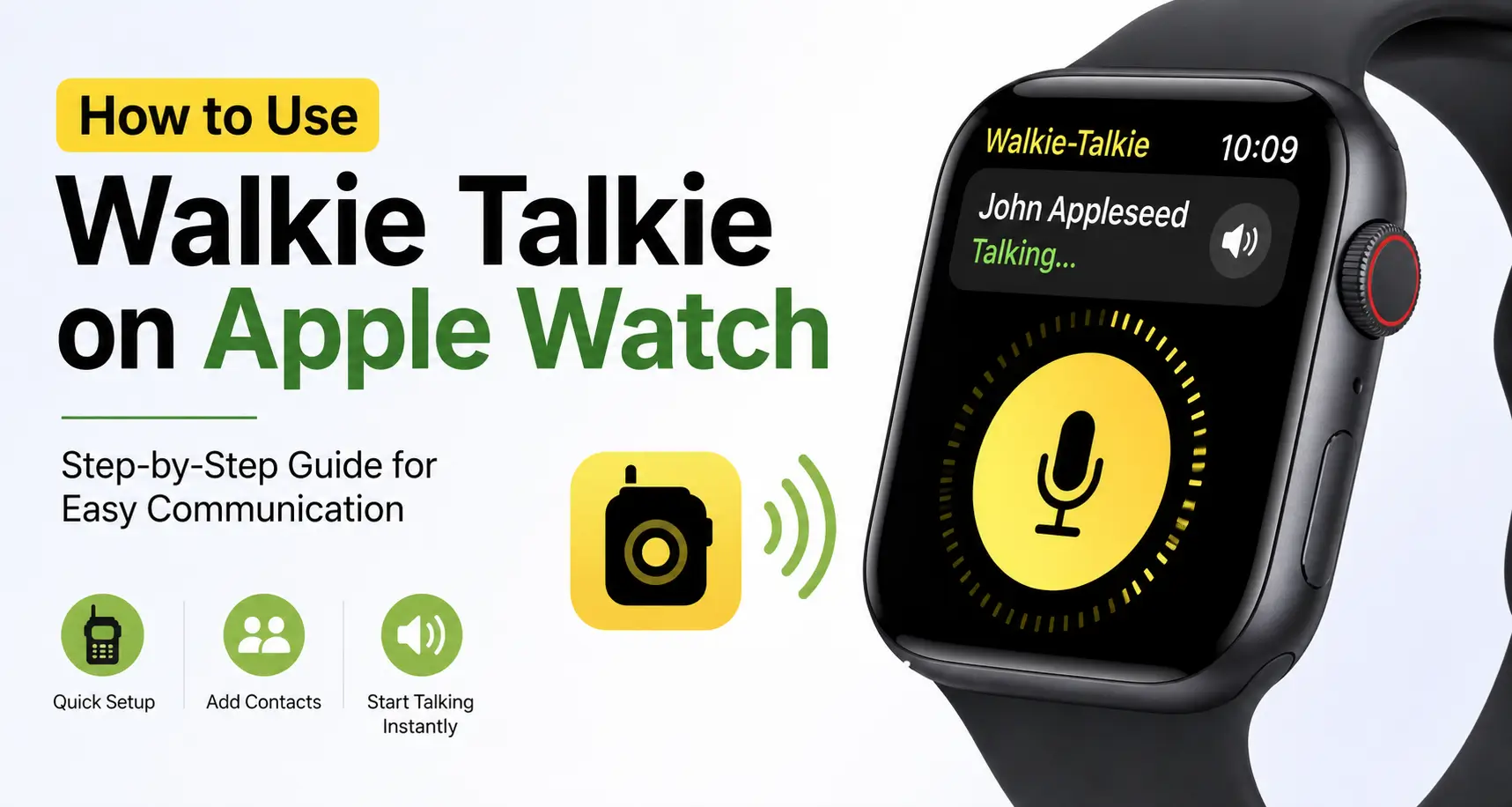
Staying connected with friends and family is easier than ever with your Apple Watch. One of its most useful communication features is Walkie Talkie, which lets you send quick voice messages instantly.
If you are wondering how to use walkie talkie on apple watch, the process is simple and takes only a few minutes to set up.
You can invite contacts, talk hands free, and stay in touch without pulling out your iPhone. In this guide, you will learn the setup steps, how to start conversations, and tips to fix common issues for a smooth experience.
Read more: My Top Apple Watch Features and Functions You Need to Try
Table of Contents
How to Use Walkie Talkie on Apple Watch: Setting It Up the Right Way
I wanted to start chatting instantly, but I had to set it up first. It took just a few steps, and now I can talk with a tap.
Make Sure My Devices Are Ready
- My Apple Watch and iPhone need the latest updates. I check in Settings > General > Software Update on both.
- FaceTime must be on. I go to Settings > FaceTime on my iPhone and switch it on.
Get the Walkie-Talkie App
- If I don’t see it on my watch, I open the App Store on my watch.
- I search for Walkie-Talkie, download, and install it.
Adding My Friends to Walkie-Talkie
Talking alone isn’t fun, so I had to add friends first. Sending an invite took just a few taps.
Find and Invite Friends
- I press the Digital Crown and tap the Walkie-Talkie app.
- I scroll through my contacts and tap a friend’s name.
- The invite goes out, and I wait for them to accept.
Check If They’ve Joined
- When they accept, their name turns yellow, meaning they’re available.
- If I don’t see them online, I remind them to check their notifications.
Read more: My Apple Watch: The Only Gadget I Wear Every Single Day
Accepting Walkie-Talkie Invites Like a Pro
My friend invited me, but I had no clue where to accept it. Turns out, it was easier than I thought.
Accept Right Away
- When I get a notification, I tap Always Allow to accept the invite.
Find Missed Invites
- If I miss it, I swipe down from the top of my watch to open Notification Center.
- I tap the invite and accept it there.
Talking to My Friends in Real Time
Once everything was set up, using Walkie-Talkie was the fun part. It felt like a real walkie-talkie, just without the static.
Start a Chat
- I open the Walkie-Talkie app.
- I tap a friend’s name to start talking.
- I press and hold the talk button, speak, then let go when I’m done.
Adjust the Volume
- If my friend sounds too loud or too quiet, I turn the Digital Crown to adjust the volume.
Fixing Walkie-Talkie When It Stops Working
One day, it just stopped working. I figured out what went wrong and fixed it quickly.
Check the Basics
- I make sure both my iPhone and Apple Watch are connected to the internet.
- FaceTime must be on. I check in Settings > FaceTime on my iPhone.
- Restarting both devices helps if it still won’t connect.
Reinvite My Friends
- I open the Walkie-Talkie app and swipe left on my friend’s name.
- I tap the delete button and send a new invite.
How Far Can Walkie-Talkie Really Go?
I wanted to test how far it worked, but I needed an internet connection.
Internet is a Must
- Walkie-Talkie won’t work with just Bluetooth. I need Wi-Fi or cellular.
No Connection, No Walkie-Talkie
- If I’m in Airplane Mode or don’t have Wi-Fi, it won’t work at all.
Changing My Walkie-Talkie Settings for a Smoother Experience
I like having control over my settings, so I made a few quick changes.
Turn Availability On or Off
- I open the Walkie-Talkie app and switch my status at the top.
Use a Single Tap to Talk
- In Settings > Accessibility, I find Walkie-Talkie and turn on Tap to Talk.
Frequently Asked Questions
What is the Walkie-Talkie feature on Apple Watch?
Walkie-Talkie is a built-in Apple Watch feature that lets users send and receive quick voice messages instantly between contacts.
Do both users need an Apple Watch to use Walkie-Talkie?
Yes, both users need compatible Apple Watches, FaceTime enabled, and internet connectivity for Walkie-Talkie to function properly.
Why is Walkie-Talkie not working on my Apple Watch?
Walkie-Talkie may stop working because of disabled FaceTime, connectivity issues, software glitches, or unavailable contact status.
Can I use Walkie-Talkie without my iPhone nearby?
Yes, Walkie-Talkie works independently when your Apple Watch has Wi-Fi or cellular connectivity and FaceTime is enabled.
How do I accept a Walkie-Talkie invitation?
Open the Walkie-Talkie app, find the invitation notification, and tap Accept to start communicating with your contact.
Citations
Apple Watch User Guide: Apple Watch User Guide: Walkie-Talkie App