

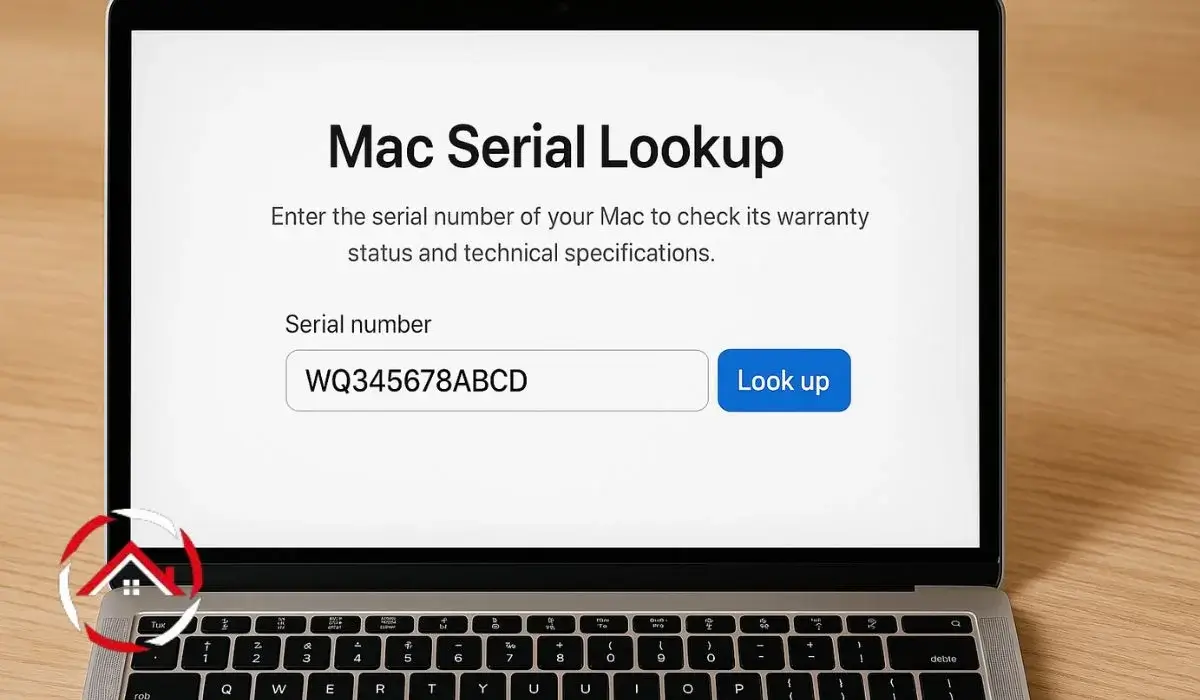
If you want to know more about your Mac, a Mac serial lookup is the easiest place to start. Your Mac’s serial number can tell you its exact model, release year, warranty status, and hardware specifications. It also helps you verify a used Mac before buying it and find the right replacement parts or software.
Whether you own a MacBook Air, MacBook Pro, iMac, Mac mini, or Mac Studio, every Apple computer has a unique serial number. With just a few clicks, you can use that number to learn everything you need to know about your device.
In this guide, you’ll learn how to find your Mac’s serial number, perform an Apple serial lookup, check your MacBook’s year, and understand what the results mean.
Quick Answer
A Mac serial lookup lets you identify your Mac using its unique serial number. It reveals important details such as the model, release year, processor, memory, storage, warranty status, and AppleCare coverage.
You can find your serial number in About This Mac, System Information, on the bottom of your MacBook, or on its original packaging. Once you have it, use Apple’s official tools or trusted databases like EveryMac Serial Lookup to view your Mac’s information.
Read More: Mac Features and Settings: Smart Tweaks for a Faster Mac
Table of Contents
Quick Reference Table
| Feature | Details |
|---|---|
| Purpose | Identify your Mac and verify its details |
| Time Required | Less than 2 minutes |
| Difficulty | Easy |
| Cost | Free |
| Best Method | Apple’s official serial number lookup |
| Information Available | Model, release year, warranty, AppleCare, specifications |
Read More: Mac Guide: Smart Tips for Faster, Easier, Better Mac Use
What Is a Mac Serial Lookup?
A Mac serial lookup is the process of using your Mac’s unique serial number to identify its model, hardware specifications, manufacturing details, and warranty information.
Think of the serial number as your Mac’s fingerprint. While many Macs look similar, each one has a different serial number that identifies that specific device.
When you perform an Apple serial lookup, you can learn details such as:
- Mac model
- Release year
- Screen size
- Processor type
- RAM capacity
- Storage size
- Color (for some models)
- Warranty status
- AppleCare eligibility
- Repair coverage
This information is useful whether you’re troubleshooting a problem, upgrading your Mac, selling it, or buying a second-hand device.
Why Should You Perform a Mac Serial Lookup?
Most people don’t think about their Mac’s serial number until they need it. However, it can be helpful in many situations.
Here are some of the most common reasons to perform a Mac serial lookup.
Identify Your Exact Mac Model
Many Mac models look almost identical. A serial lookup tells you exactly which Mac you own, including its release year and hardware configuration.
For example, if you’re unsure about your MacBook Pro model number, the serial number can help identify the correct model.
Check Apple Warranty Coverage
One of the biggest reasons to perform an Apple serial lookup is to check whether your Mac is still covered by Apple’s Limited Warranty or AppleCare.
This is especially useful before paying for repairs.
Verify a Used Mac Before Buying
Buying a second-hand Mac can save you money, but you should always verify the device first.
A serial lookup helps you:
- Confirm the advertised model
- Verify the release year
- Check warranty eligibility
- Compare the listed specifications with the actual hardware
- Spot incorrect or misleading listings
Find Compatible Parts and Accessories
Replacement batteries, SSDs, chargers, keyboards, and displays often depend on the exact Mac model.
Knowing your serial number helps you buy compatible parts without guessing.
Download the Correct macOS Version
Some versions of macOS only support specific Mac models.
By identifying your Mac through its serial number, you can confirm which version of macOS your device supports.
Get Faster Technical Support
Apple Support may ask for your serial number to identify your Mac quickly and provide the correct troubleshooting steps.
Keeping a copy of your serial number can save time when requesting support.
Looking for buying advice or hardware comparisons? Visit Mac Hardware and Models for guides on MacBook models, upgrades, and accessories.
How to Find Your Mac Serial Number
Finding your Mac’s serial number only takes a minute. Apple provides several ways to locate it.
Method 1: Check “About This Mac”
This is the easiest method for most users.
- Click the Apple menu in the top-left corner.
- Select About This Mac.
- Your serial number appears in the overview window.
This method works on most versions of macOS.
Want to personalize your desktop? Learn How to Add Widgets on Mac to quickly access weather, reminders, calendars, and more.
Method 2: Use System Information
If you need more detailed hardware information:
- Hold the Option key.
- Click the Apple menu.
- Select System Information.
- Under Hardware Overview, find Serial Number (System).
You’ll also see your model identifier, processor, memory, and other hardware details.
Method 3: Look on the Bottom of Your MacBook
Most MacBook Air and MacBook Pro models have the serial number engraved on the bottom case.
If you’re performing a MacBook Pro serial number Check or a MacBook Air serial number Check, simply turn the laptop over and look near the regulatory markings.
Method 4: Check the Original Packaging
If you still have your Mac’s original box, you’ll find the serial number printed on the barcode label.
This is useful if your Mac won’t turn on.
Method 5: View Your Registered Apple Devices
If your Mac is linked to your Apple ID, you can view your registered devices by signing in to your Apple account.
Many users search for Check MacBook serial number iCloud, but it’s important to know that iCloud doesn’t offer a public serial number lookup tool. Instead, it lets you view devices connected to your Apple account. Depending on your account information, you may also see details about your registered Mac.
Once you’ve identified your Mac, explore Mac Apps and Tasks for everyday guides on backups, screenshots, Messages, and more.
Ways to Find Your Mac Serial Number
| Method | Best For | Difficulty | Internet Required |
|---|---|---|---|
| About This Mac | Quickly viewing your serial number | Easy | No |
| System Information | Viewing detailed hardware information | Easy | No |
| Bottom of Your MacBook | Mac won’t boot | Easy | No |
| Original Packaging | Finding details without the device | Easy | No |
| Apple Account | Checking registered devices remotely | Easy | Yes |
How to Check MacBook Year with Serial Number
One of the most common questions people ask is, “How to Check MacBook year with serial number?”
Fortunately, it’s easy.
Once you have your serial number, enter it into Apple’s official coverage checker or a trusted database such as EveryMac Serial Lookup. These tools can identify your Mac’s release year, model name, processor, memory, and other specifications.
Knowing your Mac’s release year is useful because it helps you:
- Check compatibility with the latest macOS versions.
- Buy the correct replacement parts.
- Estimate your Mac’s resale value.
- Verify a seller’s claims before purchasing a used Mac.
- Confirm whether your Mac qualifies for repair or service programs.
Keep in mind that the manufacturing year and the model year aren’t always the same. For example, a Mac manufactured in early 2022 may still belong to the 2021 model lineup. That’s why using the serial number is much more accurate than guessing based on appearance.
If you also need to identify your Mac by its model number, a MacBook model number Check can help. The model number identifies the product family, while the serial number identifies your specific device. Using both together gives you the most accurate information about your Mac.
How to Check Your Apple Warranty Using a Mac Serial Number
One of the biggest benefits of a Mac serial lookup is checking your warranty status. If your Mac needs a repair, knowing whether it’s still covered can save you time and money.
Apple offers a free online tool that lets you check your warranty using your Mac’s serial number.
How to Check Your Apple Warranty
Follow these steps:
- Find your Mac’s serial number using one of the methods covered above.
- Visit Apple’s official Check Coverage page.
- Enter your serial number.
- Complete the security verification.
- Click Continue.
You’ll see information such as:
- Limited Warranty status
- AppleCare coverage
- Telephone support eligibility
- Estimated coverage expiration date
- Repair and service eligibility
If your warranty has expired, you’ll still be able to see basic information about your Mac.
Tip: Always use Apple’s official warranty checker instead of unofficial websites when checking coverage.
MacBook Pro Serial Number Check
If you own a MacBook Pro, performing a MacBook Pro serial number Check helps you identify the exact version of your device.
This is useful because many MacBook Pro models look almost identical, even though they have different processors, ports, and hardware.
A serial number lookup can reveal your:
- MacBook Pro model number
- Screen size
- Release year
- Processor type
- Chip model (Intel or Apple Silicon)
- Memory (RAM)
- Storage capacity
- Warranty status
- AppleCare eligibility
This information is especially helpful if you’re upgrading your Mac, ordering replacement parts, or selling your device.
If you’re buying a used MacBook Pro, compare the information returned by the serial lookup with the seller’s description. If they don’t match, ask the seller for an explanation before making a purchase.
MacBook Air Serial Number Check
A MacBook Air serial number Check works the same way.
Simply enter your serial number into Apple’s official tool or a trusted database to identify your MacBook Air.
A lookup can tell you:
- The exact MacBook Air model
- Release year
- Processor
- Memory
- Storage
- Display size
- Warranty status
This is particularly useful because Apple has released several MacBook Air models with similar designs but different hardware.
Instead of guessing which version you own, the serial number gives you accurate information in seconds.
MacBook Model Number Check
Many people confuse a model number with a serial number, but they are different.
A MacBook model number Check identifies the product family, while the serial number identifies your specific Mac.
For example:
- The model number tells you which MacBook generation you own.
- The serial number identifies your individual device and its original hardware configuration.
Using both together makes it easier to:
- Buy compatible accessories
- Find replacement parts
- Install supported versions of macOS
- Verify hardware specifications
- Identify your Mac before repairs
If you’re unsure which Mac you own, checking both numbers provides the most accurate results.
Can You Check a MacBook Serial Number with iCloud?
Many users search online for Check MacBook serial number iCloud, but there’s often some confusion about what iCloud can do.
iCloud doesn’t provide a public serial number lookup service.
However, if your Mac is signed in with your Apple ID, you can view your registered devices by signing in to your Apple account. Depending on the information available, you may see your Mac listed along with basic device details.
This feature is useful if:
- You own multiple Apple devices.
- You want to confirm which devices are connected to your account.
- You’re checking whether a Mac is still linked to your Apple ID before selling it.
If you’re selling your Mac, remember to sign out of iCloud, turn off Find My Mac, and erase the device before handing it over to the new owner.
What iCloud Can and Can’t Do
| Feature | Available in iCloud? | Details |
|---|---|---|
| View your registered Mac | ✅ Yes | See Macs linked to your Apple ID. |
| Check connected Apple devices | ✅ Yes | View devices associated with your account. |
| Confirm a Mac is linked to your Apple ID | ✅ Yes | Useful before selling or transferring ownership. |
| Find your Mac’s serial number | ⚠️ Sometimes | Basic device details may be available for registered devices, depending on your account information. |
| Perform a public Mac serial lookup | ❌ No | iCloud doesn’t provide a public serial number lookup service. |
| Check Apple warranty or AppleCare | ❌ No | Use Apple’s official coverage checker instead. |
| View complete hardware specifications | ❌ No | Use your Mac’s serial number with Apple’s official tools or trusted databases. |
Why a Mac Serial Lookup Is Important Before Buying a Used Mac
A used Mac can be a great value, but it’s important to verify the device before you buy it.
A Mac serial lookup helps you confirm that the Mac matches the seller’s description.
Before purchasing a used Mac, check the serial number to verify:
- The exact model
- Release year
- Processor
- Memory
- Storage
- Warranty status
- AppleCare coverage (if available)
You should also compare the serial number shown in macOS with the one printed on the bottom of the MacBook or the original box.
If the numbers don’t match, ask the seller why.
A mismatch doesn’t always mean the Mac is stolen, but it could indicate repairs, replacement parts, or incorrect information.
Buying from a trusted seller and verifying the serial number can help you avoid costly mistakes.
Is It Safe to Share Your Mac Serial Number?
Your Mac’s serial number isn’t as sensitive as a password, but it’s still personal information.
It’s a good idea to keep it private whenever possible.
Avoid posting your full serial number on:
- Social media
- Online forums
- Product listings
- Public screenshots
Instead, only share it with trusted parties such as:
- Apple Support
- Authorized Apple service providers
- A legitimate buyer if necessary
If you’re selling your Mac online, consider hiding part of the serial number in photos until you’ve confirmed the buyer is genuine.
Protecting your serial number helps reduce the risk of fraud or misuse.
Common Problems During a Mac Serial Lookup
Most serial lookups work without any issues, but sometimes you may run into problems.
Here are a few common ones and how to fix them.
Serial Number Not Found
If the lookup tool can’t find your serial number, check for:
- Typing mistakes
- Missing letters or numbers
- Confusing similar characters like O and 0
- An unofficial or counterfeit device
Try copying and pasting the serial number instead of typing it manually.
Warranty Information Doesn’t Appear
There are several reasons this can happen:
- Your warranty has expired.
- The Mac hasn’t been activated yet.
- Apple’s servers are temporarily unavailable.
- The serial number was entered incorrectly.
Wait a few minutes and try again if Apple’s website appears to be unavailable.
The Device Information Doesn’t Match
If the lookup results don’t match your Mac, check the serial number again.
If it still doesn’t match, the Mac may have been repaired, modified, or listed incorrectly by the seller.
Always verify the device before purchasing a used Mac.
If your Mac has startup or system issues, our Mac Fixes hub includes step-by-step solutions for common macOS problems.
Common Mac Serial Lookup Problems and Solutions
| Problem | Possible Cause | How to Fix It |
|---|---|---|
| Serial Number Not Found | Typing mistakes, missing characters, confusing O with 0, or an unofficial device | Double-check the serial number, copy and paste it if possible, and verify you’re using a genuine Mac. |
| Warranty Information Doesn’t Appear | Warranty expired, Mac not activated, Apple servers unavailable, or incorrect serial number | Verify the serial number, wait a few minutes if Apple’s services are busy, and try the lookup again. |
| Device Information Doesn’t Match | Incorrect serial number, repaired hardware, modified device, or inaccurate seller information | Compare the serial number on your Mac with the lookup results and verify the device before buying or requesting service. |
Tips for an Accurate Mac Serial Lookup
A few simple habits can help you get accurate results every time.
- Use Apple’s official lookup tools whenever possible.
- Copy and paste the serial number to avoid typing mistakes.
- Compare the lookup results with your Mac’s actual specifications.
- Save a copy of your serial number in a secure place.
- Keep your macOS version up to date.
- Verify the serial number before buying or selling a Mac.
These small steps can help you avoid confusion later.
Common Mistakes to Avoid
Many users make simple mistakes when performing a Mac serial lookup.
Here are the most common ones.
Confusing the Model Number with the Serial Number
These are two different identifiers.
The model number identifies the product family, while the serial number identifies your individual Mac.
Using Unofficial Websites First
Some third-party databases are helpful, but Apple should always be your first source for warranty and support information.
Sharing Your Serial Number Publicly
Avoid posting your full serial number online unless it’s absolutely necessary.
Ignoring Mismatched Information
If the serial lookup doesn’t match the seller’s description, investigate before buying the Mac.
Forgetting to Remove Your Apple ID Before Selling
Before selling your Mac:
- Sign out of iCloud.
- Turn off Find My Mac.
- Erase the Mac.
- Remove the device from your Apple account.
Taking these steps protects both you and the new owner and helps ensure a smooth transfer.
Frequently Asked Questions
Can I find my Mac’s serial number if it won’t turn on?
Yes. If your Mac won’t start, you can still find the serial number on the bottom of most MacBook models, on the original packaging, purchase receipt, or in your Apple account if the device is registered. An Apple Authorized Service Provider may also be able to help identify your device.
Does replacing Mac hardware change the serial number?
No. Replacing parts like the battery, SSD, memory (on older Macs), or display does not normally change the serial number. The serial number stays with the Mac’s logic board. If the logic board is replaced during a repair, the serial number may be updated by Apple or an authorized service provider.
Can I use a Mac serial number to check if a device is stolen?
No. Apple does not provide a public tool that tells you whether a Mac has been reported as stolen. A serial lookup only provides information such as the model and warranty status. When buying a used Mac, always purchase from a trusted seller and make sure Activation Lock has been removed.
What’s the difference between a serial number and a model identifier?
A serial number is unique to your individual Mac, while a model identifier refers to a group of Macs with the same hardware design. For example, multiple MacBooks may share the same model identifier, but each one has its own unique serial number.
How often should I check my Mac’s warranty status?
You only need to check your warranty when you’re planning a repair, buying or selling your Mac, or before purchasing AppleCare if it’s still available for your device. There’s no need to check it regularly unless your coverage is about to expire.
Can I identify my Mac’s original specifications after upgrading it?
Yes. A Mac serial lookup usually shows the original hardware configuration your Mac shipped with from Apple. This makes it easy to compare the factory specifications with any upgrades or replacements that have been made over time.
Key Takeaways
- Every Mac has a unique serial number.
- A serial lookup helps identify your exact Mac model and release year.
- You can check your warranty and AppleCare coverage with your serial number.
- A Mac serial lookup is useful before buying or selling a used Mac.
- Never share your full serial number publicly.
- Apple’s official tools provide the most accurate warranty information.
Citations:
support.apple.com. Find your Mac model name and serial number