


If your Acer laptop screen isn’t working, don’t panic! Whether it’s a black screen, flickering, or a blue light with no display, we can help. These issues are pretty common, and most of the time, they can be fixed with a few simple steps.
Let’s dive into the most common screen Acer laptop screen issues and show you how to fix them quickly.
Table of Contents
Quick Symptom Checker: What’s Going On?
Before we get into the fixes, let’s figure out what’s wrong. Check your laptop and see which problem sounds like yours.
| Symptom | What Might Be Wrong | First Test | Next Step |
|---|---|---|---|
| Black screen but power light on | Driver or screen problem | Try an external monitor | Try Safe Mode |
| Blue light, black screen | Power or settings issue | Restart your laptop | Check BIOS settings |
| Screen flickering | Driver or settings issue | Change refresh rate | Update graphics drivers |
| Horizontal lines on screen | Display or cable issue | Try external monitor | Check or replace screen |
| Power light on but laptop won’t turn on | Power or motherboard issue | Do a hard reset | Take it for repair |
Why Is My Acer Laptop Screen Black But Still Running?
You turn on your laptop, but the screen stays black. However, the power light is on and you can hear sounds. This usually happens because of software problems, driver issues, or a power glitch.
Here’s a tip from a real user, Tom:
“My screen was black even though the laptop was on. I did a simple power reset and it worked. Just hold the power button for 20 seconds to reset it.”
What you can do:
- Power reset: Turn off the laptop, unplug it, and hold the power button for 20 seconds. This clears any power issues.
- Test with an external monitor: If the external monitor works, the issue is with your laptop’s screen. For more info on troubleshooting when your laptop display isn’t working, check out this detailed guide on Acer laptop display issues.
- Boot into Safe Mode: Press F8 when you start the laptop and try to fix the problem from there.
Blue Light, Black Screen Problem
If you see a blue light but your screen stays black, it could be a firmware or power setting issue. The laptop is on, but it’s not showing anything.
Here’s advice from Dr. Maria Khan, a laptop repair expert:
“If you see the blue light but no display, it’s not always a broken screen. A reset of the BIOS settings can fix it.”
What to do:
- Power reset: Do the same reset as before—hold the power button for 20 seconds.
- Check the BIOS: Restart your laptop and press F2 to go into the BIOS. Make sure the display settings are correct.
- Test with an external monitor: If the external monitor shows your screen, the issue is likely with your laptop’s screen or cable. If you need more help with power or BIOS issues, take a look at our guide on Acer laptop monitor problems.
Blue Light on But Screen Is Black in Windows 11
This issue often happens after a Windows 11 update. Sometimes, the update messes with your graphics driver or display settings.
Here’s what Sarah says, who had the same problem:
“After updating Windows, my Acer laptop screen went black. I went into Safe Mode, rolled back the graphics driver, and it worked again.”
How to fix it:
- Boot into Safe Mode: Hold Shift + F8 when your laptop starts to get into Safe Mode.
- Roll back the graphics driver: Go to Device Manager, right-click your display driver, and click Roll Back Driver.
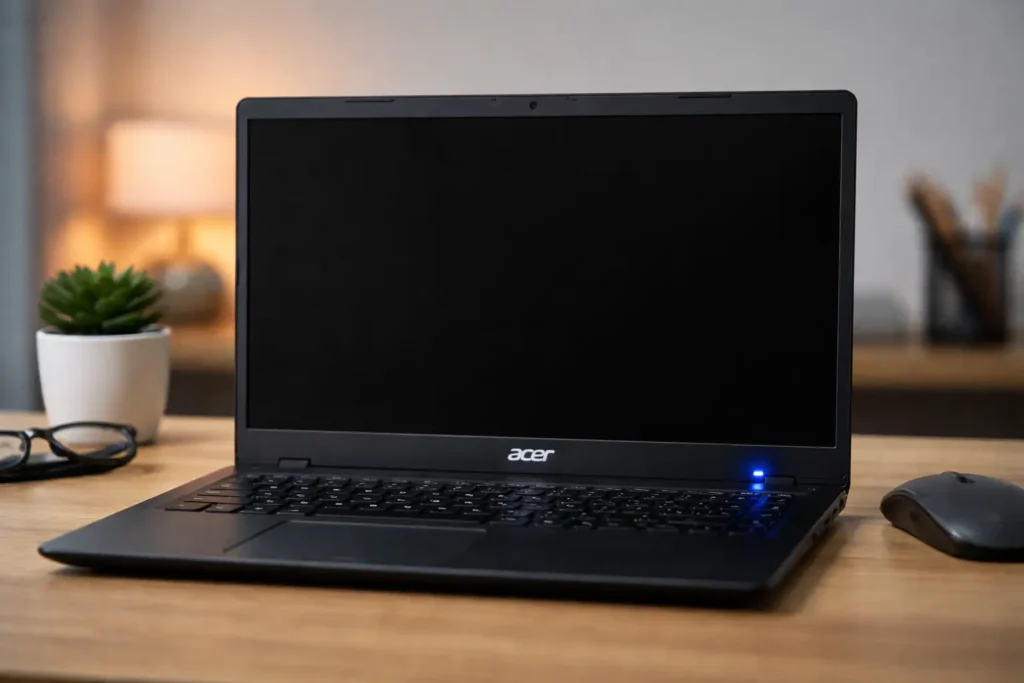
Why Is My Acer Laptop Not Turning On But the Power Light Is On?
Your laptop is plugged in and the power light is on, but nothing happens when you press the power button. This could be a power issue or a motherboard problem.
Here’s what you can try:
- Hard reset: Unplug everything, hold the power button for 15–20 seconds, and try turning it on again.
- Test with an external monitor: This helps you figure out if the screen or something else is the issue.
- Check the RAM: Make sure your laptop’s RAM is properly seated. If you want more info on laptop not turning on, check out how to reset your Acer laptop.
Acer Laptop Screen Flickering in Windows 11
Flickering can happen after updates, or it can be caused by a driver problem or a refresh rate setting that’s too low.
Fixes:
- Update your drivers: Go to Device Manager, right-click your graphics driver, and click Update Driver.
- Change the refresh rate: Go to Settings → Display → Advanced Display Settings and pick a higher refresh rate. If you want more information on fixing flickering screens, check out our full guide on Acer screen flickering.
- Disable hardware acceleration: In Chrome, go to Settings → System, and turn off Use hardware acceleration when available.
Acer Laptop Screen Flickering Horizontal Lines
Horizontal lines on your screen could be caused by a damaged display cable or a GPU issue.
What you can do:
- Test with an external monitor: If the external monitor doesn’t have lines, it’s likely a display or cable issue.
- Check the cables: Make sure everything is properly connected. Press around the edges of your screen and see if the lines change. If you’re still having trouble with screen issues, check out our guide on screen not working on Acer laptops.
Step-by-step Fixes
Here’s a simple step-by-step guide you can follow to fix your Acer laptop screen:
- Power reset: Turn off the laptop, unplug it, and hold the power button for 20 seconds.
- Disconnect peripherals: Unplug any USB devices, external monitors, or other things that might be connected.
- Check brightness and display settings: Make sure the brightness is up and the screen isn’t in sleep mode.
- Test with an external monitor: If the external monitor works, you might have a screen issue.
- Boot into Safe Mode: Hold Shift + F8 and see if you can troubleshoot from there.
- Update or roll back drivers: Update your graphics drivers or roll them back if the issue started after an update.
- Check BIOS settings: Press F2 at startup and reset the BIOS to default settings.
- Check internal connections: If nothing else works, the issue might be with the screen or cables inside the laptop.
Real User Experiences
Case 1: Black Screen After Windows Update
This happens a lot after a Windows update. Most of the time, it’s just a driver issue. Sarah fixed her laptop by rolling back the drivers and resetting the BIOS.
Case 2: Blue Light and Black Screen
Jake had this problem. After doing a power reset and checking the BIOS settings, his screen was back to normal.
Case 3: Flickering Screen
Chris had flickering after a Windows update. He fixed it by updating the graphics drivers and adjusting the refresh rate.
When to Seek Professional Help
If you’ve tried everything and your laptop still isn’t working, it might be time to get it checked by a professional. Acer-certified technicians can help fix hardware issues that you can’t repair on your own.
Frequently Asked Questions
Can a virus cause screen flickering?
It’s rare, but sometimes malware can mess with your display. Run a virus scan to be sure.
Why is my Acer laptop screen black but the power light is on?
It’s usually a software issue, like a corrupted driver or OS update. Try a hard reset or booting in Safe Mode to troubleshoot.
What do I do if my Acer laptop screen stays black after an update?
If your screen stays black after an update, boot into Safe Mode and uninstall the update. You can also try reinstalling the display drivers.
Is screen flickering a sign of a hardware problem?
If the flickering doesn’t stop with software fixes, it could be a hardware issue with the screen or GPU.
Conclusion
Dealing with screen issues on your Acer laptop can be frustrating, but most problems can be fixed with these simple steps.
If you’re still having trouble after trying these fixes, don’t hesitate to ask for professional help.
Your Acer laptop can be back to normal in no time with just a little patience and the right steps!
Citations
https://blog.acer.com. Acer Laptop Screen Issues