

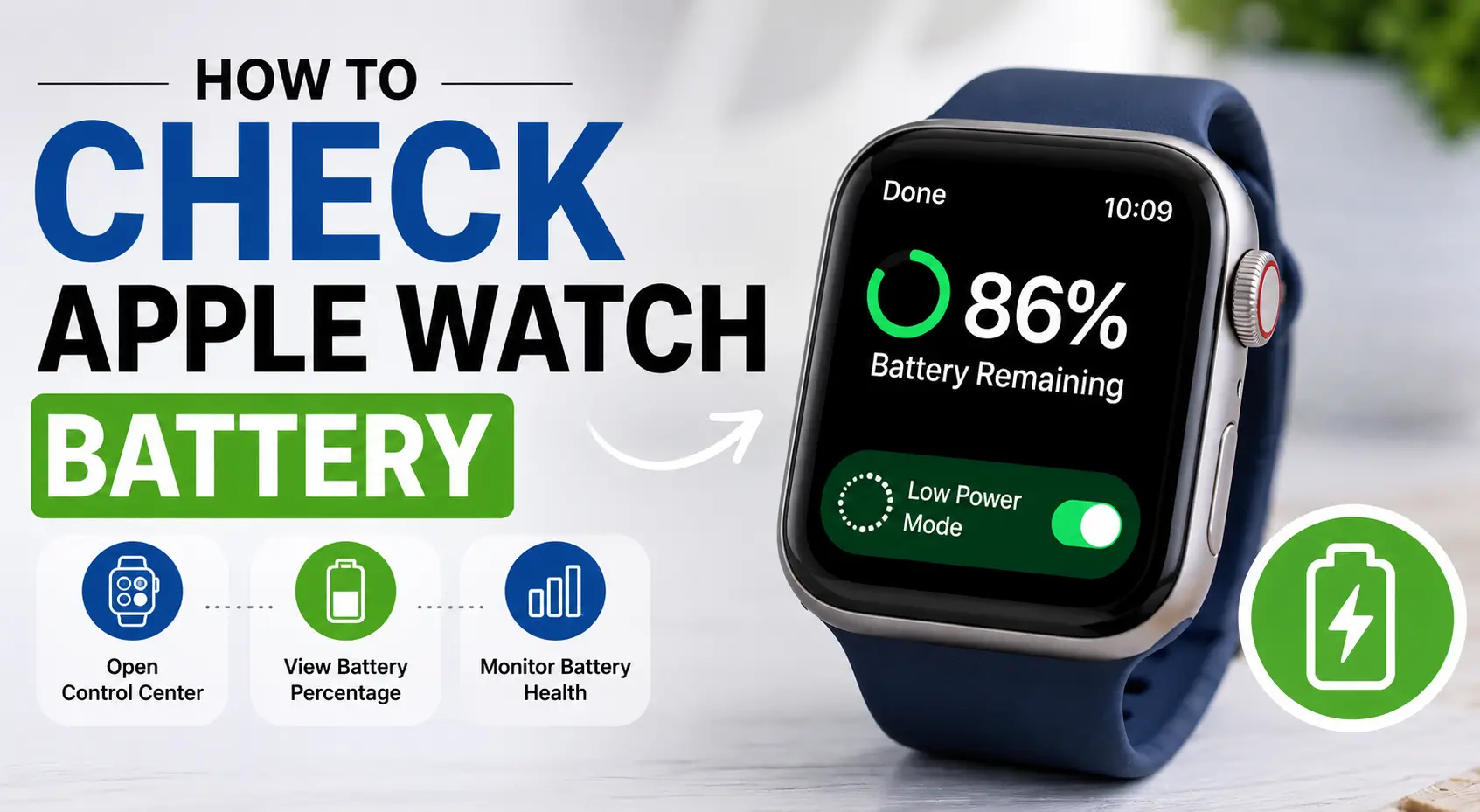
How to Check Apple Watch Battery is one of the most useful things every Apple Watch user should know.
Checking the battery level helps you plan your day and avoid running out of power when you need your watch most.
It only takes a few seconds to see how much battery is left. Whether you use your watch for fitness tracking, calls, or notifications, keeping an eye on battery life is important.
In this guide, you will learn simple ways to check the battery percentage and monitor battery status. Knowing How to Check Apple Watch Battery can help you use your device more efficiently every day.
Read more: My Top Apple Watch Features and Functions You Need to Try
Table of Contents
The Quickest Way I Check My Apple Watch Battery
I don’t like surprises when it comes to my battery. A quick check helps me plan my day without worrying about a dead watch. Here’s how I do it in seconds.
- Press the Side Button:
- I find the oval-shaped button on the side of my watch.
- A single press opens the Control Center.
- View Battery Percentage:
- The battery icon shows the current charge.
- I glance at it and know if I need to charge.
- Add a Battery Complication:
- I touch and hold my watch face.
- Tapping ‘Edit’ lets me customize it.
- I swipe to the ‘Complications’ section.
- I pick a slot and select the battery complication for quick updates.
How I Check My Apple Watch Battery from My iPhone
I don’t always have my watch on my wrist. Checking its battery from my iPhone keeps things simple. Here’s my easy way to do it.
- Add the Batteries Widget:
- I swipe right on my iPhone home screen.
- Scrolling to the bottom, I tap ‘Edit.’
- I tap the ‘+’ icon and search for ‘Batteries.’
- Adding the widget brings battery info to my screen.
- View Connected Devices:
- The widget shows battery levels for my Apple Watch and other devices.
- I check it in seconds without opening extra apps.
Read more: My Apple Watch: The Only Gadget I Wear Every Single Day
How to Check Apple Watch Battery Health on My Device
Battery life isn’t just about charge levels. I also check my battery health to know if it’s holding up over time. Here’s how I do it.
Open the App Menu
I press the Digital Crown to open the app menu on my Apple Watch.
Go to Battery Settings
I tap Settings and scroll down until I find Battery.
View Battery Health Details
Inside the Battery section, I tap Battery Health to see detailed battery information.
Check Maximum Capacity
I look at the Maximum Capacity percentage to understand how well my battery is performing compared to when it was new.
Monitor Long-Term Battery Performance
By checking battery health regularly, I can tell if the battery is aging and decide when it may need service or replacement.
How I Make My Apple Watch Battery Last Longer
Sometimes I need my watch to last all day. Low Power Mode helps me stretch the battery without missing important alerts.
- Enable Low Power Mode:
- I open the Control Center by pressing the side button.
- Tapping the battery percentage icon brings up the option.
- I toggle ‘Low Power Mode’ to reduce battery drain.
When I Know It’s Time for an Apple Watch Battery Replacement
A watch that dies too fast is frustrating. Here’s when I think about replacing the battery.
Signs That My Battery Needs Replacing
If battery health drops below 80%, I take it as a warning.
If I’m charging it way more than usual, it’s time to act.
Checking Apple Watch Battery Health
I regularly check battery health to see how well the battery is performing.
A lower battery health percentage usually means the battery is wearing out.
Getting a Battery Replacement
I check with Apple Support for repair options.
Visiting an authorized service provider ensures I get a proper fix.
Why Replacing the Battery Matters
A new battery can improve daily performance and reduce the need for frequent charging.
It also helps keep the Apple Watch reliable throughout the day.
My Apple Watch Battery, My Rules
Learning how to check my Apple Watch battery changed how I use it. I no longer worry about sudden shutdowns or unexpected low battery warnings.
A quick glance at the Control Center or my iPhone widget keeps me prepared. Checking battery health helps me plan for a replacement before it’s too late. Low Power Mode saves the day when I need extra time.
These small habits make a big difference. Now, my Apple Watch works on my schedule, not the other way around. If you haven’t already, try these steps and take control of your battery life!
Frequently Asked Questions
How do I check my Apple Watch battery percentage?
Swipe up to open Control Center. The battery percentage appears on the screen, showing the remaining battery level.
Can I check Apple Watch battery on my iPhone?
Yes. Add the Batteries widget to your iPhone. It displays your Apple Watch battery percentage instantly.
How often should I check my Apple Watch battery?
Checking once or twice daily is enough. Regular monitoring helps prevent unexpected shutdowns during important activities.
Why is my Apple Watch battery draining quickly?
Background apps, frequent notifications, GPS usage, and older batteries can reduce battery life significantly over time.
Can I improve my Apple Watch battery life?
Yes. Reduce screen brightness, disable unnecessary notifications, and update watchOS to help improve battery performance.
Citations
Lifewire: How to Check Battery Life on Apple Watch: How to Check Battery Life on Apple Watch