

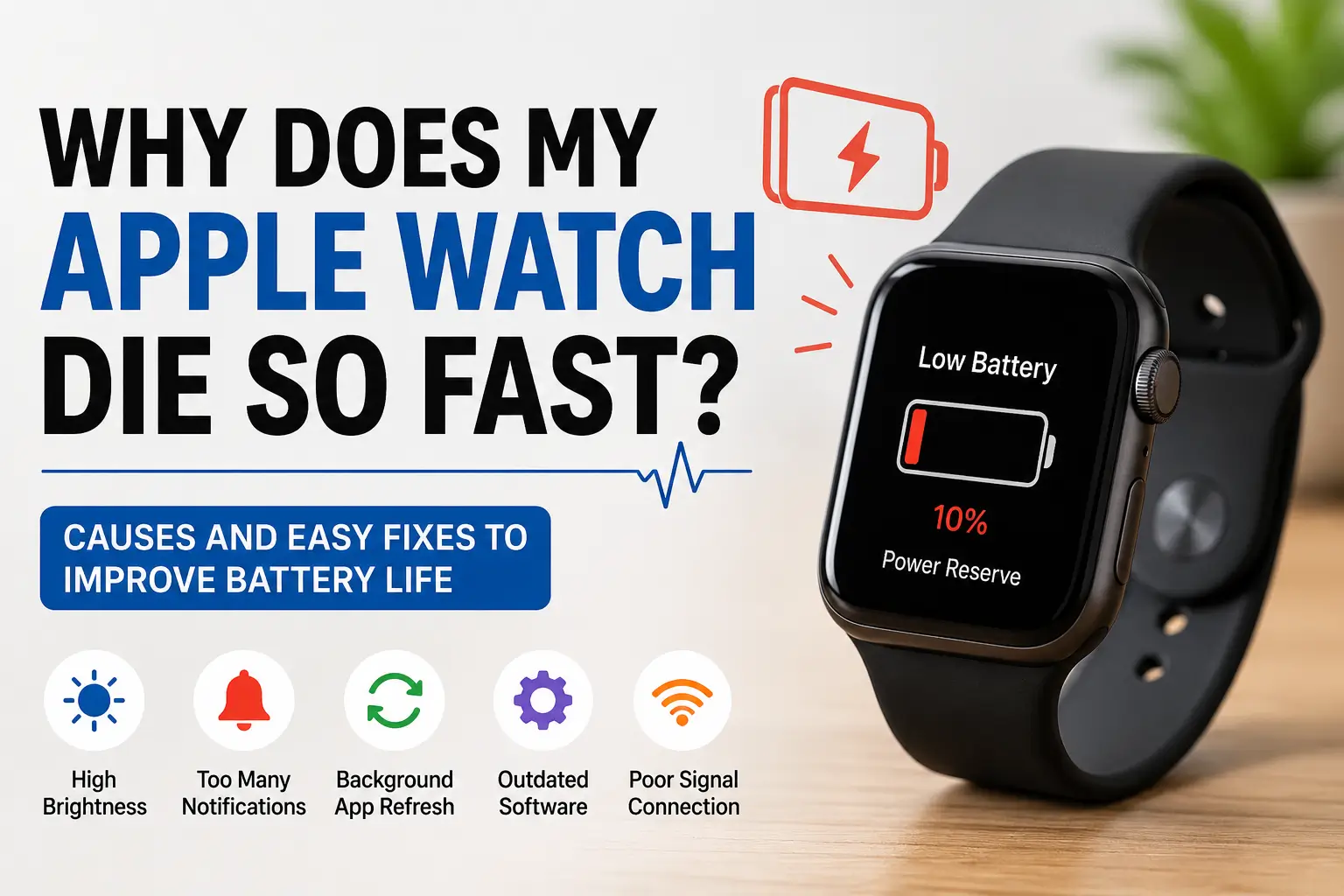
Why Does My Apple Watch Die So Fast is a common question among Apple Watch users. A battery that drains too quickly can be frustrating, especially when you rely on your watch throughout the day.
Several factors can cause fast battery drain, including high screen brightness, too many notifications, outdated software, and apps running in the background.
The good news is that most battery issues are easy to fix. In this guide, you’ll learn the most common reasons your Apple Watch loses power quickly and the simple steps you can take to improve battery life and keep your device running longer.
Quick Answer
Why does my Apple watch die so fast? It’s battery dies fast because of:
- Always-On Display
- Background app refresh
- Poor cellular or WiFi signal
- Outdated watchOS
- Battery health degradation
- Too many notifications
- Workout tracking and GPS usage
- Third-party apps
Most users can improve battery life by changing a few settings in under 10 minutes.
Read more: My Apple Watch Troubleshooting and Maintenance Guide
Table of Contents
Apple Watch Battery Drain Quick Overview
Apple Watch battery drain can happen for several reasons, but identifying the cause can help you improve battery life quickly.
| Issue | How Much Battery It Uses | Easy Fix | Difficulty |
|---|---|---|---|
| Always-On Display | High | Turn it off | Easy |
| Background Apps | Medium | Disable unused apps | Easy |
| GPS Workouts | Very High | Reduce workout tracking | Easy |
| Outdated watchOS | Medium | Update software | Easy |
| Weak Signal | High | Use Airplane Mode when needed | Easy |
| Old Battery | Very High | Check Battery Health | Medium |
| Notifications | Medium | Limit alerts | Easy |
| Third-Party Apps | Medium | Remove problem apps | Easy |
Read more: My Apple Watch: The Only Gadget I Wear Every Single Day
Why Your Apple Watch Battery Drains So Quickly
Several settings, apps, and background activities can cause your Apple Watch battery to drain faster than expected.
1. Always-On Display Uses More Power
The Always-On Display keeps your screen active all day. While convenient, it constantly uses battery power.
This feature affects battery life more on older Apple Watch models.
How to Turn Off Always-On Display
- Open Settings
- Tap Display & Brightness
- Tap Always On
- Turn it off
This single change can noticeably improve battery life.
2. Too Many Notifications Wake the Screen
Every notification lights up the display and activates the watch. Hundreds of alerts per day can drain your battery quickly.
Common battery-draining notifications include:
- Social media apps
- News alerts
- Shopping apps
- Email sync
- Messaging apps
How to Reduce Notifications
- Open the Watch app on iPhone
- Tap Notifications
- Disable unnecessary apps
Focus only on important alerts.
Background Apps May Be Running Constantly
Some apps continue updating in the background even when you are not using them.
This includes:
- Weather apps
- Fitness apps
- Music streaming apps
- Stock trackers
Turn Off Background App Refresh
- Open Settings
- Tap General
- Tap Background App Refresh
- Disable apps you do not need
You can also turn the feature off completely.
GPS and Workouts Drain Battery Faster
Workout tracking uses GPS, heart rate sensors, and motion tracking at the same time.
Activities that use the most battery include:
- Outdoor running
- Cycling
- Hiking
- Navigation
Long workouts can significantly reduce battery life.
Tips to Save Battery During Workouts
- Lower screen brightness
- Download music instead of streaming
- Turn off cellular if not needed
- Use Power Saving Mode
Enable Workout Power Saving Mode
- Open Settings
- Tap Workout
- Turn on Power Saving Mode
This reduces heart rate sensor usage during walking and running workouts.
Poor Cellular or WiFi Signal Causes Battery Drain
When your Apple Watch struggles to find a signal, it uses more power trying to stay connected.
This happens often in:
- Basements
- Rural areas
- Elevators
- Buildings with thick walls
Quick Fixes
- Turn on Airplane Mode in weak-signal areas
- Use WiFi instead of cellular when possible
- Keep your iPhone nearby
Outdated watchOS Can Cause Battery Problems
Software bugs sometimes cause abnormal battery drain.
Apple regularly fixes these issues in watchOS updates.
How to Update Apple Watch
- Open the Watch app on iPhone
- Tap General
- Tap Software Update
- Install available updates
Keep both your iPhone and Apple Watch updated.
Battery Health May Be Degraded
Like all rechargeable batteries, Apple Watch batteries wear out over time.
Older batteries hold less charge and drain faster.
How to Check Apple Watch Battery Health
- Open Settings
- Tap Battery
- Tap Battery Health
If Maximum Capacity is below 80%, battery performance may be reduced.
Third-Party Apps Can Drain Battery
Some apps are poorly optimized and constantly run in the background.
Battery-draining apps often include:
- Streaming apps
- Fitness trackers
- Navigation apps
- Messaging apps
How to Find Problem Apps
Check battery usage after installing a new app. If the issue started recently, remove the newest apps first.
Remove Unused Apps
- Press the Digital Crown
- Find the app
- Hold the app icon
- Tap delete
Screen Brightness Affects Battery Life
A brighter display uses more battery power.
Lower Apple Watch Brightness
- Open Settings
- Tap Display & Brightness
- Reduce brightness
Even one level lower can help.
Raise to Wake Can Drain Battery
Raise to Wake turns the screen on every time you move your wrist.
Frequent wrist movement means more battery usage.
Turn Off Raise to Wake
- Open Settings
- Tap Display & Brightness
- Tap Wake
- Disable Wake on Wrist Raise
Bluetooth, WiFi, and Cellular All Use Power
Keeping every wireless feature enabled all day increases battery drain.
Best Practice
Use only the connections you actually need.
For example:
| Feature | When to Turn Off |
|---|---|
| Cellular | When iPhone is nearby |
| WiFi | When not connected |
| Bluetooth | Rarely disable unless troubleshooting |
Restarting the Watch Can Fix Battery Bugs
Temporary software glitches can cause abnormal battery drain.
A simple restart of Apple Watch often helps.
How to Restart Apple Watch
- Press and hold the side button
- Slide to power off
- Wait 30 seconds
- Turn it back on
This clears temporary background issues.
Resetting Apple Watch as a Last Resort
If nothing works, resetting the watch may solve deeper software problems.
How to Reset Apple Watch
- Open Settings
- Tap General
- Tap Reset
- Select Erase All Content and Settings
Back up your watch first.
Common Apple Watch Battery Problems and Fixes
| Problem | Likely Cause | Solution |
|---|---|---|
| Battery dies overnight | Background apps | Disable refresh |
| Drains during workouts | GPS usage | Use Power Saving Mode |
| Gets hot while charging | Software bug | Restart watch |
| Battery suddenly drops | Battery aging | Check Battery Health |
| Fast drain after update | Indexing process | Wait 24–48 hours |
Tips to Make Apple Watch Battery Last Longer
Use these simple tips to reduce battery drain and help your Apple Watch stay powered throughout the day.
Best Daily Battery-Saving Habits
- Reduce notifications
- Turn off Always-On Display
- Keep brightness lower
- Update watchOS regularly
- Remove unused apps
- Use Low Power Mode
- Restart weekly
Small changes add up quickly.
When You Should Replace the Battery
You may need a battery replacement if:
- Battery health is under 80%
- The watch dies within a few hours
- It shuts down randomly
- Battery swelling appears
Apple battery service may help restore full performance.
Apple Watch Models With Better Battery Life
Newer models generally last longer due to improved efficiency.
Better battery models include:
- Apple Watch Ultra 2
- Apple Watch Series 9
- Apple Watch SE
The Ultra models provide the best battery performance overall.
Troubleshooting Checklist
Before replacing your battery, try this checklist:
- Update watchOS
- Restart the watch
- Disable Always-On Display
- Reduce notifications
- Remove problematic apps
- Turn off Background App Refresh
- Enable Low Power Mode
- Check Battery Health
Most battery issues improve after these steps.
Frequently Asked Questions
Why is my Apple Watch battery draining so quickly?
Background app activity, high screen brightness, outdated software, and constant notifications can significantly reduce Apple Watch battery life.
How can I make my Apple Watch battery last longer?
Lower screen brightness, disable unnecessary notifications, update watchOS, and turn off unused features to extend battery life.
Does Always-On Display drain Apple Watch battery?
Yes, Always-On Display uses extra power throughout the day, which may reduce battery life on supported Apple Watch models.
Can software updates improve Apple Watch battery life?
Yes, software updates often include battery optimizations, bug fixes, and performance improvements that help reduce power consumption.
When should I replace my Apple Watch battery?
Consider replacing the battery when its maximum health drops significantly and daily usage no longer lasts a full day.
Simple Fixes That Can Instantly Boost Apple Watch Battery Life
If your Apple Watch dies fast, the problem is usually related to settings, software, apps, or battery health not a hardware failure.
Start with the simple fixes first:
- Disable Always-On Display
- Reduce notifications
- Update watchOS
- Turn off background apps
In many cases, these small adjustments can dramatically improve battery life within a single day.
Citations:
Apple Support. If the battery in your Apple Watch drains too quickly