

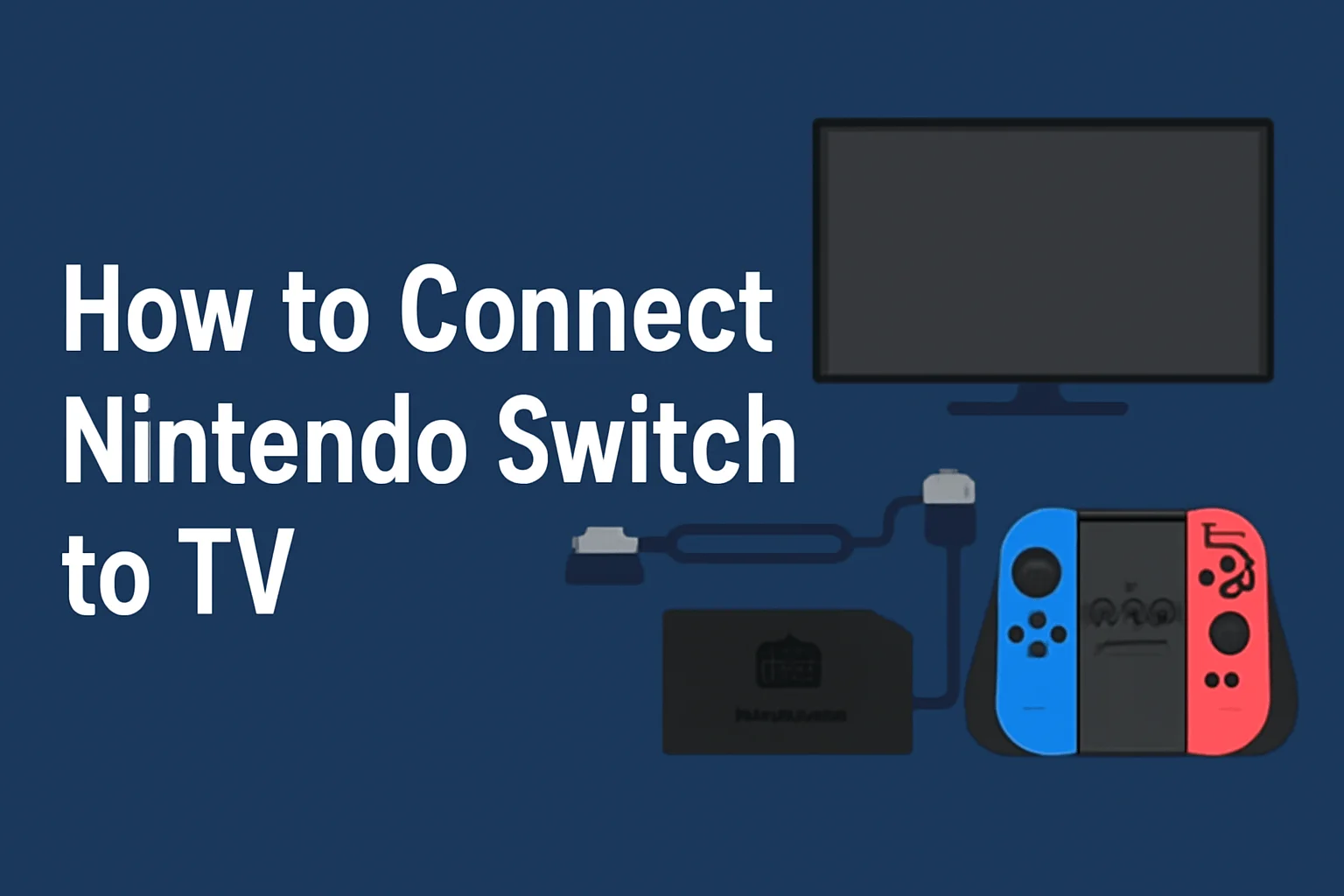
Connecting your Nintendo Switch to a TV is simple with the right tools. Explore the easiest methods, from the official dock to third-party adapters, and learn how to troubleshoot common issues.
Key Takeaways
How to connect Nintendo switch to TV covers:
- Official Dock: Most reliable for all Switch models.
- Third-Party Adapters: A flexible option for TV connections.
- Wireless Connection: Currently not reliable.
- Samsung TV Tips: Enable HDMI-CEC for smooth setup.
- Switch 2 Compatibility: New restrictions on third-party docks.
Introduction
When you want to enjoy your Nintendo Switch on a big screen, connecting it to your TV should be quick and easy. But it’s not always straightforward.
Whether you’re using the included dock or looking for alternatives, there are different ways to go about it. I’ll walk you through the simplest methods to get you up and running.
Table of Contents
How I Helped a Friend Set Up Their Nintendo Switch
A friend of mine bought a new Samsung TV and couldn’t figure out how to connect his Nintendo Switch. After some trial and error, we found that enabling HDMI-CEC on the TV made all the difference.
With that simple fix, the TV automatically switched to the correct input as soon as the Switch was powered on, solving the issue instantly.
Connecting Nintendo Switch to TV Using the Official Dock
The most straightforward way to connect your Nintendo Switch to your TV is through the official Nintendo Switch dock. Here’s how it works.
Setting Up the Official Dock
- Insert the Switch: Place the Switch into the dock, ensuring it’s properly seated.
- Connect the HDMI Cable: Plug one end into the dock and the other into your TV.
- Power It Up: Connect the included power adapter to the dock.
This setup works perfectly for all Switch models. The official dock provides the most reliable connection. However, it does require a stationary setup, which may not be ideal if you’re on the go.
Connection Comparison Table
| Connection Method | Ease of Setup | Portability | Reliability | Best For |
|---|---|---|---|---|
| Official Nintendo Dock | Easy | Low | High | Home use, stationary setup |
| Third-Party USB-C Adapter | Moderate | High | Moderate | Travel, flexible setups |
| Wireless HDMI Transmitter | Complex | High | Low | Short-term solutions, non-reliable |
How to Connect Nintendo Switch to TV Without the Dock
If you don’t have access to the official dock or want something more portable, a third-party adapter is the way to go.
Using a USB-C to HDMI Adapter
- Choose the Right Adapter: Ensure you buy a certified USB-C to HDMI adapter for compatibility.
- Connect to the TV: Plug the HDMI cable from the adapter into your TV.
- Power the Switch: The adapter also needs to provide power to the Switch, so make sure it’s connected to a charger.
These adapters offer flexibility and can be used in places where carrying a dock isn’t practical. However, some adapters may not be as reliable as the official dock, and you may experience occasional connection issues.
Can You Connect the Nintendo Switch Wirelessly to Your TV?
Currently, there is no official way to connect your Nintendo Switch wirelessly to a TV. While there are some wireless HDMI transmitters available, they aren’t as reliable as a wired connection.
These devices can cause lag, interruptions, and reduced quality, making them impractical for gaming.
Wireless HDMI Transmitters
- Alternative Method: Some users experiment with wireless HDMI transmitters, but results vary.
- Limitations: Expect lower quality and occasional disconnections.
For now, if you want the best experience, it’s best to stick with wired connections.
How to Connect Your Nintendo Switch to a Samsung TV
Samsung TVs have some unique settings that can help you connect your Switch without hassle. Here’s what you need to know.
Enable HDMI-CEC on Samsung TVs
- Find HDMI-CEC Settings: Go into the TV’s settings and look for HDMI-CEC (Consumer Electronics Control).
- Enable It: Turn it on to allow your Switch to switch inputs automatically.
When HDMI-CEC is enabled, the TV will automatically recognize when the Switch is powered on and switch to the correct HDMI input, making the process more seamless.
Troubleshooting Common Issues
Even when everything is set up correctly, you may run into a few problems. Here’s how to solve them.
No Signal? Check These:
- HDMI Connection: Ensure the HDMI cable is securely plugged in.
- Input Settings: Double-check the input setting on your TV to make sure it’s on the correct HDMI channel.
- Switch Status: Ensure your Switch is powered on and not in sleep mode.
Lag or Audio Issues? Try These Tips:
- Game Mode: Enable game mode on your TV to reduce lag.
- Audio Settings: Check the audio output settings on both the Switch and the TV to ensure they’re synced.
Choosing the Best Connection Method for Your Needs
Each connection method has its pros and cons. Here’s a breakdown:
- Official Dock: Best for home use with reliable performance.
- Third-Party Adapters: Ideal for portability, but may have reliability issues.
- Wireless Connection: Not recommended due to inconsistent performance.
Choose based on your needs—whether you prioritize convenience, reliability, or flexibility.
Pro Tip:
To reduce input lag while gaming on your TV, enable your TV’s “Game Mode” setting. This mode prioritizes faster response times for smoother gameplay, especially in action-packed games.
What an Expert Says:
As the Switch evolves, it’s essential to use reliable accessories for an optimal gaming experience. A well-functioning dock or adapter can make the difference between frustration and seamless gameplay.
– Mark Johnson, Senior Gaming Technician
Conclusion: Which Connection is Right for You?
Connecting your Nintendo Switch to a TV is easy when you know your options. Whether you go with the official dock, a third-party adapter, or just need to troubleshoot an issue, the process is simple once you understand how the Switch works. Test the setup method that suits you best.
Call to Action: Need help with your setup? Check your connection, try different options, and get back to enjoying your games on the big screen today!
Frequently Asked Questions
Can I connect my Switch to a TV using a Bluetooth adapter?
No, Bluetooth adapters won’t work for video output. You need an HDMI connection or a compatible USB-C to HDMI adapter to display on your TV.
Will my third-party dock work with the Nintendo Switch 2?
The Nintendo Switch 2 may restrict some third-party docks due to updated security. Always use official or certified accessories for reliable performance.
How can I improve sound quality while using my Nintendo Switch with a TV?
Adjust the audio settings on both the Switch and TV. Ensure the TV is set to the correct audio output format for the best sound experience.
Citations:
Nintendo Switch Support. Play Modes and Connecting. https://www.nintendo.com/sg/support/switch/playmode/index.html