

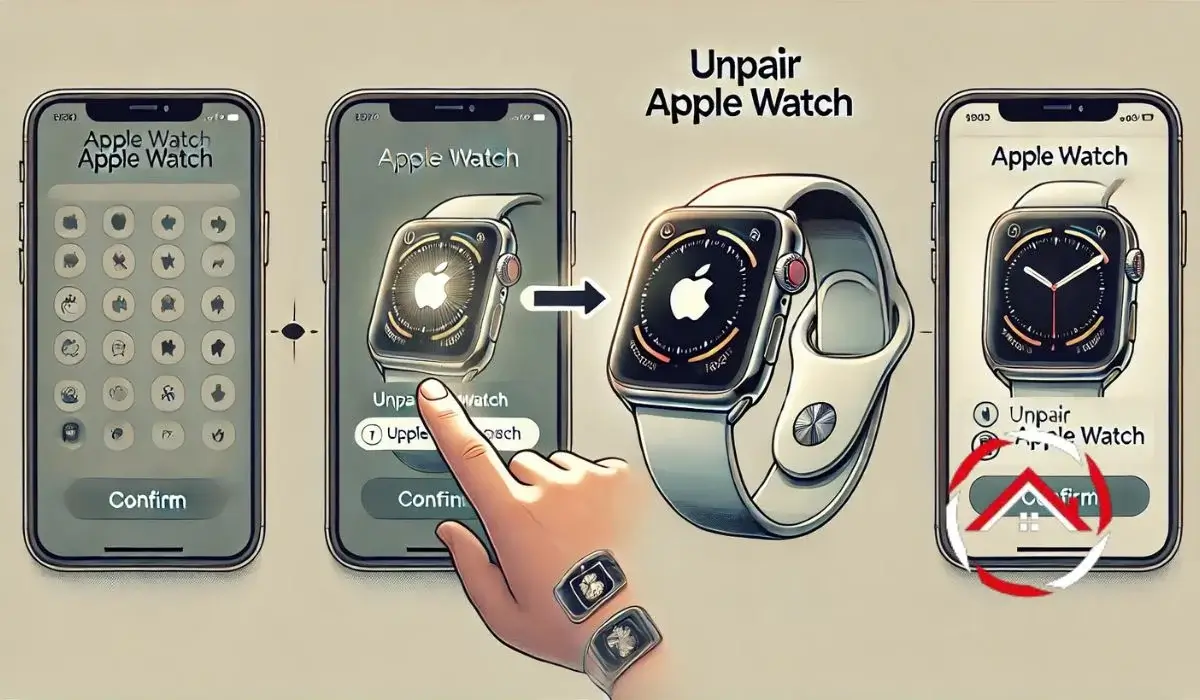
How To Unpair Apple Watch is a simple process that disconnects your watch from your iPhone. It’s an important step if you’re switching phones, resetting your device, or fixing common issues.
Sometimes, your Apple Watch may not work as expected, and unpairing can help solve the problem. In other cases, you might want to erase your watch before giving it to someone else or connecting it to a new iPhone.
No matter the reason, unpairing is an essential part of managing your Apple Watch. Let me walk you through the steps you need to take.
Disclosure: This post contains affiliate links. If you purchase through these links, I may earn a small commission at no extra cost to you.
Read more: My Apple Watch Troubleshooting and Maintenance Guide
Table of Contents
Unpairing Apple Watch Without Your iPhone: Can It Be Done?
If you’ve ever found yourself without your iPhone but still need to unpair your Apple Watch, you might wonder if it’s possible. Luckily, it is! Unpairing without the phone is easier than you think.
Why You Might Need to Unpair Without an iPhone
There are times when your iPhone is lost, broken, or just out of reach. Maybe you can’t access your phone, but still need to unpair the watch. No worries this method works even without the phone in hand.
How to Unpair Apple Watch Without iPhone
If you find yourself in this situation, follow these steps:
- Open Settings on the Apple Watch.
- Tap “General” > “Reset” > “Erase All Content and Settings.”
- Confirm the action.
- Wait for the process to complete.
That’s it! Your watch will be unpaired and reset, ready for the next step.
Click Here to Buy Apple Watches on Amazon
Unpair Apple Watch and Pair to a New Phone: What You Need to Know
Switching to a new phone doesn’t have to be a hassle. You can easily unpair your Apple Watch and set it up with a new iPhone. Here’s what you need to keep in mind.
Preparing for the Switch: Backup First
Before you start, make sure all your data is backed up. This way, you won’t lose anything important. You can use iCloud or your old iPhone to back everything up.
How to Unpair Apple Watch and Pair It to a New Phone
Here’s how to do it:
- Open the Watch app on your new iPhone.
- Follow the pairing prompts.
- If available, restore from a backup.
- Be sure to disconnect from the old iPhone before pairing the new one.
Now you’re ready to go!
Read more: My Apple Watch Troubleshooting and Maintenance Guide
Unpair Apple Watch Without Phone or Passcode
It’s possible to unpair your Apple Watch even if you don’t have the passcode or your phone. This method is super helpful when you forget your passcode or can’t access your phone.
Can You Unpair Without a Passcode?
Yes, you can! If you’ve forgotten the passcode, you can still reset your Apple Watch. It will remove all the data, but at least you’ll be able to start fresh.
Steps to Unpair Apple Watch Without Phone or Passcode
Here’s how to do it:
- Press and hold the side button and Digital Crown at the same time.
- Keep holding until the Apple logo appears.
- Follow the on-screen instructions to reset the watch.
Now, your Apple Watch is ready for a fresh start!
How to Unpair Apple Watch from Your Old iPhone
Switching phones can feel like a hassle, but unpairing your Apple Watch doesn’t have to be complicated. It’s important to unpair the watch from your old phone before moving to a new one.
Why It’s Important to Unpair Before Changing Phones
Unpairing helps prevent syncing issues, data transfer problems, and complications with backups. It ensures a smooth transition to your new phone.
How to Unpair Apple Watch from Old iPhone
Follow these steps:
- Open the Watch app on your old iPhone.
- Tap the “My Watch” tab and select “Unpair Apple Watch.”
- Confirm your choice and enter your Apple ID password to disable Activation Lock.
Your Apple Watch will now be ready for pairing with your new device.
Resetting Your Apple Watch Without a Passcode
If your Apple Watch is locked or unresponsive, it might be time for a reset. Don’t worry, you can still reset it without a passcode.
When to Reset Your Apple Watch
Resetting is helpful when your watch is frozen, locked, or simply not responding.
How to Reset Apple Watch Without Passcode
Here’s what you need to do:
- Hold the side button and Digital Crown at the same time.
- Keep holding until the Apple logo appears.
- Release the buttons and let the watch reset itself.
Your Apple Watch will now be restored to its original settings.
Does Unpairing Apple Watch Erase Everything?
Unpairing your Apple Watch is a simple process, but does it erase all your data? Let’s break it down.
What Happens When You Unpair
Unpairing removes all content and settings from the watch.
- Back up your data via iCloud or your iPhone before unpairing.
- If you don’t back up, the data will be gone.
Make sure you’re prepared to avoid losing anything important!
How to Restart Apple Watch: A Simple Guide
Restarting your Apple Watch can fix issues and refresh its system. Here’s how to do it easily.
When and Why to Restart Your Apple Watch
Restart when your watch is acting slow or having glitches.
- A restart can solve minor problems and clear temporary bugs.
Steps to Restart Your Apple Watch
- Hold the side button until the Power Off slider appears.
- Slide to power off, then press and hold the side button again to turn it on.
It’s that simple!
How to Unpair Apple Watch Without Your Phone
Sometimes, you may need to unpair your Apple Watch without your iPhone. Don’t worry; it’s totally doable!
Need to Unpair but Don’t Have Your iPhone?
Here’s how to unpair directly from your Apple Watch.
- No phone? No problem. Just follow the steps below to unpair.
The Process for Unpairing Without a Phone
- Go to “Settings” on your Apple Watch.
- Tap “General” > “Reset” > “Erase All Content and Settings.”
- Confirm the action and let the watch reset itself.
It’s that easy to unpair without a phone!
How to Pair Your Apple Watch to a New Phone
Switching your Apple Watch to a new iPhone? It’s simple! Here’s how to get started with pairing.
Ready to Pair Your Watch to a New Device?
Make sure both your Apple Watch and new iPhone are ready for pairing.
- Keep your watch close to the iPhone.
- Ensure Bluetooth and Wi-Fi are turned on.
Steps to Pair Apple Watch to a New iPhone
- Open the Watch app on your new iPhone.
- Tap “Start Pairing” and hold your Apple Watch up to the iPhone’s camera.
- Follow the on-screen prompts to complete the setup.
That’s it! Your Apple Watch is now paired to your new device.
Frequently Asked Questions
How do I unpair my Apple Watch from my iPhone?
Open the Watch app, select your watch, tap Unpair Apple Watch, and follow the instructions to complete removal safely.
Will unpairing my Apple Watch erase data?
Yes, unpairing removes content from the watch, but a backup is usually created automatically on your iPhone.
Can I unpair Apple Watch without my iPhone?
Yes, you can erase the watch through Settings, but Activation Lock may remain enabled after the process.
Does unpairing remove Activation Lock?
Activation Lock is removed only when the watch is properly unpaired through the paired iPhone and Apple account.
Can I pair my Apple Watch again later?
Yes, after unpairing, you can reconnect the watch to the same or a different compatible iPhone anytime.