

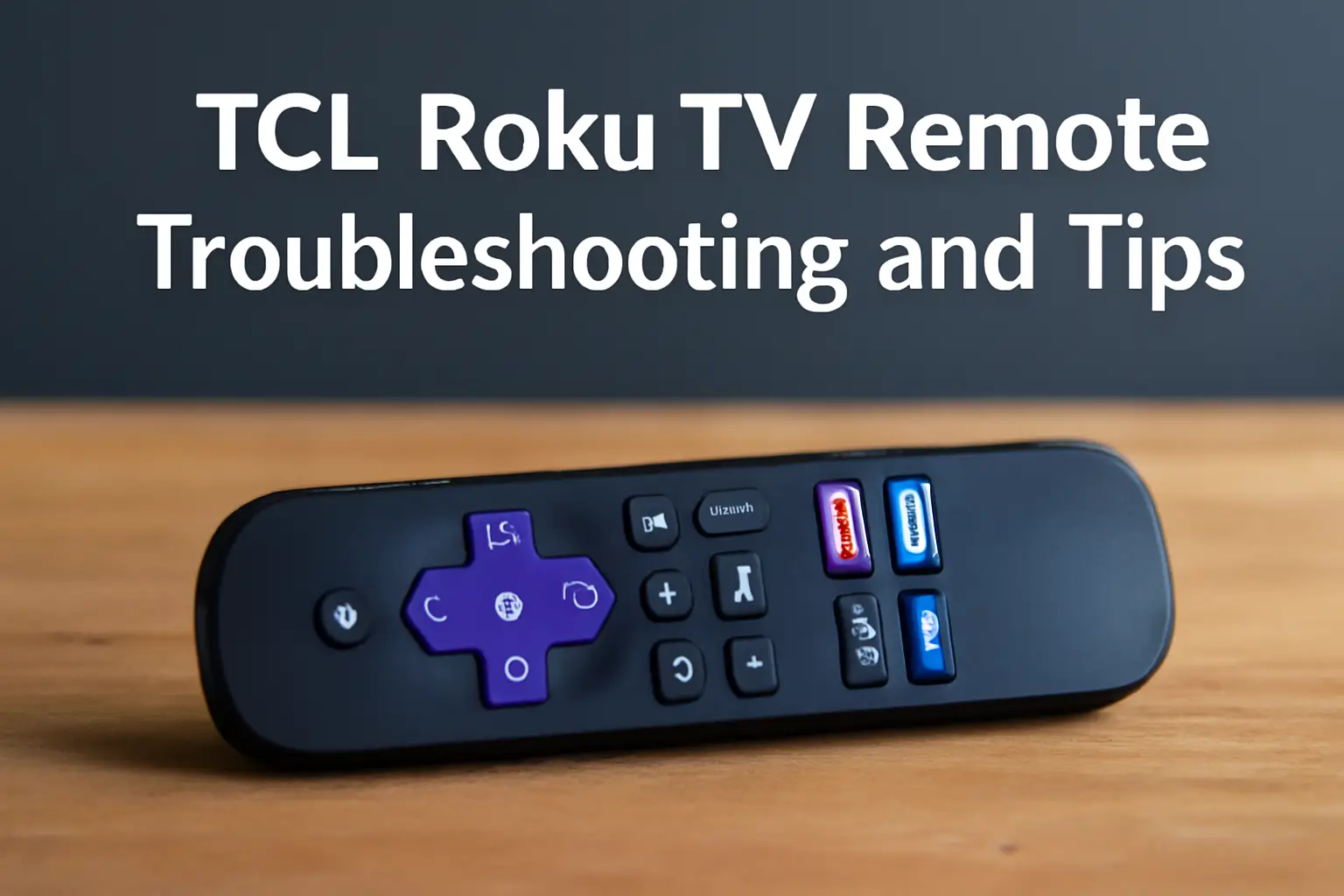
This guide covers troubleshooting, programming, and optimizing the TCL Roku TV remote, including using voice control, replacement options, and the remote app for an enhanced experience.
Key Takeaways
- TCL Roku TV remote issues are common but fixable.
- Voice control, programming, and the remote app improve usability.
- A replacement remote is easy to find and use.
- The Roku app offers a free, effective remote alternative.
- Simple troubleshooting fixes can resolve most remote problems.
Introduction
If you’re having issues with your Roku TV remote, you’re not alone. From pairing problems to unresponsive buttons, these issues are common but usually simple to fix.
This guide will show you how to troubleshoot, use the remote app, and even replace your remote. By the end, you’ll have all the tools to get your remote working like new.
Table of Contents
How I Helped Someone Fix Their TCL Roku TV Remote
I once helped a friend whose TCL Roku TV remote stopped responding. After checking the batteries, re-pairing it with the TV, and using the Roku app, the issue was quickly resolved, and they were back to enjoying their favorite shows without interruption.
Roku TV Remote: The Basics and Key Features
When you first get your TCL Roku TV, understanding how the remote works can make your experience much smoother. The remote controls everything—from power to volume to quick access to apps like Netflix and Hulu.
Key Features of the Roku TV Remote:
- Physical Remote: This includes power, volume, and navigation buttons.
- Voice Control: Available on newer models, this allows hands-free operation.
- Roku TV-Specific Buttons: These let you access popular streaming services with a single press.
Your TCL Roku TV remote doesn’t just turn the TV on and off; it enhances the entire viewing experience. The addition of voice control in newer remotes lets you change channels, adjust volume, and search for content simply by speaking.
Using the TCL Roku TV Remote App: Control Your TV from Your Phone
If your remote stops working, don’t panic. The TCL Roku TV remote app is a perfect backup solution. This app is free to download and works on both Android and iOS devices, offering full control over your Roku TV.
Features of the Roku Remote App:
- Voice Search: Speak your commands directly into your phone.
- Keyboard Input: Use your phone’s keyboard for faster text entry.
- Private Listening Mode: Connect headphones to your phone to listen privately without disturbing others.
- Multiple Device Control: If you have multiple Roku devices, you can control them all from a single app.
The app is an especially helpful tool if you lose or damage your physical remote. It’s also convenient for those who prefer controlling their TV from a mobile device.
Troubleshooting TCL Roku TV Remote Not Working
The most common issues with the TCL Roku TV remote usually stem from unresponsive buttons, pairing errors, or dead batteries. Here are some solutions to get your remote back in action.
Why Is My TCL Roku TV Remote Not Working?
- Dead Batteries: Replacing the batteries is the simplest fix.
- Signal Interference: Remove any obstacles that might block the remote’s signal to the TV.
- Pairing Issues: If the remote isn’t paired properly, it won’t work.
How to Reset and Re-Pair Your Remote
Resetting and re-pairing your TCL Roku TV remote can solve many issues.
- Hold the pairing button on the back of the remote for 5 seconds.
- Unplug your TV and plug it back in after 60 seconds.
- Follow the on-screen instructions to re-pair the remote.
This process can solve unresponsiveness and pairing errors.
Fixing TCL Roku TV Remote Not Responding
If your remote still isn’t working after resetting, here are some additional troubleshooting tips:
- Check the Batteries: If the remote uses rechargeable batteries, ensure they are fully charged.
- Check for Obstructions: Ensure the remote has a clear line of sight to the TV.
- Try Using the App: If all else fails, use the Roku app to control your TV temporarily.
Replacing and Programming Your TCL Roku TV Remote
If your TCL Roku TV remote is beyond repair, replacing it is easy. You can find a replacement at most online retailers, or you may want to visit a local store to buy one. Replacing your remote doesn’t need to be a hassle, and it’s usually a plug-and-play process.
When to Replace Your Remote
If your remote is old, constantly malfunctioning, or physically damaged, it’s time for a replacement. The good news is that TCL Roku TV remotes are generally affordable and widely available.
TCL Roku TV Remote Programming
To program your remote, follow these steps:
- Press and hold the pairing button on the remote for about 5 seconds.
- Follow the on-screen prompts to enter the required programming code.
- Test your remote to ensure it’s fully functional.
If programming fails, refer to the code list available on the Roku support website.
Maximizing Your TCL Roku TV Experience with Voice Control
Voice control on your TCL Roku TV is a game-changer. It lets you control your TV without lifting a finger. If you haven’t yet used the voice feature, now is the time to try it out.
With Voice Control, you can
- Turn on/off your TV: Simply say “Turn on TV” or “Turn off TV.”
- Change Channels: Say “Next channel” or specify the exact channel.
- Search Content: Ask, “Find action movies,” and Roku will show results instantly.
- Control Volume: Use voice commands to adjust the volume without reaching for the remote.
Voice control not only makes navigation faster but also offers a hands-free experience. It’s especially useful when you’re multitasking around the house.
Pro Tip
Use voice control for easy access to your favorite apps and streaming services. Just say, “Launch Netflix” or “Open YouTube,” and you’re ready to go.
Free TCL Roku TV Remote: Is It Possible?
Unfortunately, there’s no official “free” TCL Roku TV remote, but there are free alternatives available.
The TCL Roku TV remote app is completely free to download and offers full functionality. If you don’t have a smartphone, some third-party companies sell affordable Roku-compatible remotes, which can be a budget-friendly option.
Using the app is a great temporary solution if you lose your remote, and third-party replacements provide a low-cost option for those who need an immediate fix.
Conclusion: Maximize Your Remote Experience
With a few simple steps, you can keep your TCL Roku TV remote working like new. Whether you use voice control, the Roku app, or a replacement remote, you have options to ensure uninterrupted entertainment.
Always troubleshoot common issues, replace the remote if necessary, and enjoy the benefits of easy control.
Don’t let a faulty remote stop you from enjoying your TV. Get your replacement or use the Roku app today!
Frequently Asked Questions
Why isn’t my TCL Roku TV remote working?
Check for dead batteries, signal interference, and try re-pairing the remote to resolve the issue.
Can I control my TCL Roku TV without a remote?
Yes, use the free TCL Roku TV remote app to control your TV from your smartphone.
How do I program my TCL Roku TV remote?
Press and hold the pairing button, enter the code provided on-screen, and test the remote’s functions.
Citations
https://support.roku.com. tcl roku tv remote