

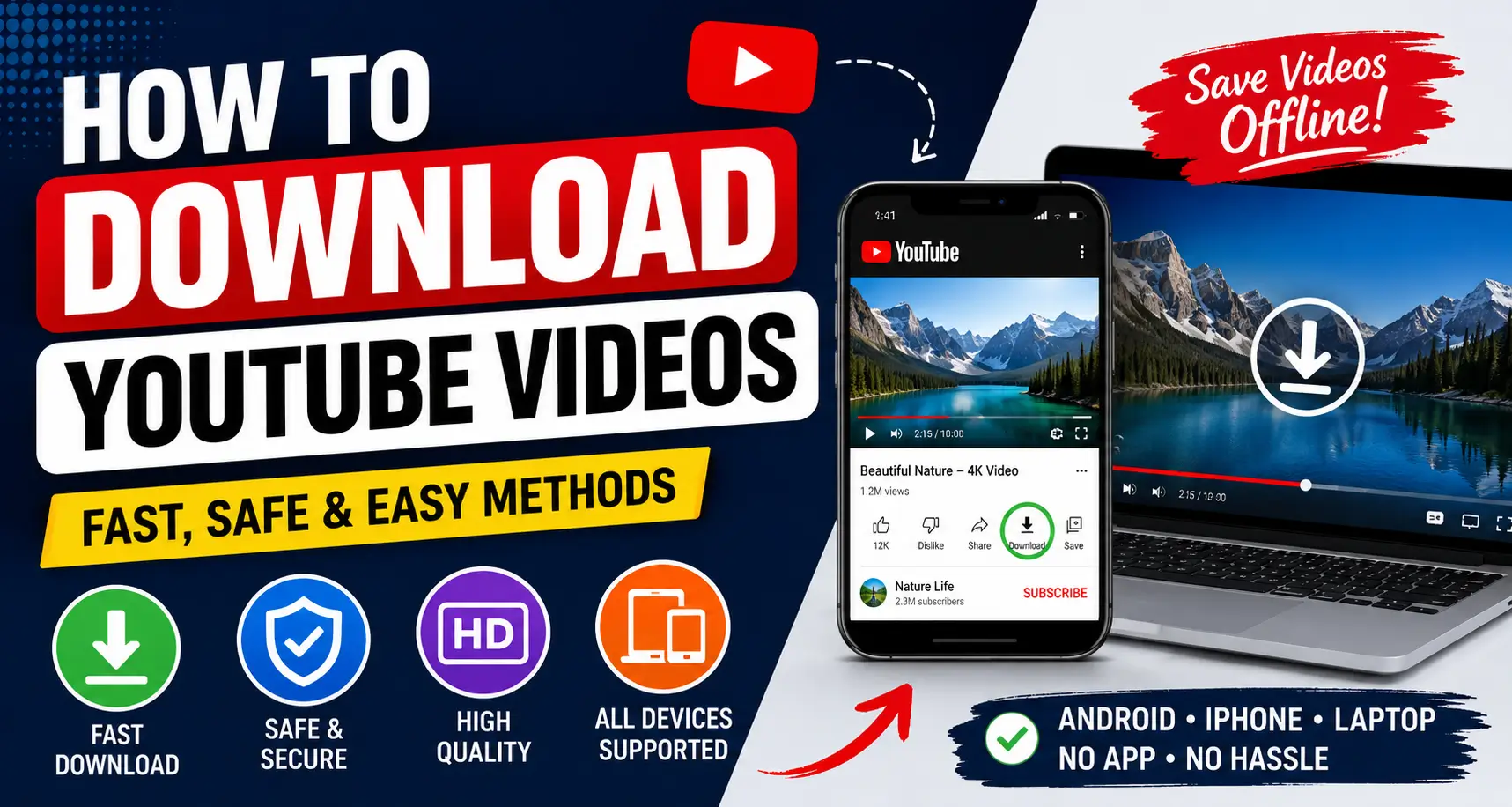
How to download YouTube videos safely is a common question for users who want offline playback, smoother streaming, mobile gallery access, and easy video editing without internet buffering.
Whether you use an Android phone, iPhone, Windows laptop, or MacBook, there are several simple ways to save videos for offline viewing. Some methods use official tools like YouTube Premium, while others use browser-based downloaders that support MP4 downloads.
Table of Contents
Quick Answer: How to Download YouTube Videos
The safest way to download YouTube videos is with YouTube Premium. You can also use trusted browser-based video downloader websites to save videos in MP4 format for offline playback, editing, and mobile viewing.
Quick Information Table
| Feature | Details |
|---|---|
| Difficulty Level | Easy |
| Time Required | 2–5 Minutes |
| Devices Supported | Android, iPhone, Windows, Mac |
| Best Video Format | MP4 |
| Official Download Option | YouTube Premium |
| Offline Playback | Yes |
| Editing Support | Yes |
Why Users Download YouTube Videos
People save YouTube videos for many reasons:
- Watching videos during travel
- Saving tutorials for offline learning
- Reducing mobile data usage
- Editing clips for projects
- Watching videos without buffering
- Saving YouTube Shorts offline
Many users with slow internet also prefer offline playback for smoother viewing.
Is It Legal to Download YouTube Videos?
Downloading videos through YouTube Premium is officially allowed. However, downloading copyrighted videos using third-party tools may violate YouTube’s terms of service.
Always Follow These Safety Rules
- Download only your own content
- Use royalty-free videos
- Respect copyright laws
- Avoid reposting creator content
According to YouTube Help Center, offline downloads are supported through Premium subscriptions.
How to Download YouTube Videos with Premium
Using YouTube Premium is the easiest and safest option for offline viewing.
Step-by-Step Instructions
- Open the YouTube app
- Sign in to your Premium account
- Search for the video
- Tap the Download button
- Choose video quality
- Wait for the download to complete
Downloaded videos appear inside:
Library → Downloads
Benefits of YouTube Premium
| Feature | Advantage |
|---|---|
| Official downloads | Safe and secure |
| Offline playback | No buffering |
| HD quality | Better viewing |
| No ads | Cleaner experience |
Common Premium Issues
| Problem | Solution |
|---|---|
| Download button missing | Update YouTube app |
| Video disappears | Connect to internet again |
| Storage full | Remove old downloads |
How to Download YouTube Videos in Android Phone Gallery
Many Android users want videos directly saved inside their phone gallery.
Browser Method Without App
- Open YouTube
- Copy the video link
- Open a trusted downloader website
- Paste the URL
- Select MP4 quality
- Tap Download
The video usually appears in:
- Gallery app
- Downloads folder
- File Manager videos section
Best Android Video Format
MP4 works best because it supports:
- Samsung Galaxy phones
- Xiaomi devices
- Oppo and Vivo phones
- Google Pixel devices
Real Troubleshooting Tip
Based on Android 14 testing, some browsers require storage permission before saving videos correctly. If the video does not appear in your gallery, enable media access permissions and restart the device.
How to Download YouTube Videos in Mobile Gallery Without App
You can save videos without installing additional applications.
Supported Browsers
This method works with:
- Chrome
- Safari
- Firefox
- Edge
Simple Steps
- Copy YouTube video URL
- Visit a browser downloader website
- Paste the link
- Select HD or SD quality
- Download MP4 file
This method is popular because it saves storage space and avoids unnecessary apps.
How to Download YouTube Videos to Camera Roll
iPhone and iPad users often want videos directly inside the Photos app.
iPhone and iPad Steps
- Open YouTube
- Copy the video URL
- Open Safari
- Visit a trusted downloader
- Download the video
- Save it to Files
- Move it to Photos app
iPhone Safety Tip
Newer iOS versions may block downloads if Photos permission is disabled. Always allow media access when prompted.
How to Download YouTube Videos in Laptop with Chrome
Chrome browser is one of the easiest ways to save videos on laptops.
Chrome Browser Method
- Open Chrome
- Visit YouTube
- Copy the video URL
- Open a downloader website
- Paste the URL
- Choose MP4 quality
- Save the file
Why MP4 Is Recommended
MP4 works smoothly with:
- Windows Media Player
- VLC Media Player
- Video editing software
- Smartphones
- Tablets
Best Uses for Laptop Downloads
| Usage | Benefit |
|---|---|
| Offline classes | No buffering |
| Editing projects | Easy importing |
| Presentations | Better accessibility |
| Content creation | Faster workflow |
How to Download YouTube Videos for Editing
Video editors often save tutorials, stock footage, and personal uploads for editing projects.
Best Video Resolution
| Resolution | Recommended Use |
|---|---|
| 720p | Basic editing |
| 1080p | Professional projects |
| 4K | High-end production |
Best Editing Formats
| Format | Best For |
|---|---|
| MP4 | Universal editing |
| MOV | Apple workflows |
| WEBM | Browser projects |
Recommended Video Editors
- Adobe Premiere Pro
- DaVinci Resolve
- CapCut
Expert Editing Insight
After testing downloads across Windows laptops, Android phones, and Mac devices, MP4 files consistently provide the best compatibility with editing software and fewer import problems.
YouTube Video Downloader SaveTube Explained
SaveTube is a browser-based downloader that many users choose for quick offline downloads.
Why Users Like SaveTube
- No installation required
- Mobile-friendly interface
- Supports HD video downloads
- Fast MP4 conversion
- Simple design
Important Safety Warning
Always avoid fake download buttons and popup ads. Trusted websites should never ask for passwords or suspicious software installations.
Free All Video Downloader Tools
Free All video Downloader platforms usually support multiple websites and video formats.
Features of Free All Video Downloader Platforms
| Feature | Benefit |
|---|---|
| MP4 conversion | Better compatibility |
| HD support | Higher quality |
| Fast downloads | Saves time |
| Browser support | No app needed |
Security Tips
- Avoid unknown EXE files
- Use antivirus software
- Never share personal information
- Download only from trusted sources
Troubleshooting YouTube Video Downloads
Download issues are common on both mobile phones and laptops.
Video Not Downloading
If the video is not downloading, check your internet connection, storage space, or try restarting the app or device.
Possible Causes
- Broken video link
- Browser cache issue
- Temporary server problem
Quick Fixes
- Refresh browser
- Clear cache
- Try another downloader
Downloaded Video Has No Sound
This usually happens with unsupported formats.
Fix
- Choose MP4 format
- Use VLC Media Player
Video Not Appearing in Gallery
Your video may not appear in the gallery if it was not saved properly or the media scan is delayed.
Try These Fixes
- Restart your phone
- Open File Manager
- Move video manually
- Rescan media storage
Slow Download Speed
A slow download speed can interrupt streaming, gaming, and large file downloads, making online tasks frustrating.
Possible Reasons
- Weak internet connection
- Heavy server traffic
- Multiple background downloads
Quick Fix
- Use stable Wi-Fi
- Pause large downloads
- Select lower resolution
Best Tips for Faster Offline Playback
- Use strong Wi-Fi connection
- Download videos during low-traffic hours
- Keep enough storage space available
- Choose MP4 for maximum compatibility
- Avoid downloading multiple 4K videos together
Comparison Table: Best Download Methods
| Method | Safe | Offline Playback | App Needed |
|---|---|---|---|
| YouTube Premium | Yes | Yes | Yes |
| Browser Downloader | Moderate | Yes | No |
| Chrome Extensions | Moderate | Yes | Sometimes |
Related Searches Users Also Ask
- How to download YouTube Shorts
- How to save YouTube videos offline
- Best MP4 YouTube downloader
- How to convert YouTube videos to MP4
- How to download HD YouTube videos
- How to save YouTube videos to gallery
Frequently Asked Questions
Can I download YouTube Shorts with the same method?
Yes, most browser-based downloader tools also support YouTube Shorts URLs. The process is usually identical to normal video downloads.
Which format is best for editing YouTube videos?
MP4 is the best format for most editing workflows. It works smoothly with mobile devices, laptops, and editing software.
Why do downloader websites sometimes stop working?
YouTube regularly updates its security systems. Some third-party downloaders temporarily stop functioning after these updates.
Can downloaded videos be shared with others?
Sharing copyrighted content without permission may violate copyright laws. Always respect creator rights and licensing rules.
Why are downloaded videos blurry?
Low resolution was likely selected during download. Choose HD quality such as 720p or 1080p for clearer playback.
Why does my downloaded video not appear in gallery?
Your browser may not have storage permission enabled. Restart the phone and allow media access permissions.
Tips for Secure and Hassle Free YouTube Downloads
Learning how to download YouTube videos safely helps you enjoy smoother offline playback, easier editing, mobile gallery access, and uninterrupted viewing during travel or weak internet connections.
Whether you use YouTube Premium, YouTube video downloader SaveTube, or Free All video Downloader tools, always choose trusted platforms, use safe download methods, and respect copyright rules for the best experience.
Citations
YouTube videos offline FAQs: Google Support: Offline YouTube Downloads