

Lost your LG TV remote?
Do not worry. Your phone can help.
The best LG TV remote app for most people is the LG ThinQ app. It is the official LG app for smart devices. LG also says the old LG TV Plus features are now built into LG ThinQ. That means people who still search for “LG TV Plus remote app” should usually start with ThinQ instead.
This guide will help you choose the right app. It covers iPhone, Android, Windows PC, free apps, no-WiFi options, safety, and common fixes.
Read More: LG TV Apps and Connectivity Guide for Faster, Smarter Use
Table of Contents
I Helped Mike Fix His Missing Remote Problem
Movie night was about to be ruined. I knew I had to help fast.
Mike, a busy dad from Austin, lost his LG TV remote just before movie night. Frustrated, he called me for a quick fix.
I guided him through the LG TV Plus app download, and within minutes, he was controlling his TV from his phone.
He couldn’t believe how easy it was—and his kids were thrilled. Since then, he swears by the best LG TV remote app and even taught his wife to use it. Problem solved, family night saved.
Read More: LG TV Guide: Fix Wi-Fi, Apps, Sound, and Screen Fast
Quick answer: What is the best LG TV remote app?
The best LG TV remote app is the LG ThinQ app.
It is the safest first choice because it comes from LG. You can use it to control many LG Smart TVs from your phone. LG says that once ThinQ is set up, you can control the TV, launch apps, share content, and more from your mobile phone.
For most people, this is the best order:
| What you need | Best choice |
|---|---|
| Official LG TV remote app | LG ThinQ app |
| LG TV remote app free | LG ThinQ app |
| LG TV remote app for iPhone | LG ThinQ app for iPhone |
| LG TV remote app for Android | LG ThinQ app for Android |
| Best free LG TV remote app | Start with LG ThinQ |
| LG TV remote app without WiFi | IR blaster app, only if your phone supports it |
| LG TV remote control app for Windows PC | Third-party Windows app, used with care |
The simple answer is this:
Use LG ThinQ first. Try third-party apps only if ThinQ does not work for your TV or does not have a feature you need.
What is the LG ThinQ app?
The LG ThinQ app is LG’s smart home app.
It can connect to LG products like TVs, washers, refrigerators, air conditioners, and more. The app is listed on Google Play and Apple’s App Store. Google Play describes it as an app for connecting LG smart appliances and controlling them in one place. Apple’s App Store listing also describes LG ThinQ as an app for smart LG device control and automation.
For TV owners, the important part is simple.
You can use the LG ThinQ app as a phone remote for many LG Smart TVs.
It can help with:
- Volume
- Channels
- TV input
- Arrow buttons
- OK button
- Pointer movement
- Scroll control
- App launching
- Content sharing
- Power control on supported models
LG says ThinQ controls are similar to the LG Magic Remote. These controls can include input, volume, channel, pointer movement, scroll, arrow buttons, and the OK button.
LG ThinQ vs LG TV Plus
Many users still search for LG TV Plus.
That makes sense. LG TV Plus used to be a popular LG TV remote app. But it is no longer the best app to start with.
LG says the features of the LG TV Plus app are now integrated into the LG ThinQ app. LG also tells users to download ThinQ from the App Store or Play Store.
Here is the simple difference.
| App name | What it means today |
|---|---|
| LG TV Plus | Older LG TV remote app name |
| LG ThinQ app | Current official app to try first |
| Third-party LG remote apps | Unofficial apps made by other developers |
So if you see an old article saying “download LG TV Plus,” be careful. That advice may be outdated.
Start with LG ThinQ instead.
Why use an LG TV remote app?
An LG TV remote app is useful when:
- You lost the remote
- The batteries died
- Some buttons stopped working
- You want a keyboard for typing
- You want to control the TV from your phone
- You want to open apps faster
- You want to change input without finding the remote
- You want a backup remote
It is not always perfect.
Some features depend on your TV model. Some features depend on your phone. Some need Wi-Fi. Some older TVs may not work well with phone remote apps.
But for many LG Smart TV users, the app is a very useful backup.
How to set up the LG ThinQ app as an LG TV remote
Use these steps first.
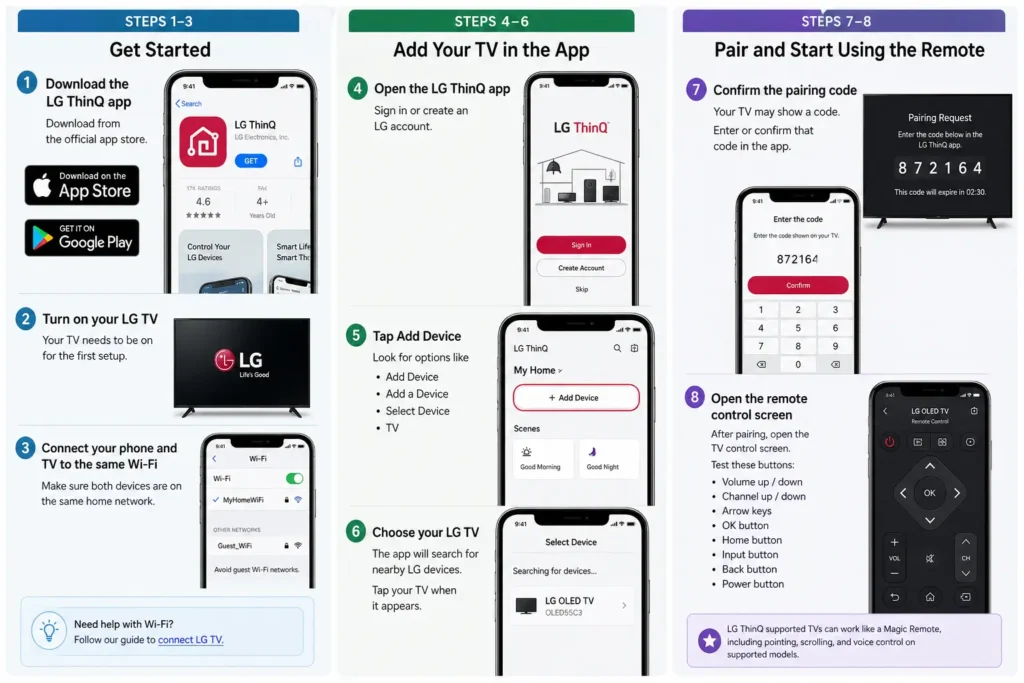
Step 1: Download the LG ThinQ app
Download LG ThinQ from the official app store for your phone.
Use:
- Apple App Store for iPhone
- Google Play Store for Android
Do not download random APK files unless you know what you are doing. App stores are usually safer than unknown download sites.
Step 2: Turn on your LG TV
Your TV needs to be on for the first setup.
If your remote is missing, try one of these:
- Use the power button on the TV
- Use a spare LG remote
- Use a universal remote
- Use a connected HDMI device remote if HDMI-CEC is enabled
Step 3: Connect your phone and TV to the same Wi-Fi
This is very important.
Your phone and LG TV should be on the same home network. If they are on different networks, the app may not find the TV.
Avoid guest Wi-Fi. Guest networks often block devices from seeing each other.
If you need help with Wi-Fi setup, follow this guide to connect LG TV.
Step 4: Open the LG ThinQ app
Open the app on your phone.
Sign in or create an LG account.
Step 5: Tap Add Device
Look for an option like:
- Add Device
- Add a Device
- Select Device
- TV
The exact words may change as the app updates.
Step 6: Choose your LG TV
The app should search for nearby LG devices.
Tap your TV when it appears.
Step 7: Confirm the pairing code
Your TV may show a code.
Enter or confirm that code in the app.
Step 8: Open the remote control screen
After pairing, open the TV control screen.
Test these buttons:
- Volume up and down
- Channel up and down
- Arrow keys
- OK button
- Home button
- Input button
- Back button
- Power button
LG says supported ThinQ TV controls can work like a Magic Remote, including input, volume, channel, pointer, scroll, arrow buttons, and OK.
Best LG TV remote apps compared
Most people should start with LG ThinQ.
But some people want other options. You may want a different app for an older TV, an iPhone, Android, or Windows PC.
Here is a simple comparison.
| App type | Official? | Best for | iPhone | Android | Free? | Works without WiFi? | Trust level |
|---|---|---|---|---|---|---|---|
| LG ThinQ app | Yes | Most LG Smart TVs | Yes | Yes | Usually free | Usually no | Highest |
| Third-party iPhone LG remote apps | No | Extra features like keyboard or touchpad | Yes | No | Sometimes | No | Medium |
| Third-party Android LG remote apps | No | Extra features or older TV support | No | Yes | Sometimes | Sometimes with IR | Medium |
| IR blaster remote apps | No | Older TVs without smart features | No | Yes | Often | Yes, if phone has IR | Mixed |
| Windows PC LG remote apps | No | Controlling LG TV from a laptop or desktop | No | No | Varies | No | Mixed |
| APK download apps | No | Manual Android install | No | Yes | Often | Varies | Lower |
Best overall LG TV remote app
The best overall choice is the LG ThinQ app.
Why?
- It is official.
- It supports LG smart devices.
- It is available on iPhone and Android.
- It replaces the old LG TV Plus app features.
- It has better trust than most unknown remote apps.
Best free LG TV remote app
The best free LG TV remote app to try first is LG ThinQ.
Many third-party apps say they are free. But some show ads. Some lock features behind a subscription. Some charge for keyboard, touchpad, casting, or screen mirroring.
That does not always make them bad. But you should check before you pay.
Best LG TV remote app for older TVs
For older LG TVs, the answer depends on the TV.
If it is an older smart TV, try LG ThinQ first.
If it is not a smart TV, or it is not connected to Wi-Fi, you may need:
- A physical remote
- A universal remote
- An Android phone with an IR blaster
- A replacement LG Magic Remote
LG TV remote app for iPhone
If you need an LG TV remote app for iPhone, start with the LG ThinQ app.
This is the best first choice because it is official. Apple’s App Store lists LG ThinQ for iPhone and iPad users.
You can also find third-party LG TV remote apps for iPhone. Some offer nice features like:
- Touchpad
- Keyboard
- App shortcuts
- Screen mirroring
- Casting
- Saved remotes
But be careful.
Before you install a third-party app, check:
- Who made the app
- Recent reviews
- In-app purchases
- Subscription price
- Privacy labels
- Last update date
- Whether it clearly says it is not official
Free LG TV remote app for iPhone
If you want a Free LG TV remote app for iPhone, try LG ThinQ first.
It may do what you need without paying for another app.
A third-party iPhone app may look free at first. But it may later ask you to pay for:
- No ads
- Full remote features
- Keyboard use
- Screen mirroring
- Casting
- Unlimited use
Read the app page before you tap subscribe.
Common iPhone setup tips
If your iPhone cannot find your LG TV:
- Make sure both devices use the same Wi-Fi.
- Turn off VPN during setup.
- Allow local network access if iPhone asks.
- Restart the LG ThinQ app.
- Restart the TV.
- Restart the router.
- Update the TV software.
- Update the app.
LG TV remote app for Android
If you need an LG TV remote app for Android, start with the LG ThinQ app.
The LG ThinQ app is listed on Google Play. Google Play describes it as an app for connecting LG smart appliances and controlling them in one solution.
Android users also have more third-party options than iPhone users.
Some Android LG TV remote apps work over Wi-Fi.
Some work with an IR blaster.
These are not the same thing.
Wi-Fi Android remote apps
A Wi-Fi remote app works through your home network.
Your phone and TV need to be connected to the same network.
This is the common setup for smart LG TVs.
IR blaster Android remote apps
An IR blaster app works like an old remote.
It sends an infrared signal from your phone to the TV.
But there is a catch.
Your phone must have IR hardware. Many modern phones do not.
If your phone has no IR blaster, an IR remote app will not magically work.
Best free LG TV remote app for Android
The best free LG TV remote app for Android is usually LG ThinQ.
Try it before installing unknown apps.
If you use a third-party Android app, check:
- Ads
- Reviews
- Privacy policy
- Permissions
- App update date
- Whether it asks for too much access
- Whether it is clear about being unofficial
LG TV remote app without WiFi
Many people search for LG TV remote app without WiFi.
Here is the simple truth.
Most LG Smart TV remote apps need Wi-Fi. Your phone and TV usually need to be on the same network.
Without Wi-Fi, your options are limited.
What works without WiFi?
| Option | Works without WiFi? | Notes |
|---|---|---|
| LG ThinQ app | Usually no | Needs network setup for most TV control |
| Android IR blaster app | Yes, sometimes | Only if your phone has IR hardware |
| Physical LG remote | Yes | Best option for no-network control |
| Universal remote | Yes | Must support your LG TV |
| USB keyboard | Sometimes | Can help with setup on some TVs |
| Ethernet connection | Sometimes | TV can be wired, but phone still needs same network access |
Can LG ThinQ work if the TV uses Ethernet?
Sometimes, yes.
Your TV does not always need to be on Wi-Fi. It may be connected with an Ethernet cable.
But your phone still needs to be on the same local network.
So the key idea is not always “same Wi-Fi.” The real idea is “same home network.”
Can I use a hotspot?
Sometimes.
A hotspot can help in some cases. But it is not always easy.
For example, if your phone is creating the hotspot, it may be hard to use the same phone as the remote during setup.
A second phone may help.
Best answer
If you want an LG TV remote app without WiFi, use a physical remote or an Android phone with IR blaster support.
For most smart LG TV app control, use Wi-Fi or the same home network.
LG TV remote control app for Windows PC
Some people want an LG TV remote control app for Windows PC.
This can work, but it is different from using LG ThinQ on a phone.
There is no clear official LG ThinQ Windows PC remote app that replaces the mobile app for normal users. But there are third-party Windows apps in the Microsoft Store. For example, Microsoft Store lists apps that say they can control network-connected LG webOS TVs from Windows.
Use care before installing one.
Check:
- Publisher name
- Recent reviews
- App permissions
- Last update date
- Privacy policy
- Whether it supports your LG TV model
- Whether it has ads or in-app purchases
When a Windows PC remote app makes sense
It may help if:
- You use your TV as a monitor
- You control media from your desk
- You lost your TV remote
- You want to switch input from your laptop
- You want volume control from your PC
When it may not be worth it
Skip it if:
- You only need simple TV control
- You already have LG ThinQ on your phone
- The app has poor reviews
- The app asks for odd permissions
- The publisher is unknown
- Your TV is not on the same network
For most people, the phone app is easier.
Can you turn your LG TV on with the app?
Sometimes, yes.
LG says LG TV models with webOS 3.5 and later can be turned on and off using the ThinQ app. LG also says older webOS versions may only support power-off.
That means power control depends on your TV.
If power-on does not work, your TV may be too old. Or a setting may be off.
Try this:
- Check your TV model.
- Update the TV software.
- Keep the TV connected to the network.
- Check mobile TV control settings.
- Keep standby network features turned on if your TV supports them.
If it still does not work, use the physical remote or power button.
What can the LG ThinQ remote control do?
The LG ThinQ app can act like a remote for supported TVs.
It may let you:
- Turn the TV on or off
- Change volume
- Change channels
- Select input
- Move a pointer
- Use arrow keys
- Press OK
- Scroll
- Open apps
- Share content from your phone
LG says ThinQ TV controls can include TV input, volume, channel, pointer movement, scroll, arrow buttons, and OK.
Not every feature works on every TV.
Your app version, phone, TV model, and webOS version can change what you see.
Why is my LG TV remote app not finding my TV?
This is one of the most common problems.
Do not delete the app right away. Try these fixes first.
1. Your phone and TV are on different networks
This is the big one.
Your phone may be on mobile data. Your TV may be on home Wi-Fi. Or your phone may be on guest Wi-Fi.
Fix:
- Connect your phone to your home Wi-Fi.
- Connect the TV to the same network.
- Avoid guest Wi-Fi.
- Try again.
2. VPN is blocking the connection
A VPN can hide your phone from local devices.
Fix:
- Turn off VPN.
- Close the app.
- Open it again.
- Search for the TV again.
3. Your router is blocking device discovery
Some routers have settings that stop devices from seeing each other.
Look for settings like:
- AP isolation
- Client isolation
- Guest network isolation
- Private Wi-Fi mode
Fix:
- Use the main home network.
- Turn off guest isolation.
- Restart the router.
4. Your TV software is old
Old TV software can cause pairing problems.
Fix:
- Open TV settings.
- Go to support or software update.
- Install updates.
- Restart the TV.
5. The app needs permission
Your phone may block the app from seeing your TV.
On iPhone, check local network permission.
On Android, check nearby devices, location, and Wi-Fi permissions if the phone asks for them.
Only allow permissions you understand.
6. Your TV is too old
Some older LG TVs may not support full app control.
Fix:
- Check your TV model.
- Check webOS version.
- Try a physical remote.
- Try a universal remote.
- If your Android phone has IR, try an IR remote app.
7. The app needs a restart
Simple, but it works often.
Try:
- Close LG ThinQ.
- Turn the TV off.
- Unplug the TV for 30 seconds.
- Restart the router.
- Open the app again.
- Pair again.
Troubleshooting table
| Problem | Likely reason | Simple fix |
|---|---|---|
| App cannot find TV | Phone and TV are on different networks | Put both on same home network |
| TV does not show pairing code | TV is not ready or app is stuck | Restart TV and app |
| Remote buttons lag | Weak Wi-Fi | Move closer to router |
| Power-on does not work | TV model may not support it | Check webOS version |
| App disconnects often | Router or VPN issue | Turn off VPN and restart router |
| Keyboard does not work | App or TV limitation | Try official app first |
| Third-party app asks for payment | Feature is locked | Check subscription terms |
| App works on Android but not iPhone | Different permissions or app features | Check iPhone local network access |
Are LG TV remote apps safe?
LG ThinQ is the safest first choice because it is the official LG app.
Third-party apps can still be useful. But you should check them before installing.
Some third-party apps are helpful. Some are full of ads. Some ask for payment after a free trial. Some may collect more data than you expect.
Use this checklist.
| Trust factor | What to check |
|---|---|
| Developer | Is it LG Electronics or another company? |
| Reviews | Are recent users happy? |
| Privacy | Does the app explain what data it collects? |
| Permissions | Does it ask for access it does not need? |
| Ads | Are users complaining about too many ads? |
| Subscription | Is the price clear before you subscribe? |
| Updates | Has the app been updated recently? |
| Download source | Is it from the App Store or Google Play? |
Be careful with APK sites
An APK is an Android app file.
Some websites offer LG remote app APK downloads.
Be careful with these.
APK files can be risky if they come from unknown sites. They may be outdated. They may be changed. They may not match the real app.
Use Google Play when possible.
Official vs third-party LG remote apps
Here is the simple difference.
Official app
The official app is from LG.
It is better for:
- Trust
- Basic TV control
- Safer setup
- Better brand support
- Less confusion
Third-party app
A third-party app is made by another developer.
It may be useful for:
- Extra features
- Different layout
- Keyboard controls
- Touchpad controls
- Screen mirroring
- Older TV support
- Windows PC control
But it may also have:
- Ads
- Subscriptions
- Privacy concerns
- Weak support
- Poor reviews
- Limited compatibility
Use third-party apps only when you have a clear reason.
How to choose the best free LG TV remote app
Do not choose only by star rating.
Use this simple checklist.
Choose an app that has:
- Clear developer name
- Recent updates
- Good recent reviews
- Clear privacy policy
- No surprise charges
- No strange permissions
- Support for your TV model
- Simple setup steps
Avoid an app that has:
- No clear publisher
- Too many ads
- Bad recent reviews
- Hidden subscription terms
- No privacy details
- Fake-looking reviews
- No app update history
- Promises that sound too good
The best free LG TV remote app is the one that works, is safe, and does not trick you into paying.
For most users, that means starting with LG ThinQ.
LG TV remote app for iPhone vs Android
Both iPhone and Android can use LG ThinQ.
But the app experience may be a little different.
| Feature | iPhone | Android |
|---|---|---|
| LG ThinQ support | Yes | Yes |
| Official app store | Apple App Store | Google Play |
| Wi-Fi remote control | Yes | Yes |
| IR blaster option | No | Only on some phones |
| Third-party app choices | Many | Many |
| No-WiFi control | Very limited | Possible with IR hardware |
| Permissions | Local network and other iOS permissions | Nearby devices, Wi-Fi, location, or other Android permissions |
If you have an iPhone, use LG ThinQ first.
If you have Android, use LG ThinQ first. Then consider IR apps only if your phone has IR hardware and your TV supports infrared control.
Do you need an LG account?
Usually, yes.
LG ThinQ may ask you to sign in or create an LG account.
That can feel annoying. But it helps the app manage your connected devices.
If you do not want to create an account, a third-party app may look easier. But third-party apps may have their own privacy risks.
Choose the option you trust most.
Can you control an LG TV without the original remote?
Yes, in many cases.
Try these options:
- LG ThinQ app
- Physical button on the TV
- Universal remote
- Replacement LG Magic Remote
- HDMI-CEC remote from a streaming device
- USB keyboard
- Android phone with IR blaster
- Windows PC remote app for supported TVs
The easiest option is usually LG ThinQ if your TV is already on the network.
If your TV is not connected to Wi-Fi yet, setup may be harder. You may need a physical remote, keyboard, or Ethernet cable.
Best setup for fewer problems
Use this setup for the best chance of success:
- Keep TV and phone on the same home network.
- Avoid guest Wi-Fi.
- Keep the TV software updated.
- Keep the LG ThinQ app updated.
- Use the official app first.
- Restart the router if the app cannot find the TV.
- Turn off VPN during setup.
- Keep your TV model number handy.
Content sharing and screen features
Some users want more than a remote.
They want to share photos, videos, or music from a phone to the TV.
LG says ThinQ can share content from your mobile phone after setup.
But screen sharing can depend on your phone, TV, app version, and region.
If sharing does not work:
- Update the app.
- Update the TV.
- Use the same network.
- Try built-in screen sharing.
- Try AirPlay if your LG TV supports it.
- Try HDMI cable if wireless sharing fails.
When should you buy a replacement remote?
An app is useful. But it should not always replace a real remote.
Buy a replacement remote if:
- You use the TV every day
- The app disconnects often
- You have older family members at home
- The TV is not always on the network
- You need power-on to work every time
- You do not want to use your phone for TV control
- You use cable or set-top boxes often
A phone app is a great backup.
A physical remote is still better for simple daily use.
Best LG TV remote app by situation
| Situation | Best choice |
|---|---|
| You want the safest option | LG ThinQ app |
| You want the official option | LG ThinQ app |
| You want an LG TV remote app free | Try LG ThinQ first |
| You have an iPhone | LG ThinQ app for iPhone |
| You have Android | LG ThinQ app for Android |
| You have no WiFi | Physical remote or Android IR blaster |
| You want Windows PC control | Check Microsoft Store apps carefully |
| You have an old LG TV | Check model, webOS, and IR support |
| You want no ads | Start with official app |
| You want extra features | Compare third-party apps carefully |
What to check before installing any LG remote app
Before you install, ask these questions:
- Is this app official?
- Who made it?
- Is it updated?
- Does it have recent good reviews?
- Does it work with LG webOS?
- Does it support my phone?
- Does it require Wi-Fi?
- Does it need an IR blaster?
- Is it free or paid?
- Are there ads?
- Is there a subscription?
- What data does it collect?
This takes one minute. It can save you from a bad app.
Frequently Asked Questions
Is there an official LG TV remote app?
Yes. The official app to start with is the LG ThinQ app. LG says the features of the older LG TV Plus app are now integrated into LG ThinQ.
What happened to LG TV Plus?
LG TV Plus is no longer the best app to start with. LG says LG TV Plus features are now built into the LG ThinQ app.
Is the LG TV remote app free?
The LG ThinQ app is available on Google Play and Apple’s App Store. Check the app store in your country for the latest price, features, and in-app terms.
What is the best LG TV remote app for iPhone?
The best LG TV remote app for iPhone is usually the LG ThinQ app. It is the official app to try before using paid or third-party iPhone remote apps.
What is the best LG TV remote app for Android?
The best LG TV remote app for Android is usually the LG ThinQ app. It is available on Google Play and supports LG smart device control.
Can I use an LG TV remote app without WiFi?
Usually, no. Most smart LG TV remote apps need your phone and TV on the same network. The main no-WiFi option is an Android phone with an IR blaster, if your phone and TV support infrared control.
Is there an LG TV remote control app for Windows PC?
Yes, there are third-party Windows apps that say they can control LG webOS TVs. Microsoft Store lists some LG TV remote apps for Windows. Check reviews, publisher details, and privacy before installing.
Are third-party LG TV remote apps safe?
Some are safe. Some are not great. Check the developer, reviews, privacy policy, permissions, ads, and subscription terms before installing.
Final verdict
For most people, the best LG TV remote app is the LG ThinQ app.
It is the official choice. It works on iPhone and Android. It replaces the older LG TV Plus app features. It can control many LG Smart TVs from your phone.
Use this simple rule:
- Start with LG ThinQ.
- Use third-party apps only if you need extra features.
- Avoid unknown APK files.
- Use an IR blaster app only if your Android phone has IR.
- Use Windows PC remote apps only after checking trust signals.
- Buy a replacement remote if you want the most reliable daily control.
Your phone can be a great LG TV remote.
But the best app is not always the one with the biggest ad or highest promise.
It is the one that works, keeps things simple, and does not surprise you later.
References:
LG.com. LG TV – The LG TV Plus Remote App is Now ThinQ